
You can register for PRONTEST Series in your browser using a Google account. The person registering must complete the steps themselves. After Google authentication, enter your PRONTEST Series profile and review the terms.
Authenticate with Google
If multiple Google accounts are displayed, select the one you will use for PRONTEST Series from now on. This uses a different login option from registering by entering a Gmail address in the email address registration form.
- Open the PRONTEST Series registration page.
- Press 「Googleで登録」 (Register with Google).
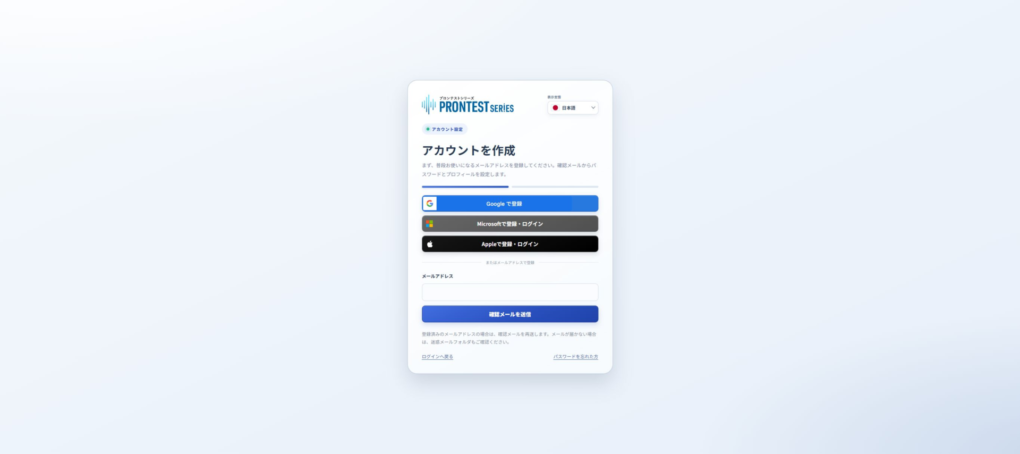
- Select the Google account you want to use for registration.
- Complete the authentication shown on Google’s screen.
Set up your profile
If the full registration screen appears after Google authentication, continue with the steps below. If My Page opens, registration is already complete and you do not need to enter these details.
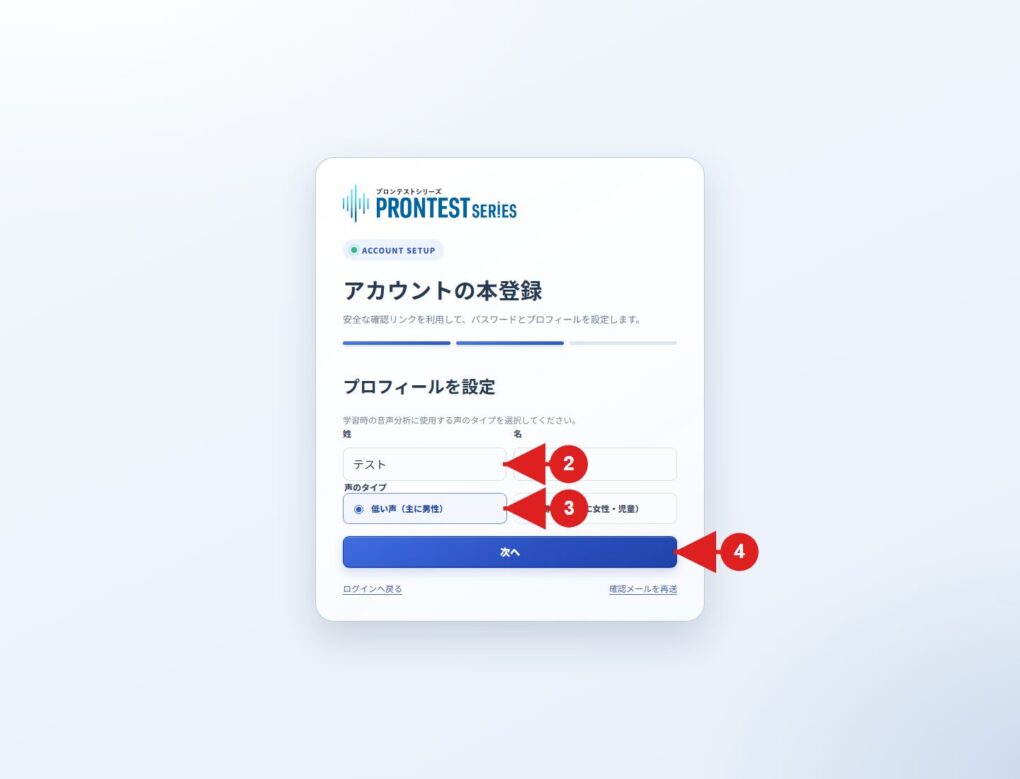
- Fill in 「姓」 (Family name) and 「名」 (Given name).
- Select your voice type from 「低い声(主に男性)」 (Low voice, mainly men) or 「高い声(主に女性・児童)」 (High voice, mainly women and children).
- Press 「次へ」 (Next).
Check your details and complete registration
- Check the registration details displayed.
- Review the Privacy Policy and Terms of Use, and agree to them.
- Press 「登録を完了」 (Complete registration).
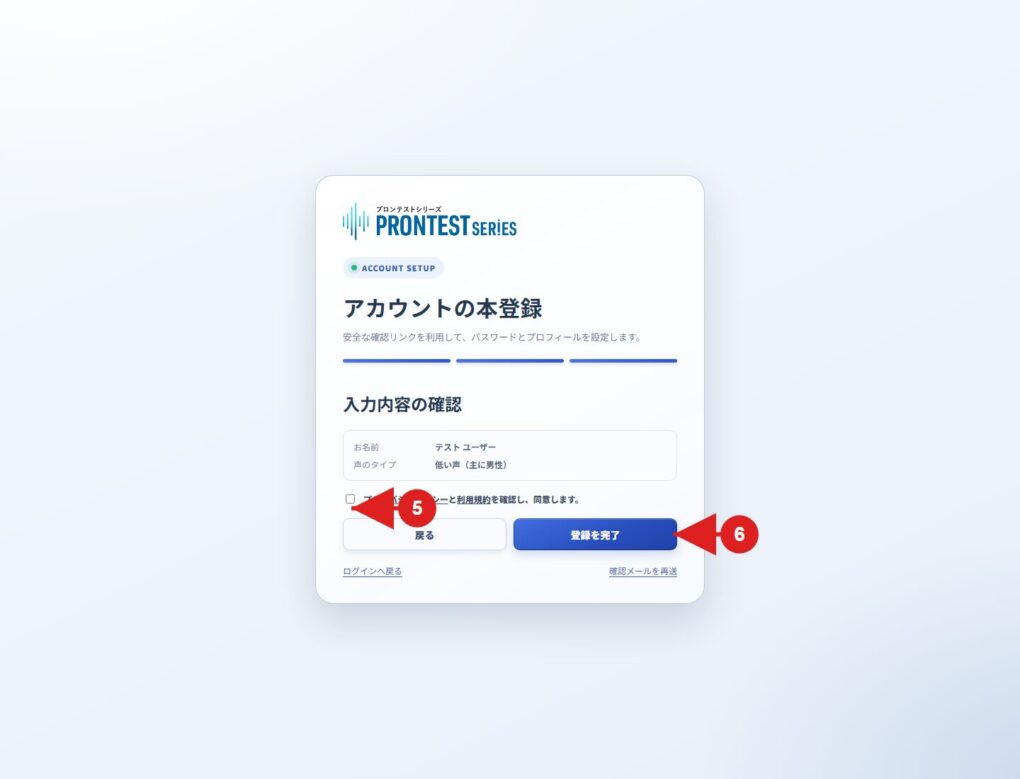
Registration is complete when My Page appears. From your next login, use 「Googleでログイン」 (Log in with Google) on the login page and select the same account you used to register.
If you cannot proceed
If you get stuck on Google’s authentication screen, check the instructions displayed by the external service. If an error occurs after you return to the PRONTEST Series screen, tell support what is displayed and which registration method you used.
If you already use PRONTEST Series, check your previous login method before registering again by a different method.
Related pages: Registration page / My Page login page / How to recover your Google Account / Contact PRONTEST
Related articles
If you registered with Google and do not receive a password reset email