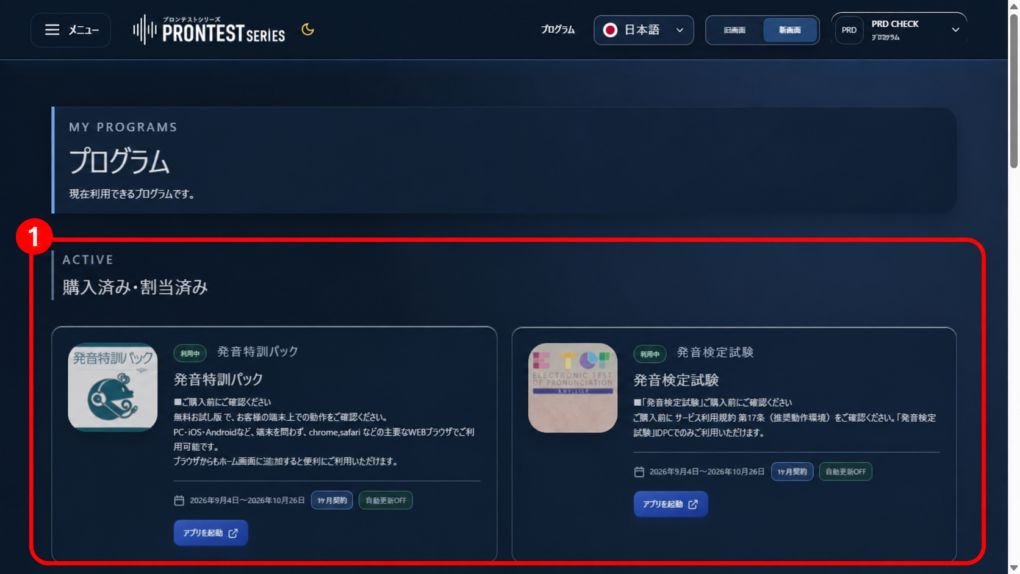
After logging in, you can start free apps from the 「プログラム」 (Programs) screen. You can try one lesson each in 発音特訓パック (pronunciation training pack) and プロンテスト・コール, with no expiration date. If you have not registered, complete registration, then log in using the method you registered with.
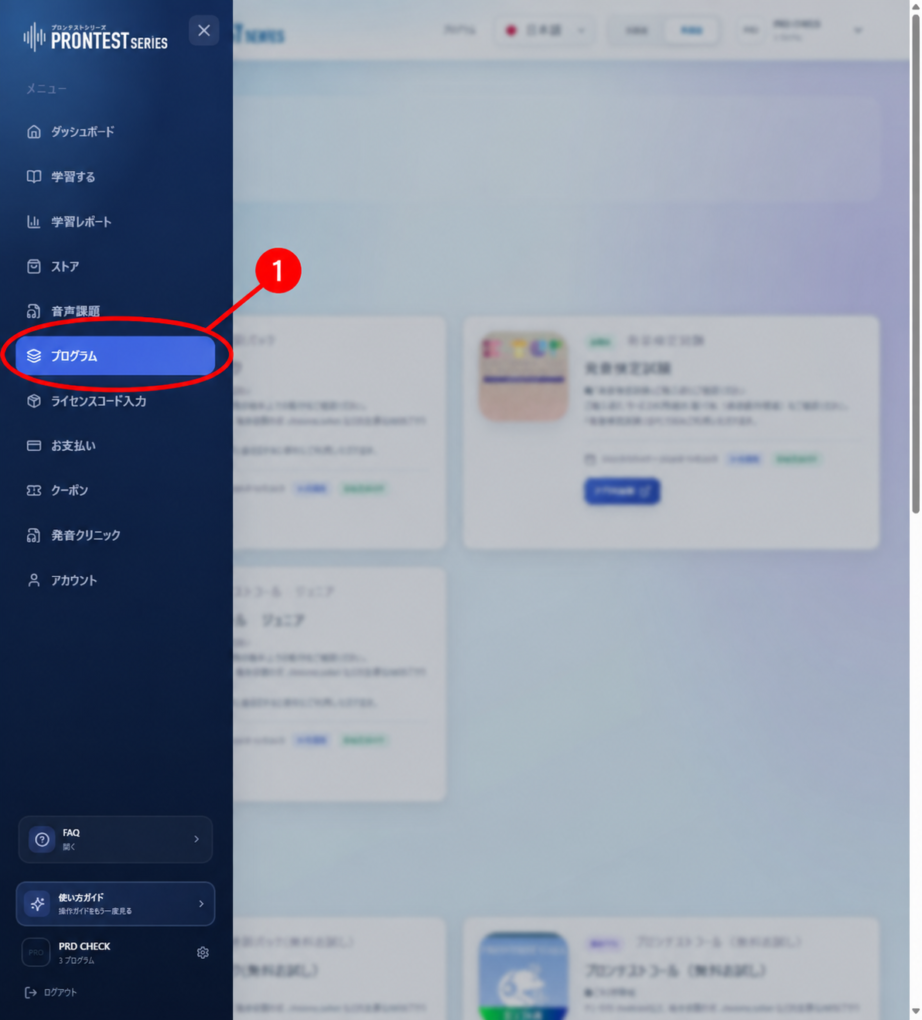
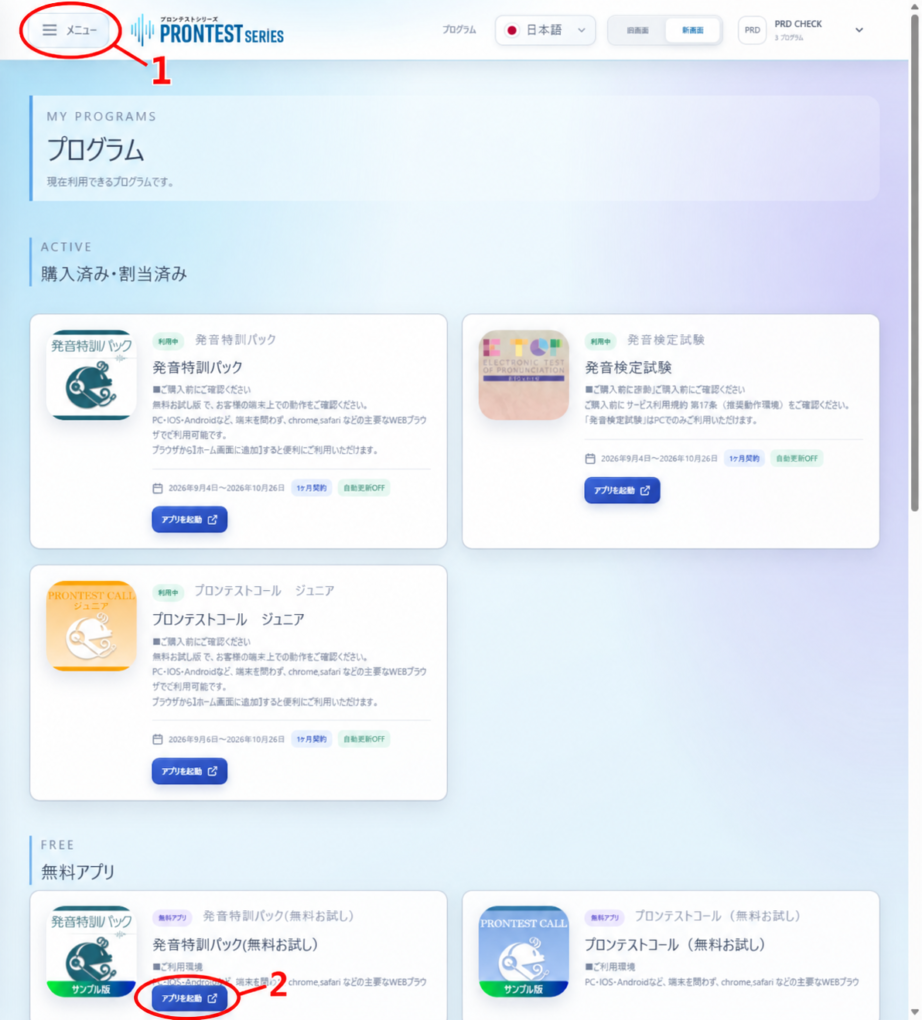
If the My Page sidebar is hidden, select the menu icon to display it.
Open a free app
1. Select 「プログラム」 (Programs) in the My Page sidebar.
2. Go to 「無料アプリ」 (Free apps), then select 「アプリを起動」 (Launch app) for the app you want to try.
3. Once the learning screen opens, select the displayed learning material and follow the onscreen instructions to begin.
Before starting pronunciation practice
Check that you can hear the model audio. If your browser requests microphone access for recording, confirm that you are on the PRONTEST learning screen, then allow it. Before recording, move somewhere that will not pick up other people’s conversations.
If no app is listed or the app will not launch
If 「無料アプリがありません」 (No free apps available) appears, check which account you are logged in to. If an error appears when launching an app, check the message.
Contact support with the name of the program you want to use, your device and browser, and the message displayed. Contact PRONTEST
Use a purchased program
If you have purchased a paid program, launch it from 「購入済み・割当済み」 (Purchased/Assigned). You do not need to look for purchased learning materials under Free apps.