
If you have received a license code, register it in My Page for the account you will use for learning. Receiving a code or license certificate alone does not complete the steps needed to start using the app. After registering the code, launch the relevant program.
If you cannot see the sidebar in My Page, press the menu icon to display it.
What to prepare before registering
Have the license code sent by the issuer and the PRONTEST Series account you will use for learning ready. If your school, tutoring center, workplace, or another organization has specified which account to use, check those instructions first.
If you do not have an account yet, complete registration. If you already have one, log in with that account rather than creating a new one. Take care not to register the code using someone else’s account or an account you will not use for learning.
Register the code
1. Log in to My Page with the account you will use for learning.
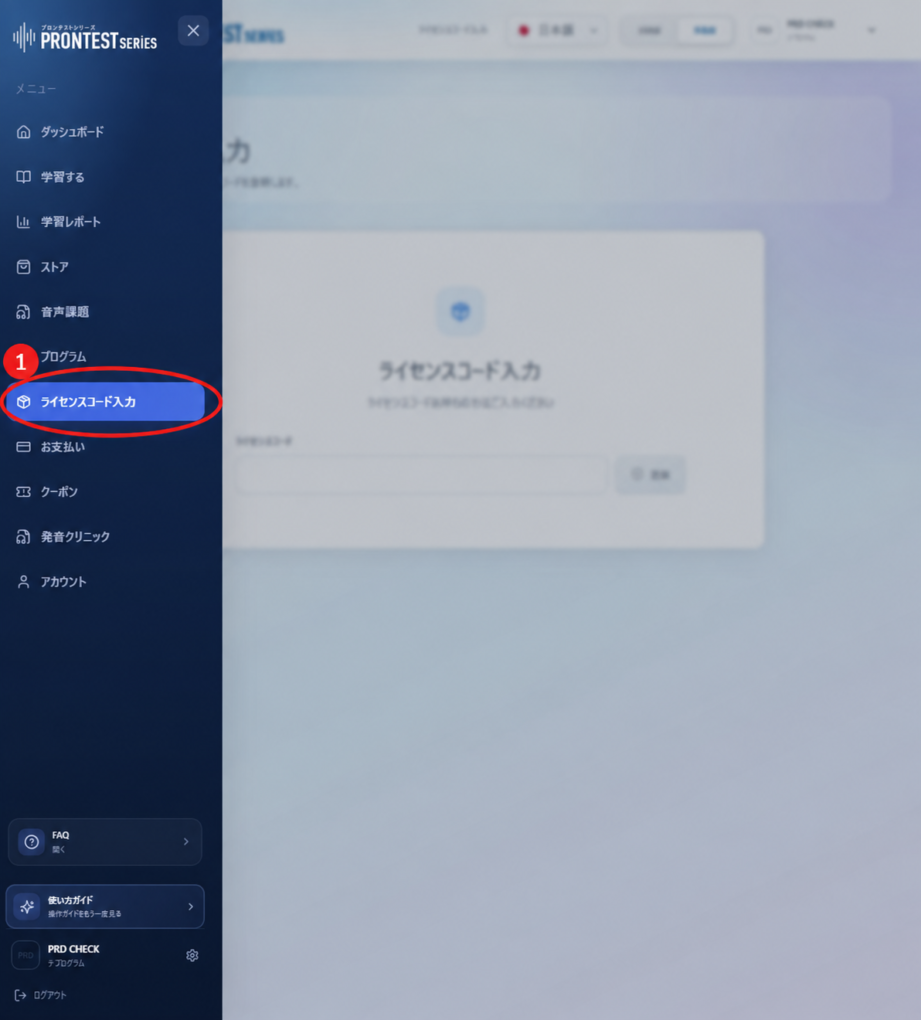
2. Open 「ライセンスコード入力」 (Enter license code) in the sidebar.
3. Enter the license code you received from the issuer in the input field. If you copy it, check that there are no spaces or line breaks before or after it.
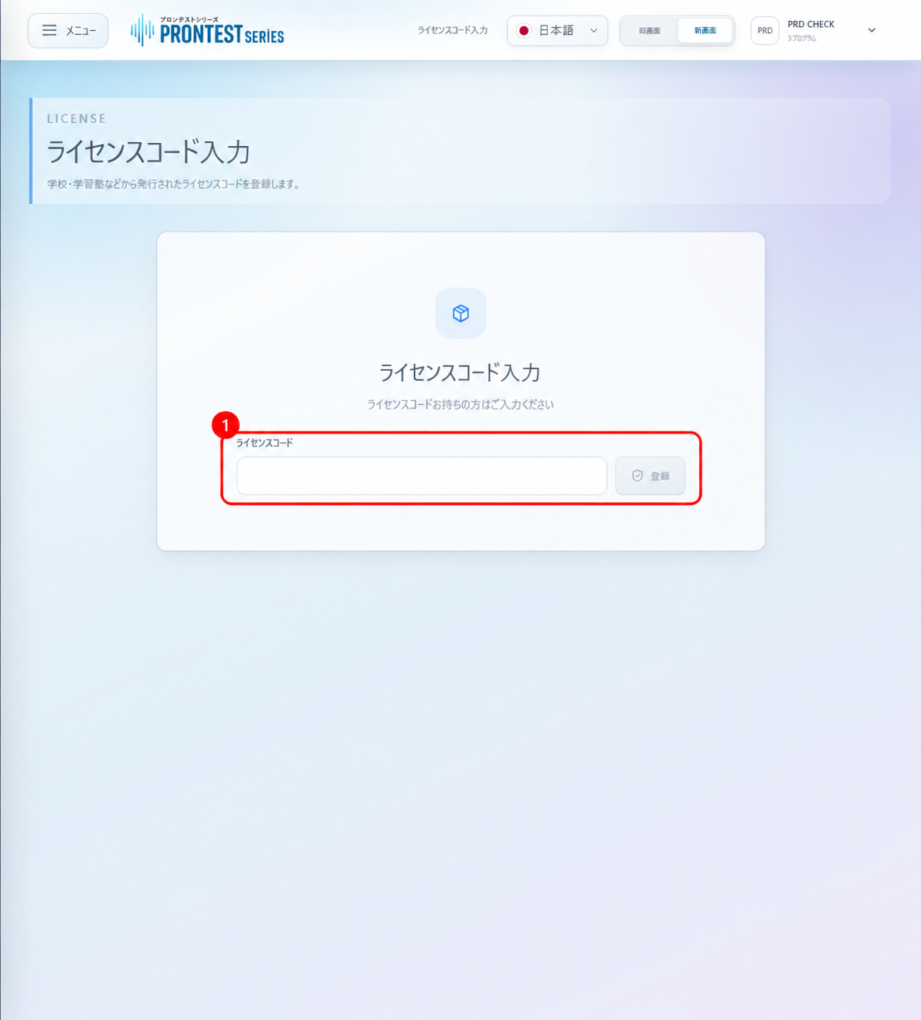
4. Press 「登録」 (Register). The code is registered when 「登録完了」 (Registration complete) appears. If an error appears, check the message.
Launch the app you registered
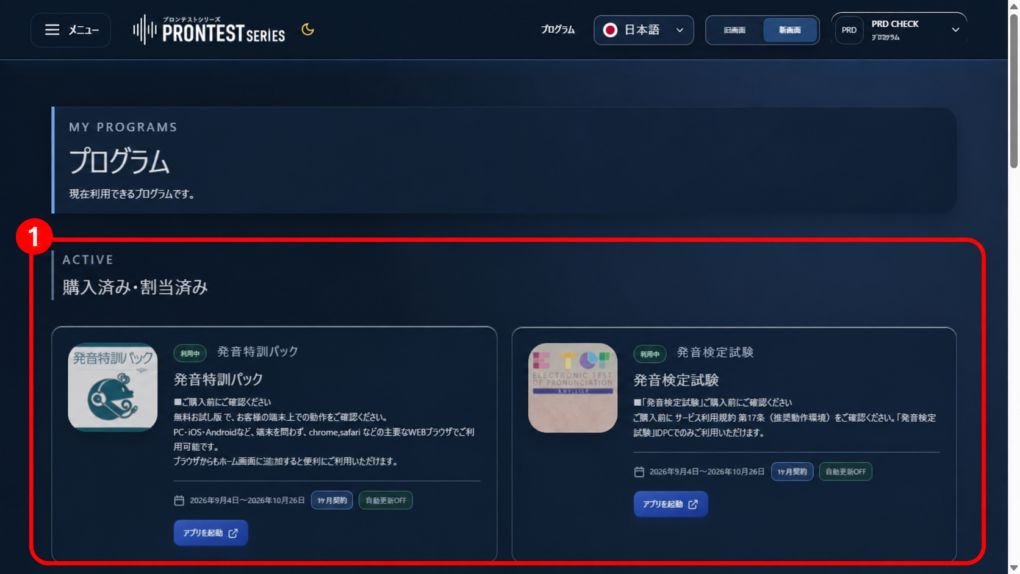
1. Once registration is complete, open 「プログラム」 (Programs) in the sidebar.
2. Check that the relevant program appears under 「購入済み・割当済み」 (Purchased or assigned) and check its access period.
3. Press 「アプリを起動」 (Launch app) for the relevant program. You can start using it when the learning screen opens.
If you cannot register the code
If an error still appears after you check the code, see the related guide “An error appears when registering a license code.” If you cannot find the program after registering, do not repeatedly register the code. Check the account you are logged in to and the name of the program you were issued.
When contacting the issuer, tell them the error displayed and the account you will use. Do not post your license code publicly or anywhere an unspecified audience can see it.