
How to resolve a license code error depends on whether the entry is incorrect, the code is already registered, or another issue applies. Check the onscreen message, then review the following in order.
If the My Page sidebar is hidden, select the menu icon to display it.
Check your entry first
1. Open the information from the issuer and compare the code you entered character by character.
2. Enter letters, numbers, symbols, and hyphens exactly as provided. If you copied the code, remove extra spaces or line breaks before and after it.
3. Check that you are logged in to the account you will actually use for learning.
4. If you corrected the entry, select 「登録」 (Register), then check the result.
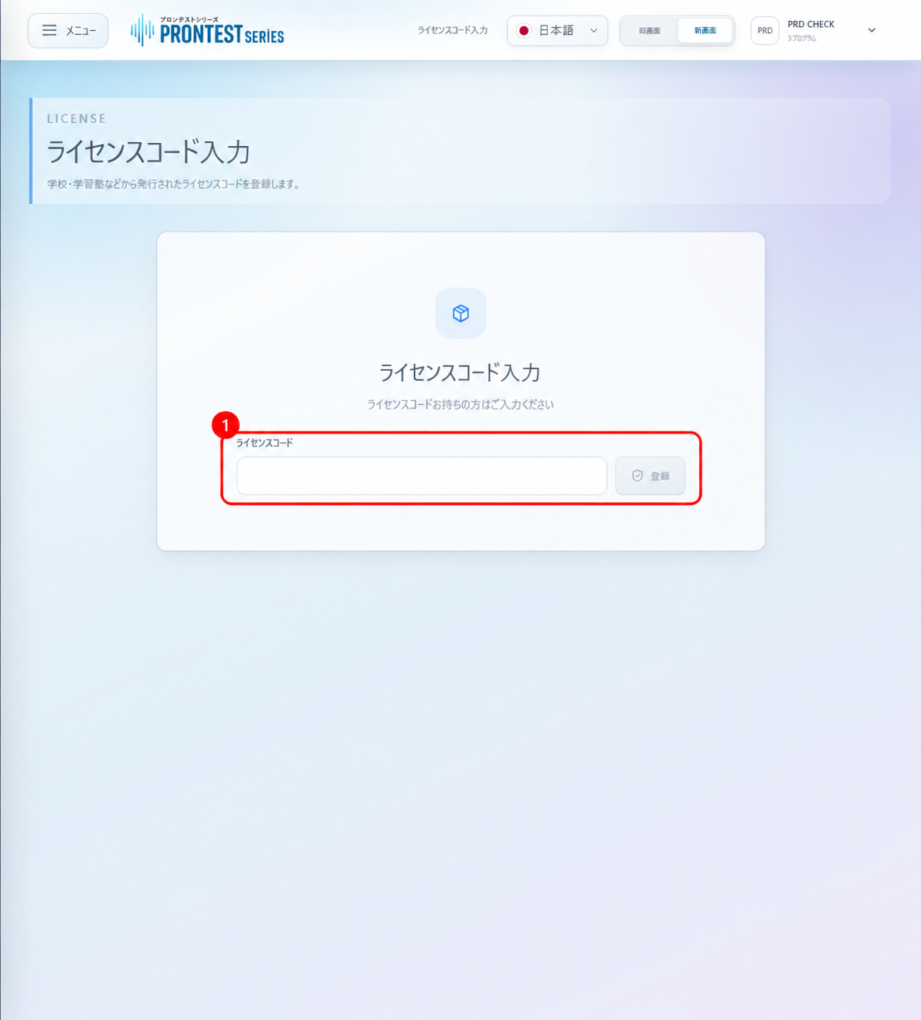
If the code is shown as already registered
If 「すでに登録済みのライセンスコードです。」 (This license code is already registered) appears, check whether you previously registered the same code to an account. If you recognize that account, open My Page with it and check 「プログラム」 (Programs) → 「購入済み・割当済み」 (Purchased/Assigned). If the program is available, use 「アプリを起動」 (Launch app) without registering the code again.
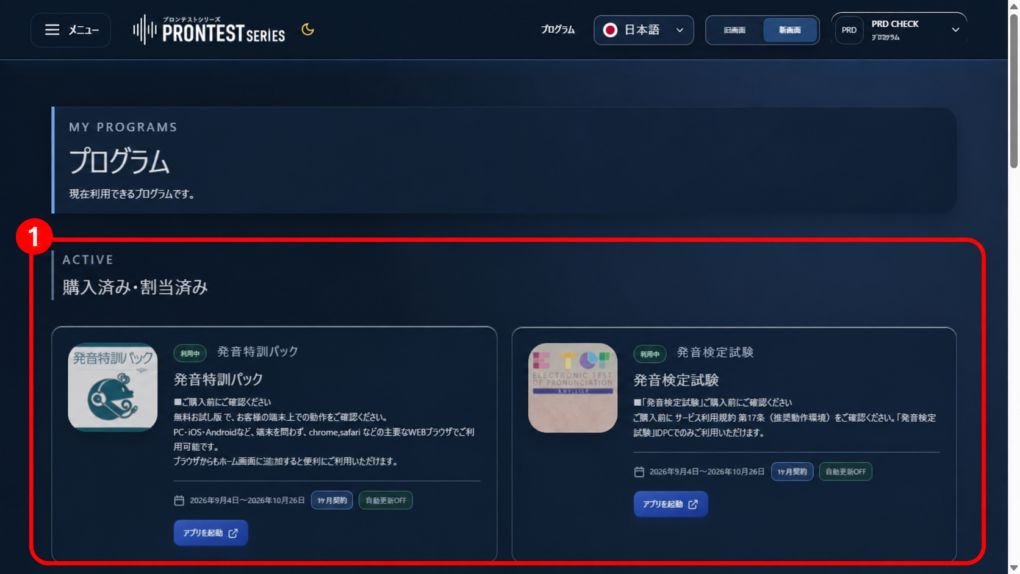
If you do not know whose account the code was registered to, or registered it to someone else’s account, contact the issuer. Deleting your account yourself does not necessarily allow you to register the code again.
If the code is shown as nonexistent or invalid
If 「該当のライセンスコードが存在しません。」 (This license code does not exist) or an invalid-code message appears, compare your entry with the issuer’s instructions. If an expiration date is provided, check it too. Do not assume the code is expired or already registered based on an error alone.
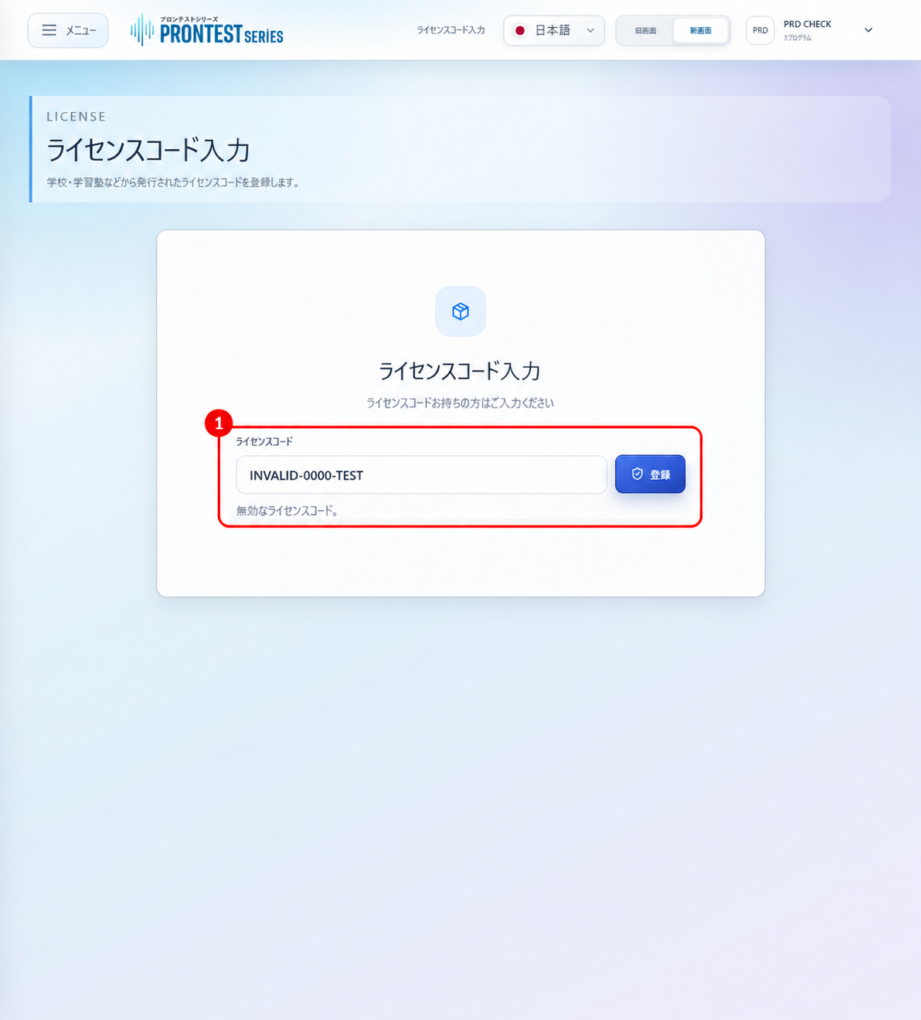
If the issue persists
Tell the school, tutoring center, workplace, or other code issuer the message displayed and the program you want to register. If you received the code directly from PRONTEST, contact support.
Hide the license code in screenshots you send. If the code needs to be checked, provide it using the method specified by the issuer. Contact PRONTEST