ご利用ありがとうございます

なにかお困りですか?

Registering with an email address

local_offer会員登録・登録内容

To register with an email address, receive the confirmation email first, then set your password and profile. Have an email address ready that you can check regularly.

Receive the confirmation email

  1. Open the PRONTEST Series registration page.
  1. Enter the email address you want to register in 「メールアドレス」 (Email address).
  1. Press 「確認メールを送信」 (Send confirmation email).
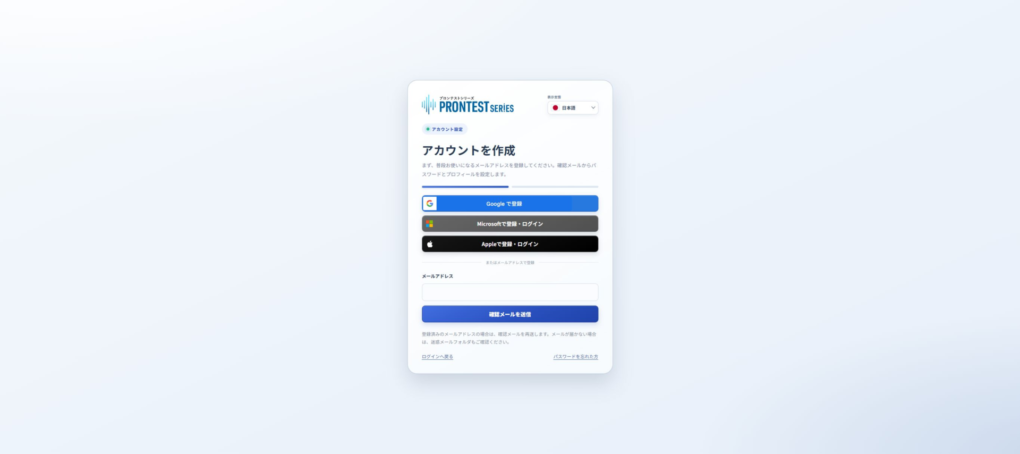
Example screen captured on October 5, 2026: Registration buttons for external accounts and the email address field for sending a confirmation email.
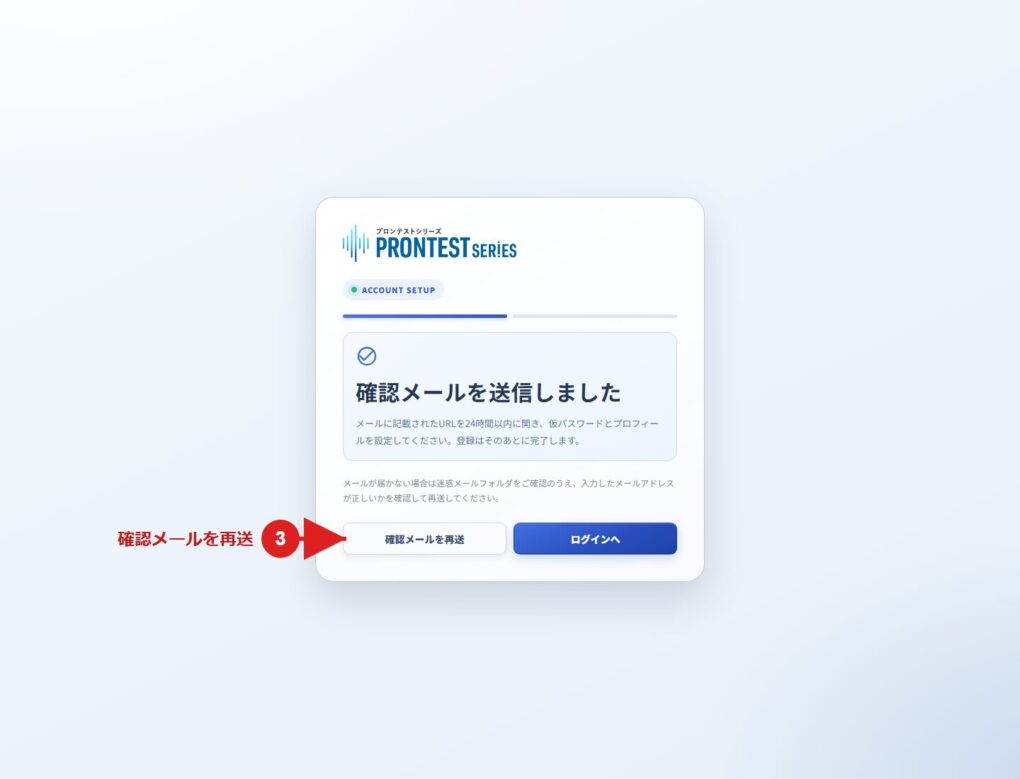
Existing example screen from September 2026 materials: The site's instructions after sending a confirmation email. The 3 in the image marks 「確認メールを再送」 (Resend confirmation email); it is separate from the step numbers in the text. This is not an image of the email message.
Existing example screen from September 2026 materials: The site’s instructions after sending a confirmation email. The 3 in the image marks 「確認メールを再送」 (Resend confirmation email); it is separate from the step numbers in the text. This is not an image of the email message.
  1. Open the confirmation email in the inbox for the email address you entered.
  1. Open the registration link in the email message.

Set your password

  1. Enter the temporary password provided in the email in 「仮パスワード」 (Temporary password).
  1. Enter the password you want to use in 「新しいパスワード」 (New password).
  1. Enter the same password in 「新しいパスワード(確認)」 (New password, confirmation).
  1. Press 「次へ」 (Next).

Your password must be 8–256 characters long and contain at least one half-width uppercase English letter, one half-width lowercase English letter, and one half-width digit. Half-width symbols are also allowed. Spaces and full-width characters are not allowed.
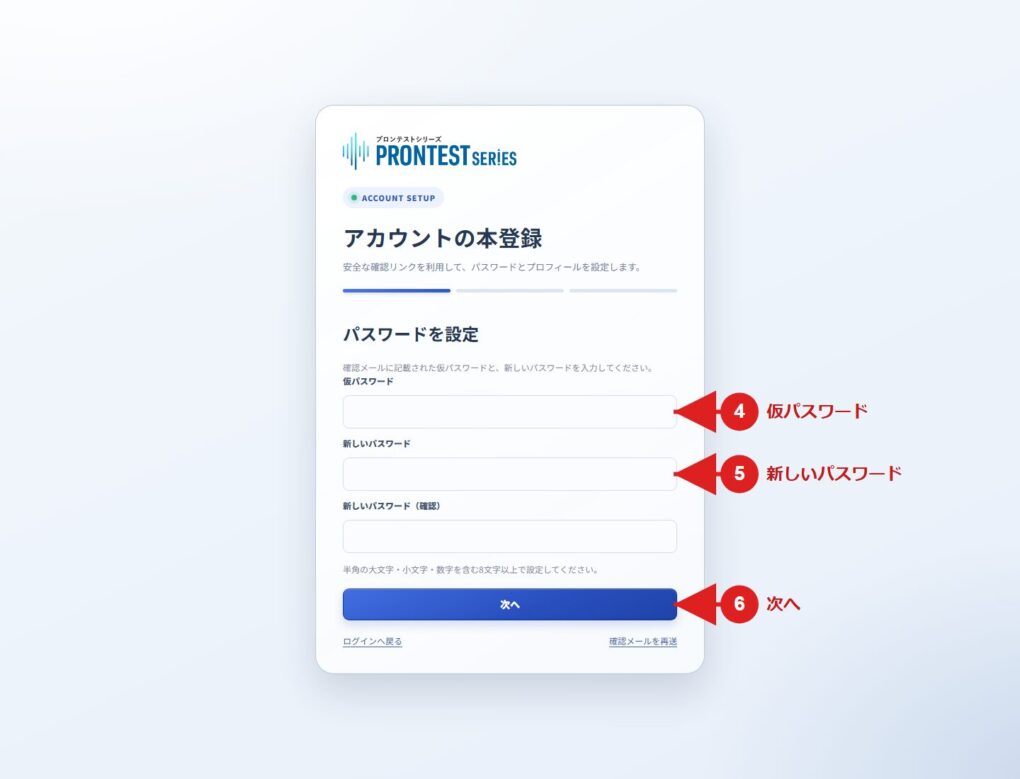
Existing example screen from September 2026 materials: The temporary password, new password, and confirmation fields, and 「次へ」 (Next).

Register your profile

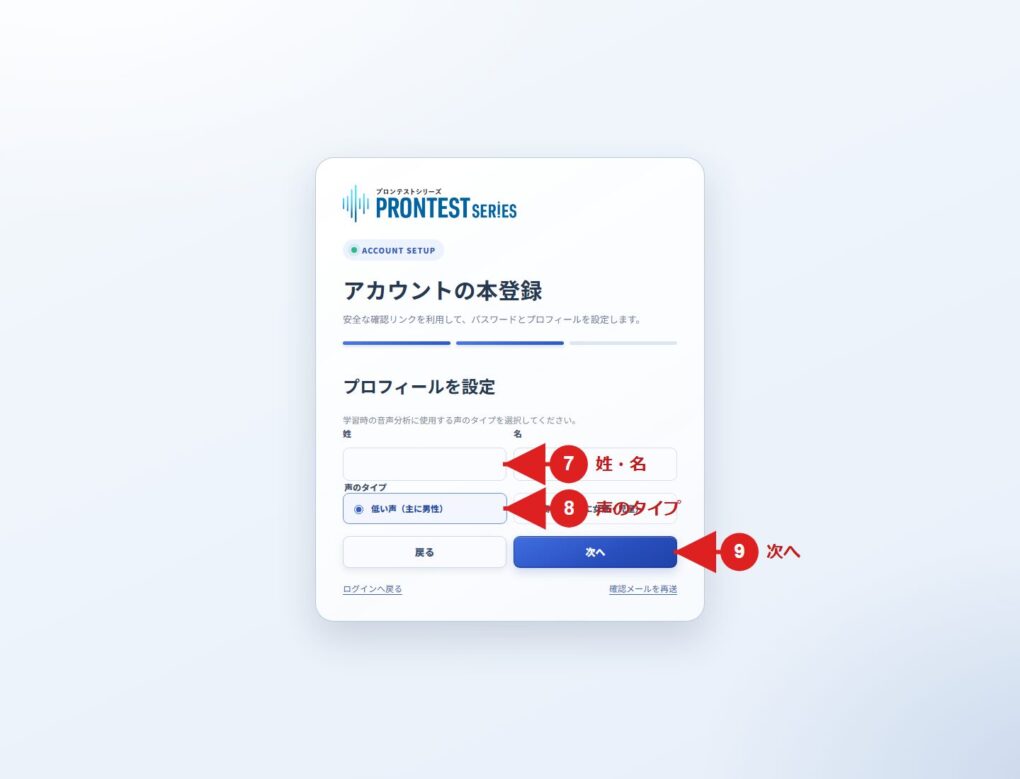
  1. Fill in 「姓」 (Family name) and 「名」 (Given name).
  1. Select your voice type from 「低い声(主に男性)」 (Low voice, mainly men) or 「高い声(主に女性・児童)」 (High voice, mainly women and children).
  1. Press 「次へ」 (Next).
Existing example screen from September 2026 materials: The 7, 8, and 9 in the image mark where to perform steps 1, 2, and 3 above. See the text for the voice type options.
  1. Check the registration details displayed.
  1. Review the Privacy Policy and Terms of Use, and agree to them.
  1. Press 「登録を完了」 (Complete registration).
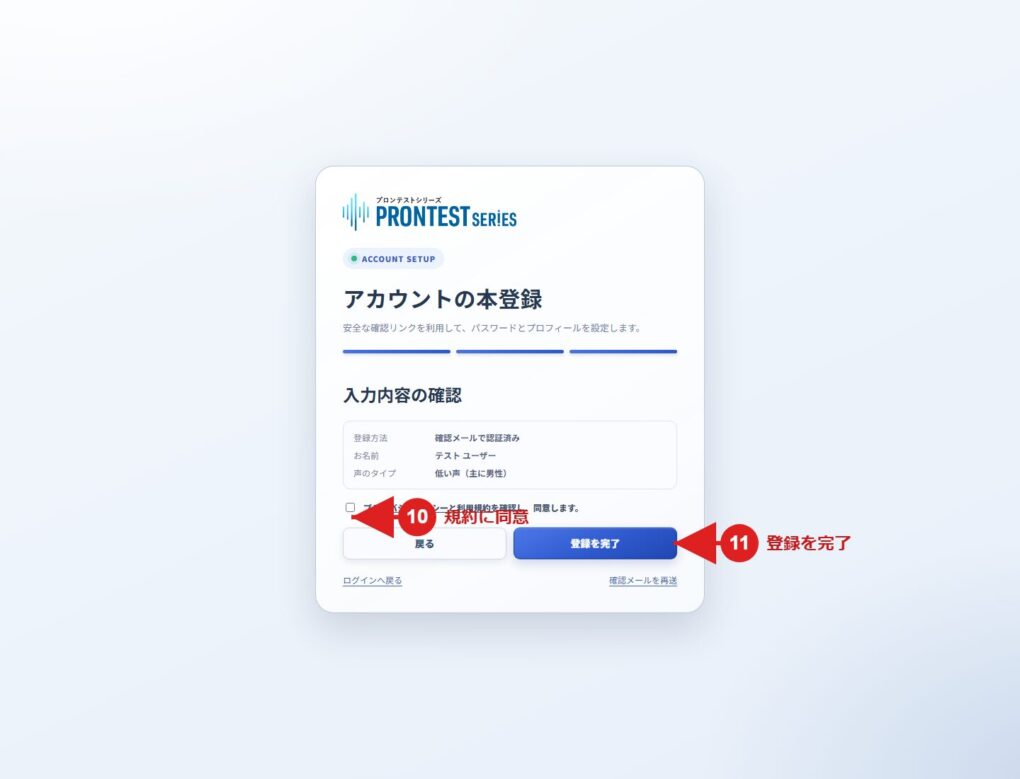
Existing example screen from September 2026 materials: The 10 in the image marks the agreement field in step 5 above, and 11 marks 「登録を完了」 (Complete registration) in step 6. A test name is displayed.

Registration is complete when My Page appears after registration. From your next login, use your registered email address and the password you set.

If you cannot proceed

If the confirmation email does not arrive, check the address you entered and your spam folder. If you have not completed registration, you can resend the confirmation email from the registration page.

If you have already completed registration, use the login page. If you do not know your password, select 「パスワードを忘れた方」 (Forgot your password).

To register using Google, Microsoft, or Apple, use the corresponding button on the registration page.

Related pages: Registration page / My Page login page

Related articles

If the registration confirmation email does not arrive

Logging in to My Page