
If the first letter is automatically capitalized, turn off 「自動大文字入力」 (Auto-Capitalization) in the iPad keyboard settings, then retype it. Changing this setting does not change text you have already entered.
Who should follow these steps: anyone registering an account on an iPad using Apple’s standard onscreen keyboard.
Change the onscreen keyboard settings
- On the registration screen, check which field contains the changed letters. Do not show your password to anyone or include it in a support inquiry.
- Open 「設定」 (Settings) on the iPad, then go to 「一般」 (General) → 「キーボード」 (Keyboard).
- Turn off 「自動大文字入力」 (Auto-Capitalization).
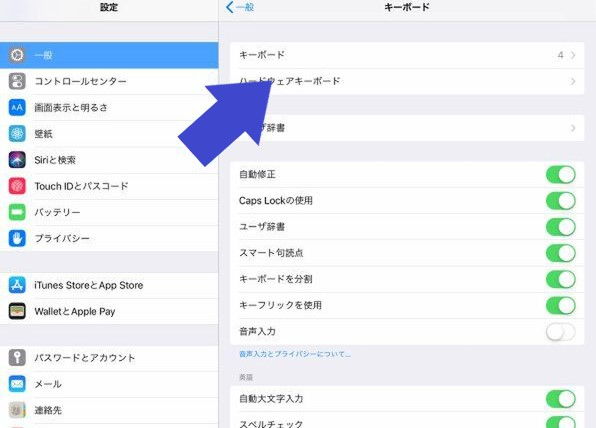
- Return to the registration screen, select the letters that were capitalized, and correct them. Continue typing and check that uppercase and lowercase letters appear as intended.
This change affects typing in other supported apps as well as PRONTEST. You can turn it back on in the same place when needed.
If letters still change
- All letters become uppercase: check whether Shift or Caps Lock is enabled on the keyboard.
- An entire word changes spelling: autocorrection or selecting a suggested word may be responsible, rather than auto-capitalization. Check 「自動修正」 (Auto-Correction) in the keyboard settings.
- You are using an external keyboard: try the onscreen keyboard first to see whether the same issue occurs. For external or third-party keyboard settings, refer to the instructions for that device or app.
Before continuing registration
Do not convert your entire email address or password to lowercase. Check the exact text you want to register and the requirements shown for each field. If registration still fails after correcting the capitalization, check the error message on the screen.