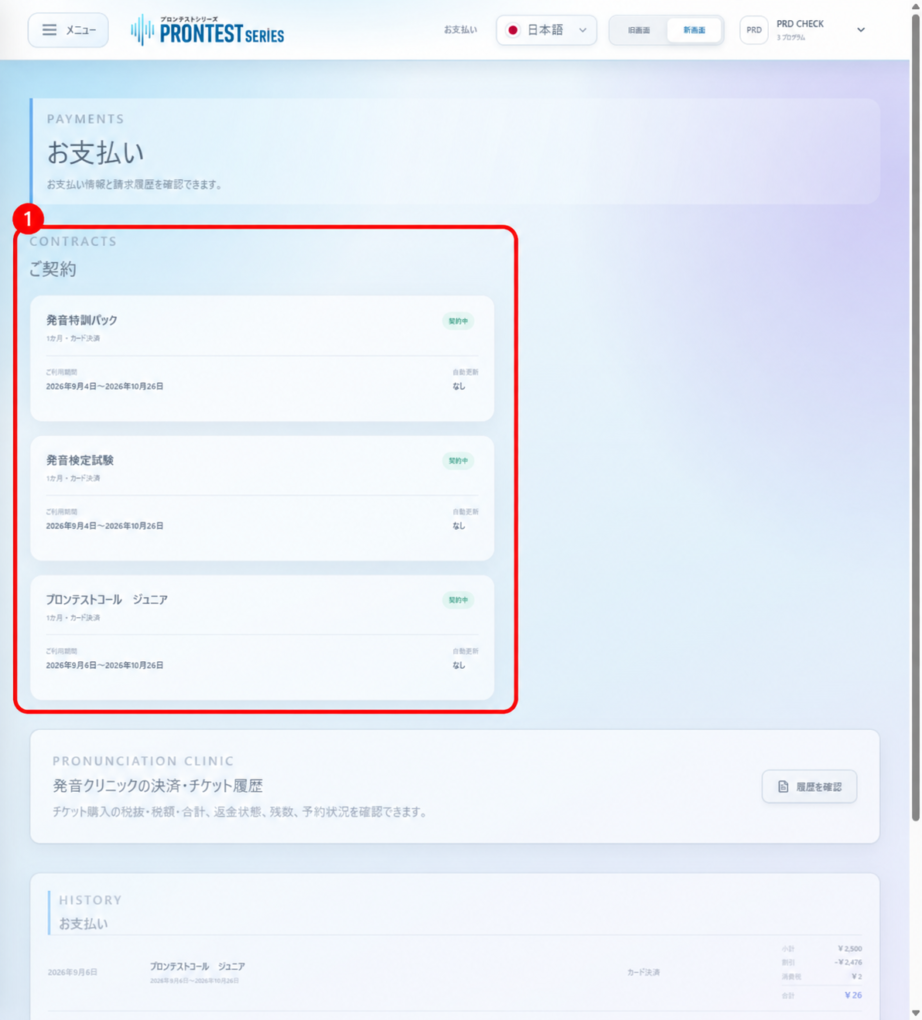
Prices vary depending on the program, access period, and purchase channel. Before purchasing, check the total amount in the store and on the payment screen. After purchasing, check your own access period and next scheduled payment or renewal under 「お支払い」 (Payments).
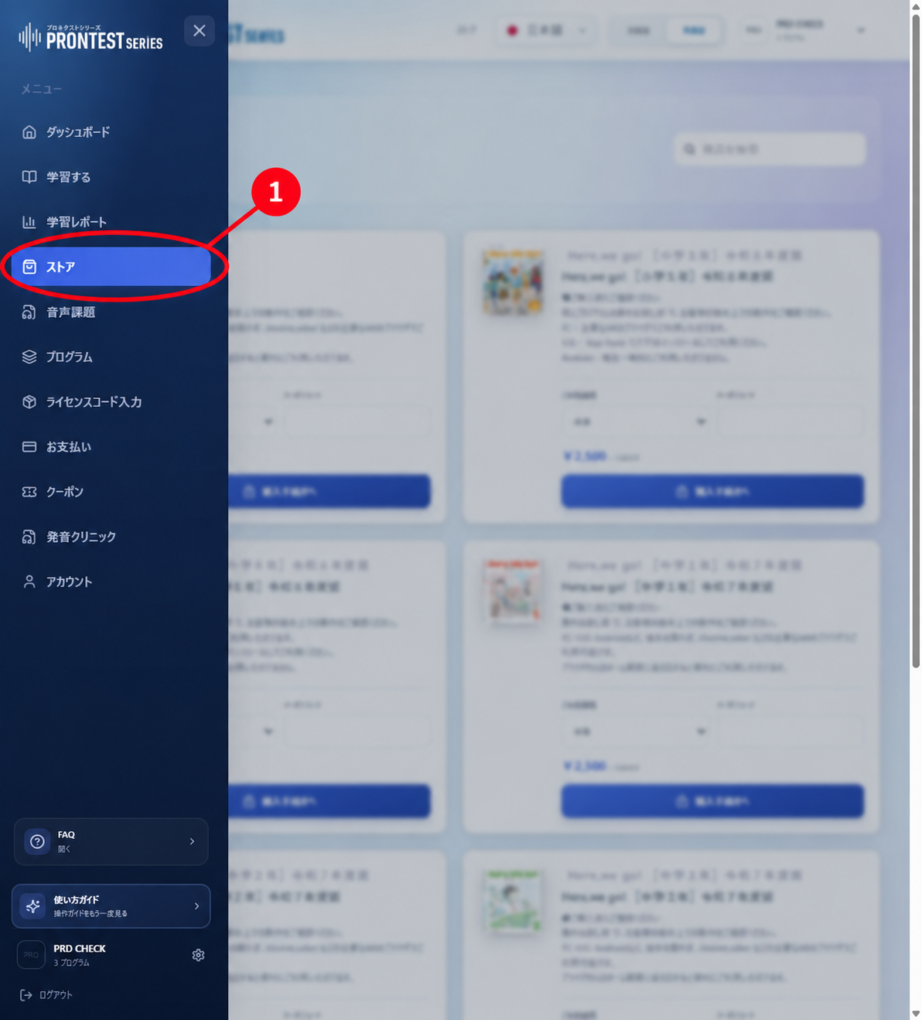
If you cannot see the sidebar in My Page, press the menu icon to display it.
Check the price before purchasing
1. Log in to My Page and open 「ストア」 (Store) in the sidebar.
2. Select 「ご利用期間」 (Access period) for the program you want to purchase.
3. Check the price displayed. Do not assume that the amount labeled 「月額基準」 (Monthly-equivalent price) alone is the total payable for your selected access period. If you use a coupon, also check the eligible access period and expiry date.
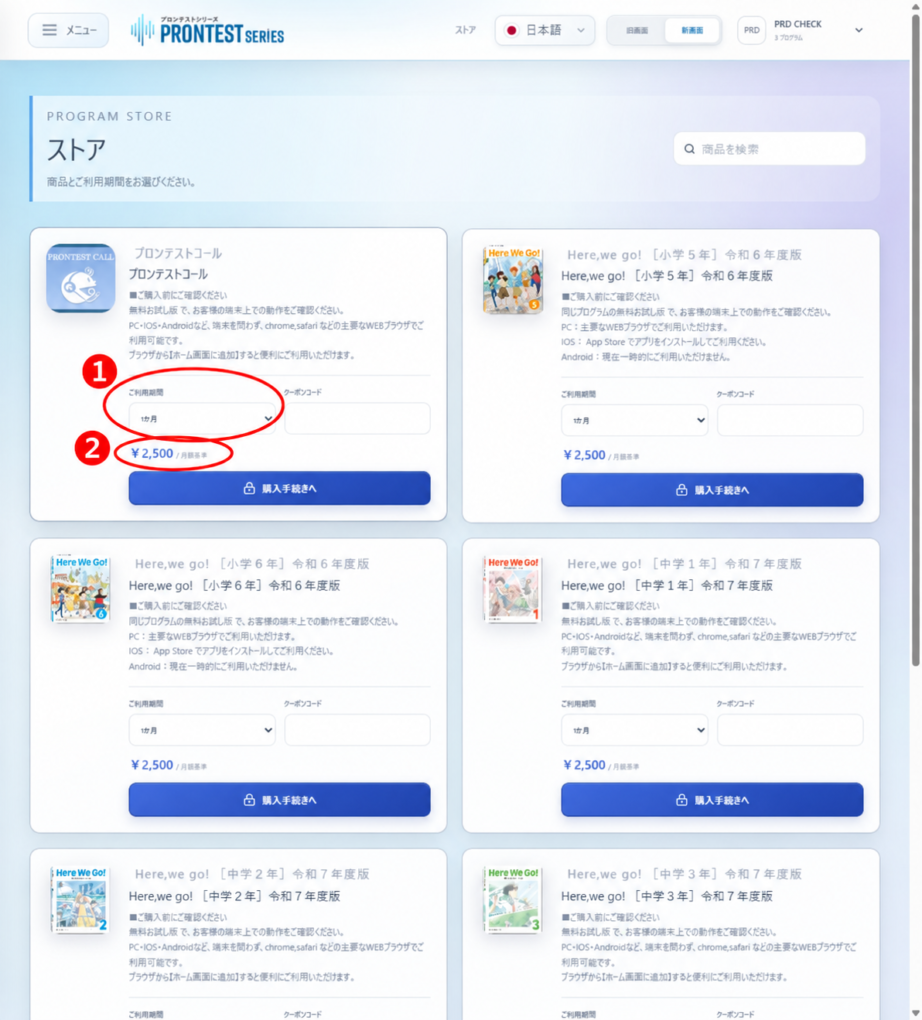
4. Check the product name, access period, total amount to be paid, and whether it renews automatically before pressing 「購入手続きへ」 (Proceed to purchase). This starts purchase processing and may complete the purchase immediately. If the amount or terms are unclear, contact support before pressing it.
Payment for subscriptions purchased in My Page
For purchases in the new My Page, you pay for the selected 1-, 6-, or 12-month period when the purchase process is completed. The purchased subscription has no free access period. This is separate from the free app you can try before purchasing.
For subscriptions with automatic renewal, the next access period is charged on the next renewal date. Check the end date and renewal date for each subscription. Do not calculate all subscriptions using the same date or number of days.
Ongoing older subscriptions and store purchases
Subscriptions purchased through the previous My Page that are still ongoing remain subject to their original terms. Do not apply the terms of plans currently on sale directly to older subscriptions.
For purchases through the App Store or Google Play, check the prices and periods displayed on that store’s purchase and subscription screens.
Check after purchasing
After purchasing, open 「お支払い」 (Payments) in the sidebar. Under 「ご契約」 (Your subscriptions), check the access period and automatic renewal, and in the billing history, check the billing date, covered period, and amount. For steps to stop renewal, see “Stopping automatic renewal in My Page.” For App Store or Google Play subscriptions, complete the procedure with the purchase provider. Sales terms and automatic renewal information