
For a subscription purchased through My Page, check automatic renewal under 「お支払い」 (Payments) → 「ご契約」 (Your subscriptions). Before deciding whether to continue, check the program’s access period and automatic renewal status.
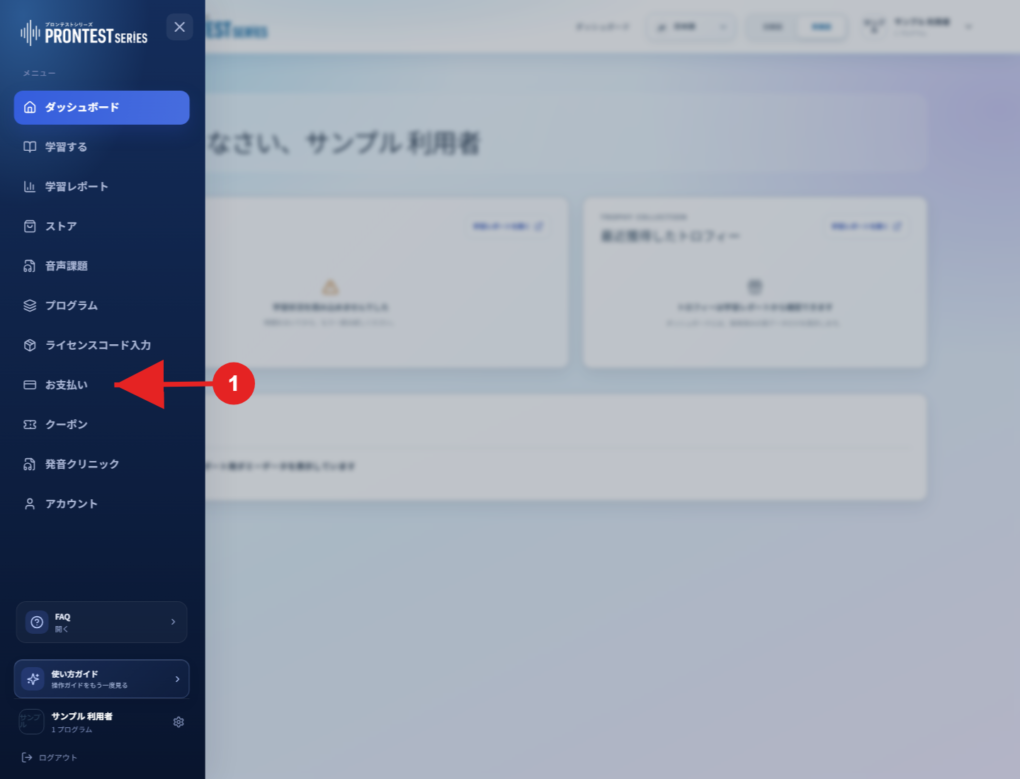
If the My Page sidebar is hidden, select the menu icon to display it.
Check automatic renewal status
1. Log in to My Page with the account that holds the subscription.
2. Open 「お支払い」 (Payments) in the sidebar.
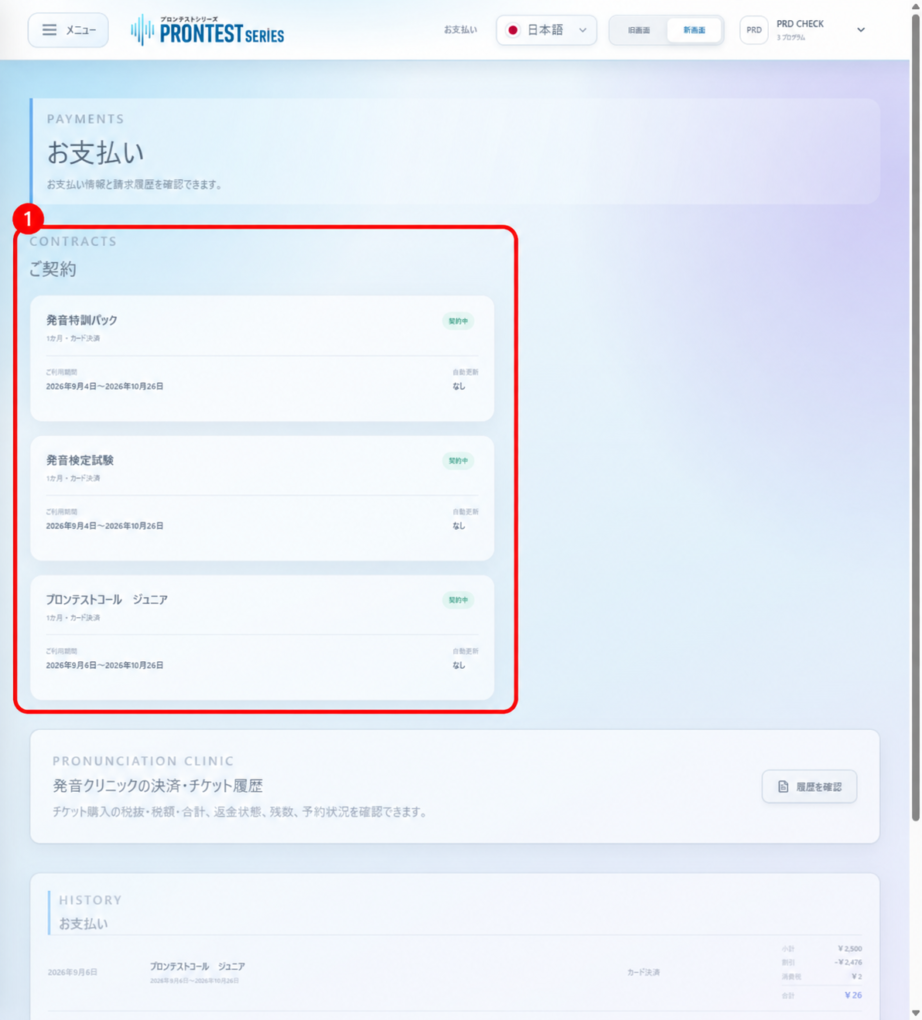
3. Find the relevant program under 「ご契約」 (Your subscriptions).
4. Check the access period, next scheduled dates, and automatic renewal display. If you have multiple subscriptions, check each program separately.
Understand the display
• 「自動更新 あり」 (Automatic renewal: enabled): automatic renewal is set up. If you do not want to renew, follow the steps to stop it for that subscription.
• 「自動更新 なし」 (Automatic renewal: none): automatic renewal is not set up. Check the subscription’s access end date to see how long you can use it.
• 「自動更新 確認中」 (Automatic renewal: checking): the renewal status has not been confirmed. This does not mean the same as 「なし」 (None). Reload the screen and check again. Contact support if the status persists.
If you want to stop automatic renewal
Follow Stop automatic renewal in My Page, then check the display for that subscription after stopping it. Simply closing or uninstalling the app does not change the setting.
If the settings for an older subscription appear
1. Check the subscription’s 「自動更新なし」 (No automatic renewal) checkbox. Checked means no renewal; unchecked means automatic renewal is enabled.
2. Check the box to stop automatic renewal, or uncheck it to enable automatic renewal again. Re-enable it after stopping only if you want to continue that subscription.
3. If changing only automatic renewal, leave 「ご利用期間」 (Access period) unchanged and select 「変更を保存」 (Save changes).
4. Check that 「保存しました。」 (Saved) appears and verify the checkbox state after saving. If 「保存できませんでした。」 (Could not save) appears, the change is not complete.
If you purchased through Apple
Check Apple’s Subscriptions screen. On your iPhone or iPad, open 「設定」 (Settings), your name, 「サブスクリプション」 (Subscriptions), then the relevant subscription. Cancel an Apple subscription