
You can check the email address registered through Apple under 「Appleでサインイン」 (Sign in with Apple) in your Apple Account. If you selected 「メールを非公開」 (Hide My Email), you are assigned a forwarding address different from your usual email address.
Check on iPhone or iPad
Use a device signed in to the Apple Account you used to register.
- Open the device’s 「設定」 (Settings).
- Press your name at the top of the screen.
- Press 「Appleでサインイン」 (Sign in with Apple).
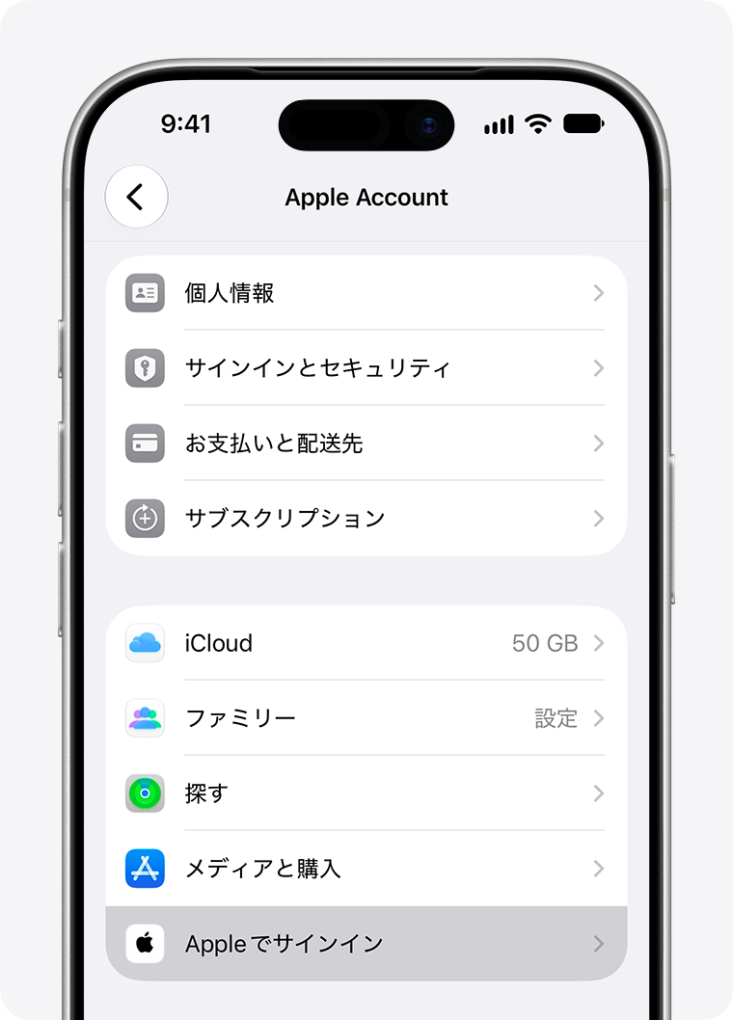
- From the list, select the app or website corresponding to PRONTEST Series.
- Check the email address being shared.
If you used 「メールを非公開」 (Hide My Email), an address ending in “@privaterelay.appleid.com” is displayed. Apple uses this address to forward incoming emails to the email address you use.
Check on the web
- Sign in to the Apple Account management page.
- Open 「サインインとセキュリティ」 (Sign-In and Security).
- Select 「Appleでサインイン」 (Sign in with Apple).
- In the entry corresponding to PRONTEST Series, check the information being shared.
Check in PRONTEST Series
- Use 「Appleでログイン」 (Log in with Apple) in PRONTEST Series to log in with the same Apple Account you used to register.
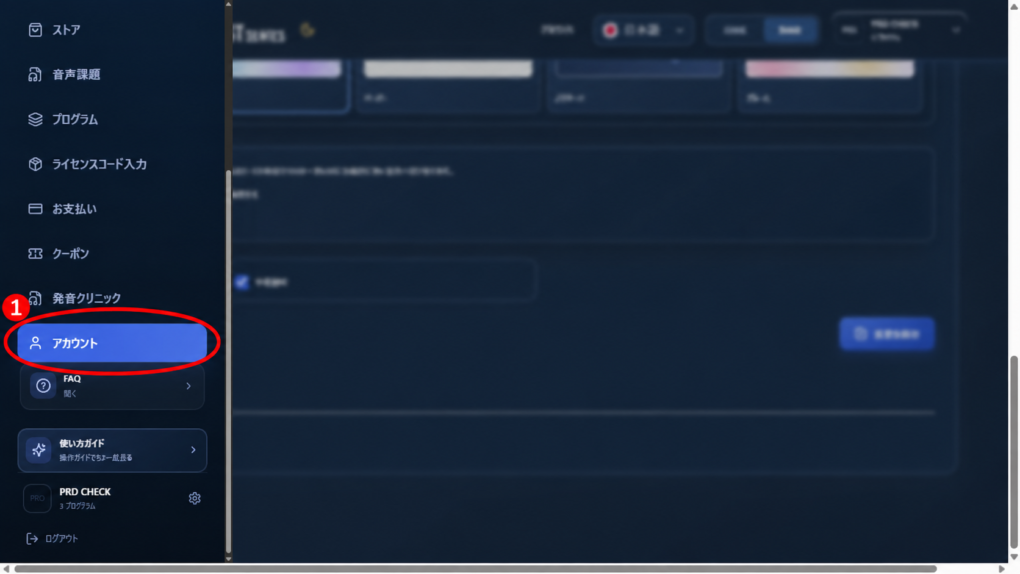
- If the sidebar is not displayed, press the menu icon.
- Select 「アカウント」 (Account) in the sidebar.
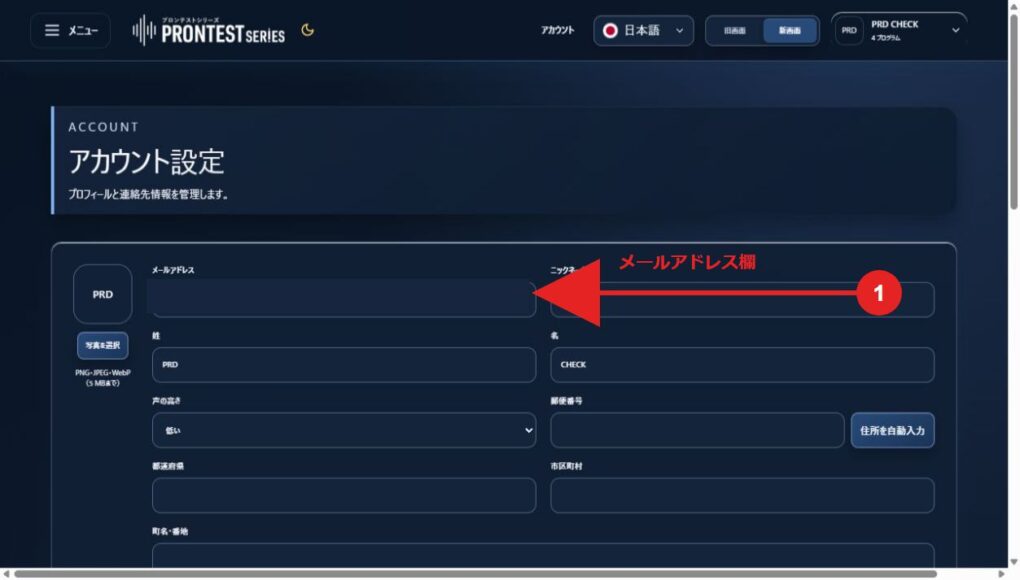
- Check what is displayed in 「メールアドレス」 (Email address).
Even if Apple’s forwarding address is displayed, you do not need to register again with your usual email address.
If you cannot find the entry
Check that you are not looking at a different Apple Account from the one you used to register. If the issue persists, tell support that you registered with Apple, the registered email address you were able to identify, and the device you use. Do not send your Apple Account password or verification codes.
Related pages: Apple Account management / Apple’s official guide to Hide My Email / Apple’s official guide to managing Sign in with Apple / My Page login page / Contact PRONTEST