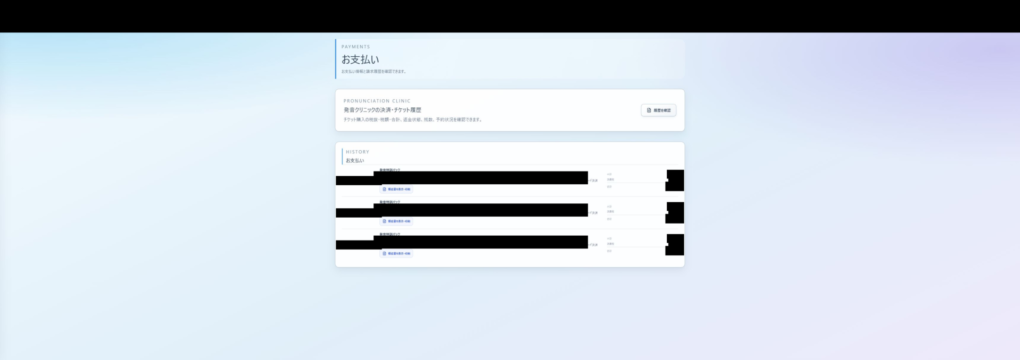
Individual purchases through My Page on the web are paid by credit card in a single payment. Payment methods differ for classroom licenses provided through schools and for App Store or Google Play purchases. Check the instructions for your purchase channel.
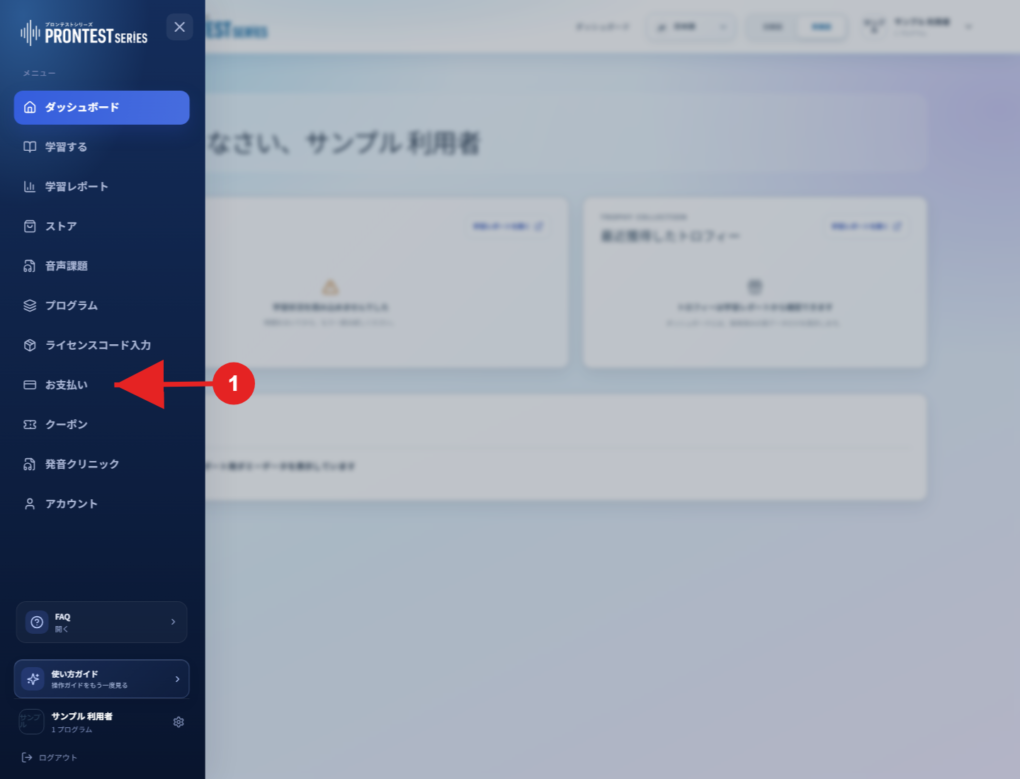
If the My Page sidebar is hidden, select the menu icon to display it.
Credit cards accepted in My Page
VISA, Mastercard, JCB, American Express, and Diners Club are accepted. Credit cards are the only payment method for individual purchases on the web.
Enter your card details on the payment screen after selecting the program and access period. For detailed steps, see Make a purchase with a credit card.
When payment is due
For subscriptions purchased through the new My Page, you pay for the selected access period when you complete the purchase. If the subscription renews automatically, you are charged for the renewed access period on the next renewal date shown for that subscription.
Older ongoing subscriptions may have different terms. Check My Page for your subscription’s access period and next scheduled dates.
Classroom licenses and app store purchases
For a classroom license assigned by a school or similar organization, check the school’s instructions and the 「授業用ライセンスのお支払い」 (Classroom license payment) display. 「カード・ウォレットで支払う」 (Pay by card/wallet) may appear. 「銀行振込で支払う」 (Pay by bank transfer) is shown only for eligible subscriptions. If a bank transfer shows 「入金確認中」 (Payment confirmation pending), access becomes available after payment is confirmed.
For App Store or Google Play purchases, check the payment methods and terms on the relevant store’s purchase screen.
Check your subscriptions and payment history
1. Log in to My Page with the account used for the purchase.
2. Open 「お支払い」 (Payments) in the sidebar.
3. Under 「ご契約」 (Your subscriptions), check the relevant program, payment method, access period, and automatic renewal status.
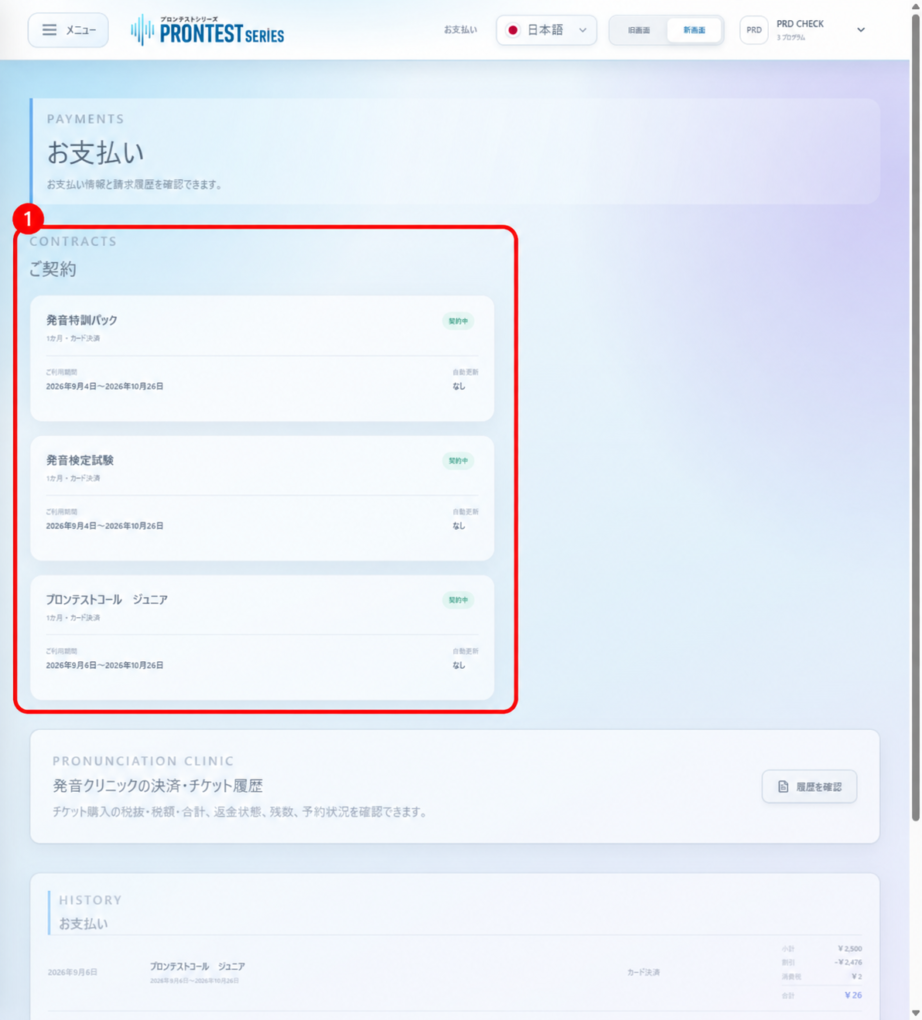
4. Check your billing history for completed payments and the periods they cover. Disclosure under the Act on Specified Commercial Transactions