
When purchasing a paid program through My Page, register your credit card details if required. First check the program, access period, and amount due. If you are directed to register a card during a purchase, the purchase process may resume after card registration.
If the My Page sidebar is hidden, select the menu icon to display it.
Check your purchase details first
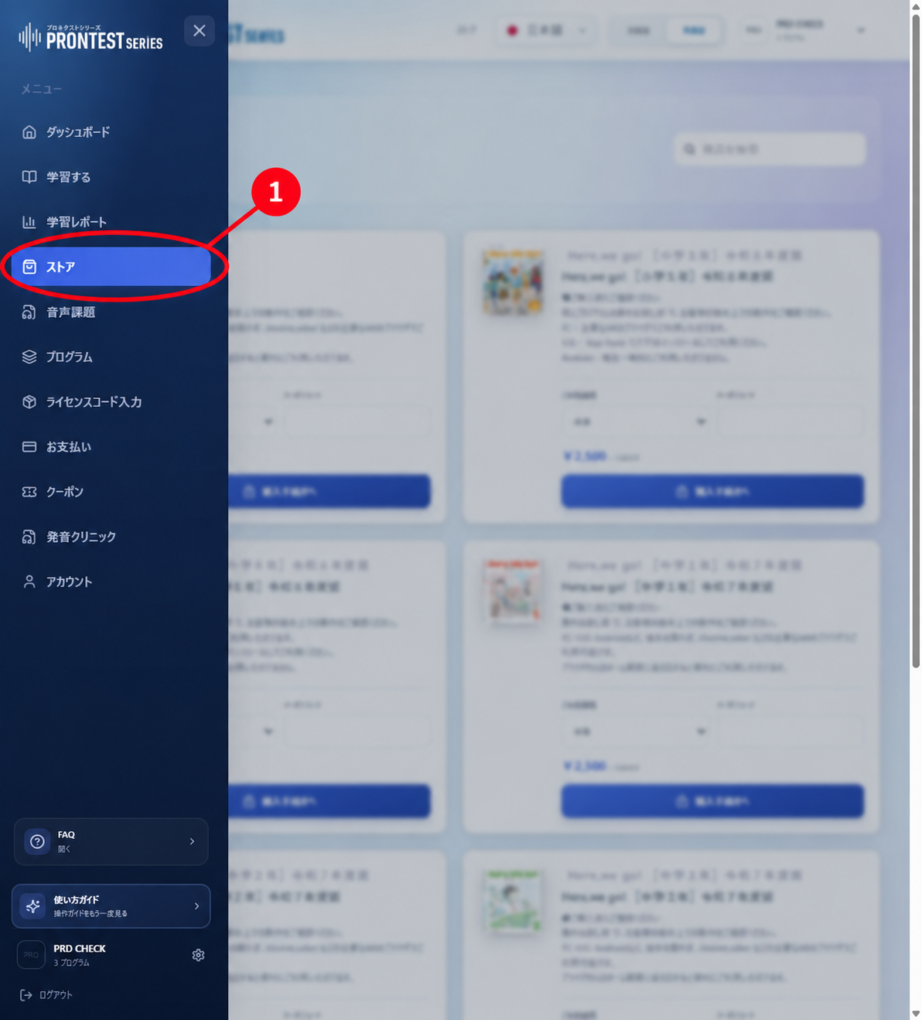
1. Log in to My Page with the account you want to use for the purchase, then open 「ストア」 (Store) in the sidebar.
2. Select the 「ご利用期間」 (Access period) for the program you want to purchase. If you have a coupon, enter it in 「クーポンコード」 (Coupon code).
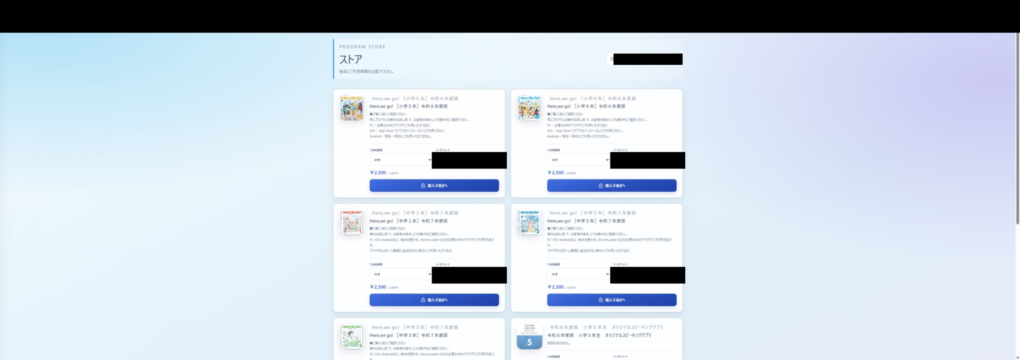
3. Check the product name, access period, total amount payable, and whether automatic renewal applies. Do not assume that the amount labeled 「月額基準」 (Monthly equivalent) is the total payment for your selected period.
4. After confirming the purchase details, select 「購入手続きへ」 (Proceed with purchase). This starts the purchase process. The purchase may be completed using a registered card, so do not select it just to check the price.
If the card entry screen opens
1. Check the displayed product and amount due.
2. Enter the card number, expiration date, security code, and cardholder name. Enter any other information requested, such as the billing address.
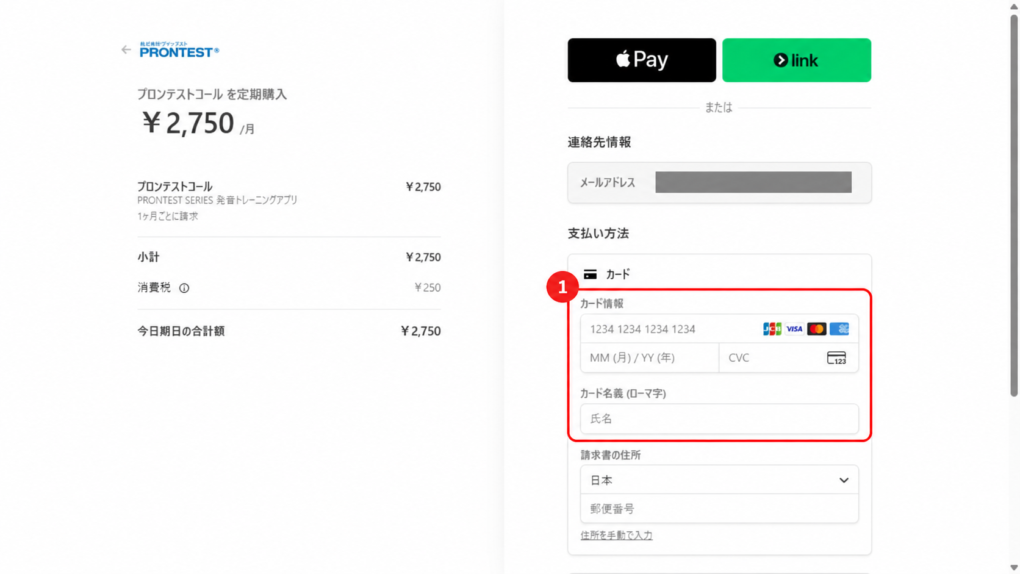
3. Check your entries and the purchase terms, then continue using the button shown. If your card issuer requests identity verification, follow its instructions.
4. When you return to My Page after the process, check the purchase result.
Check the purchase result
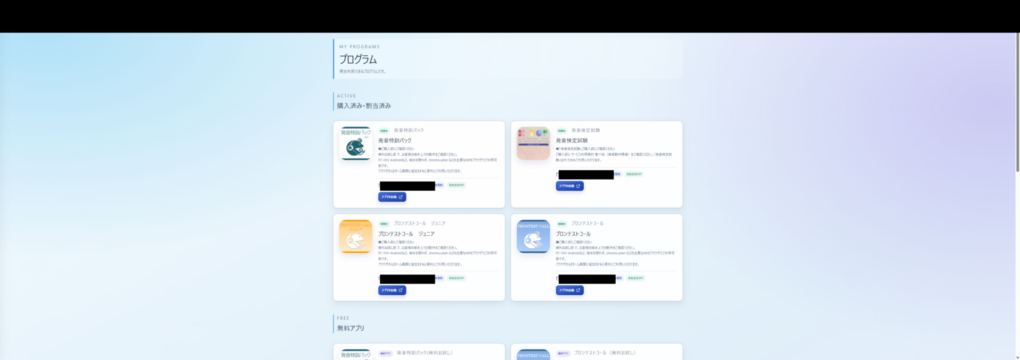
Under 「プログラム」 (Programs) → 「購入済み・割当済み」 (Purchased/Assigned), check the purchased program and access period. You can start using it if 「アプリを起動」 (Launch app) opens its learning screen. Check payment details under 「お支払い」 (Payments).
If an error appears
Check the error and your subscriptions and billing history under 「お支払い」 (Payments). Do not repeatedly select 「購入手続きへ」 (Proceed with purchase) while unsure whether the purchase succeeded. Contact support if you cannot confirm the result.
Do not send support your full card number, expiration date, security code, or identity verification code.