
To purchase a paid program, select the product and access period in 「ストア」 (Store) in My Page. Before purchasing, use the free app to check that the app you want works on your device, and check the amount to be paid and whether it renews automatically.
If you cannot see the sidebar in My Page, press the menu icon to display it.
Select a product and access period
1. Log in to My Page with the account you will use for learning.
2. Open 「ストア」 (Store) in the sidebar and find the program you want to purchase.
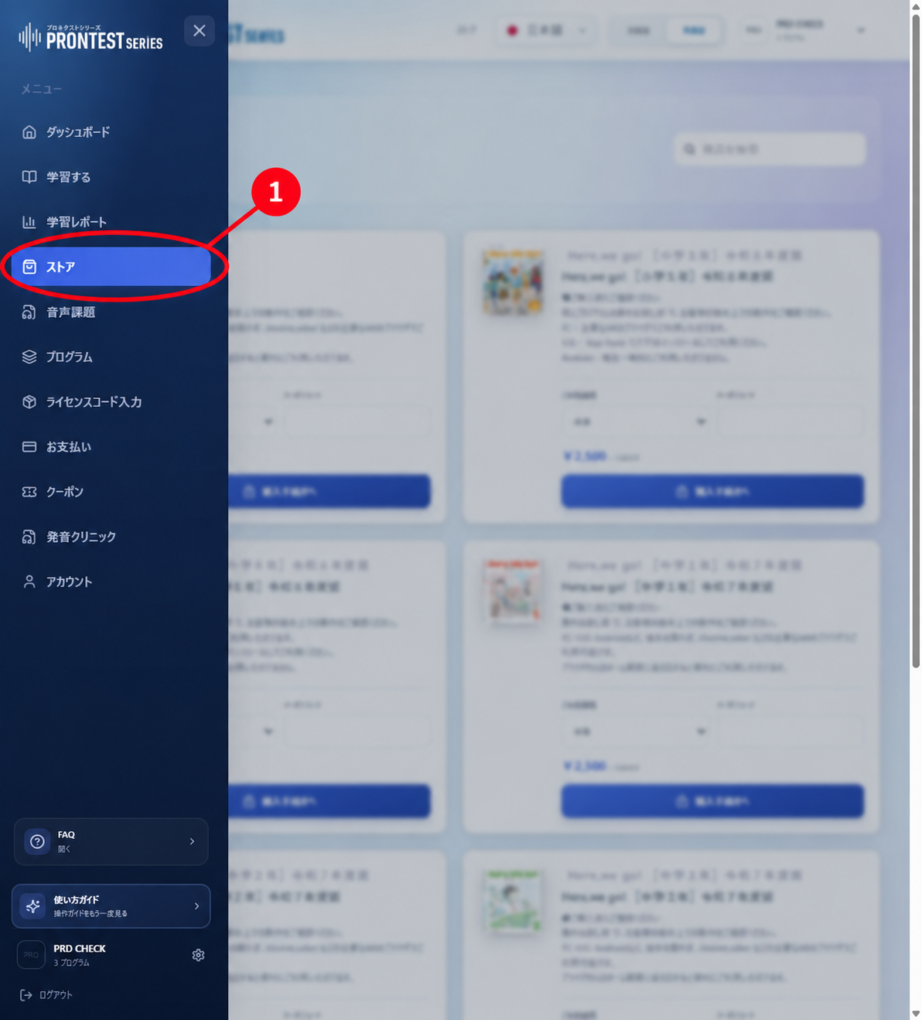
3. Select 「ご利用期間」 (Access period). If you are using a coupon, check the eligible period and expiry date, then enter it in 「クーポンコード」 (Coupon code).
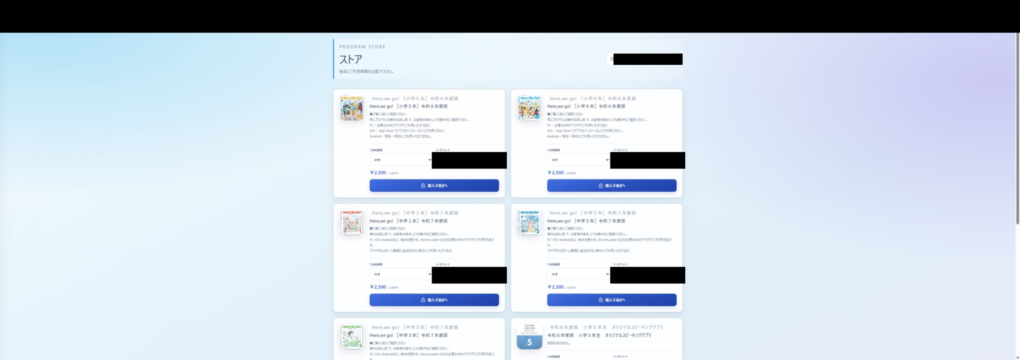
4. Check the product name, selected access period, total amount to be paid, and whether it renews automatically. Do not confuse the 「月額基準」 (Monthly-equivalent price) display with the total for the full period. If the total amount or terms are unclear, contact support before ordering.
Proceed with the purchase
1. After checking the details, press 「購入手続きへ」 (Proceed to purchase). This starts purchase processing and may complete the purchase using your saved card.
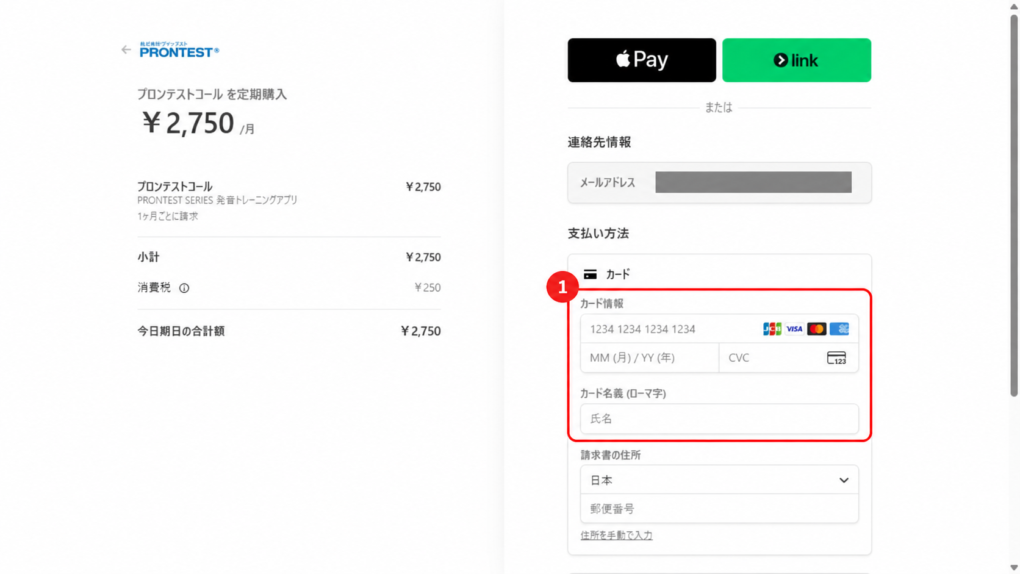
2. If a payment screen or card registration screen appears, check the product and amount, enter the required details, and complete the process. If you open card registration during a purchase, purchase processing may resume after the card is registered.
3. Wait for the result to be reflected. If 「購入内容を反映中です」 (Applying your purchase details) is displayed, do not press the purchase button again. Follow the on-screen instructions to check the status.
Launch the app you purchased
1. Open 「プログラム」 (Programs) in the sidebar.
2. Check that the purchased program appears under 「購入済み・割当済み」 (Purchased or assigned) and check its access period.
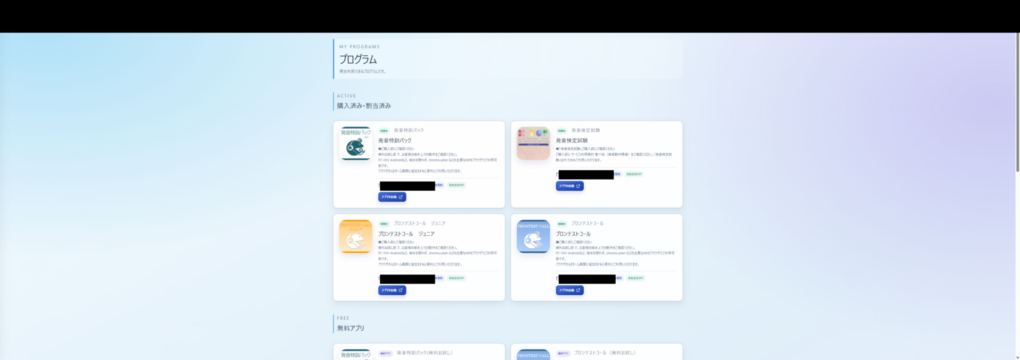
3. Press the relevant 「アプリを起動」 (Launch app) button. You can start using it when the learning screen opens.
4. Also check your subscription and billing history in 「お支払い」 (Payments).
If you cannot find the program you purchased
Check that you are using the same account as when you made the purchase, then see the guide “If you can use only part of an app you purchased.” If you are unsure of the outcome, do not make an additional purchase. Contact support with the program name, purchase date and time, and on-screen message.
If purchasing through the App Store or Google Play
If an App Store or Google Play purchase screen appears within the app, your purchase uses the amount and subscription terms shown by that store. My Page coupon codes cannot be used for in-app purchases through the App Store or Google Play. Check subscriptions, receipts, and cancellation with the store where you purchased.
Related articles
Making a purchase with a credit card