
If only the first letter you type is automatically capitalized, turn off 「自動大文字入力」 (Auto-Capitalization), then retype it. Passwords and similar entries must use the exact uppercase and lowercase letters you intend.
Who should follow these steps: anyone registering an account on an iPhone. These instructions are for Apple’s standard onscreen keyboard.
Turn off auto-capitalization
- Open 「設定」 (Settings) on the iPhone.
- Go to 「一般」 (General) → 「キーボード」 (Keyboard), then turn off 「自動大文字入力」 (Auto-Capitalization).
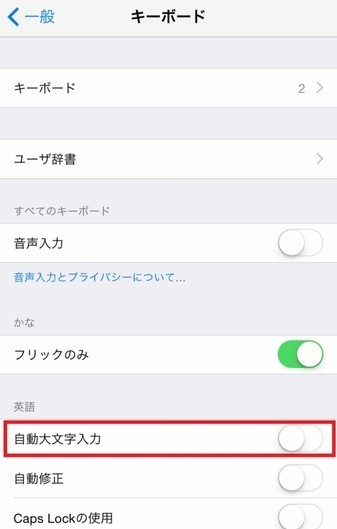
- Return to the registration screen. Delete or reselect the letters that were capitalized, then enter the correct letters.
- Check what you have entered before moving to another field. If there is a password confirmation field, use exactly the same uppercase and lowercase letters.
Turning this setting off does not change text already entered. It also disables auto-capitalization in other supported apps.
Identify the cause
- Letters other than the first letter are capitalized: check Shift and Caps Lock.
- Words are replaced automatically: check 「自動修正」 (Auto-Correction). Auto-capitalization and autocorrection are separate settings.
- The issue only occurs with a third-party keyboard: switch to Apple’s standard keyboard and try again. See the keyboard app’s instructions for the settings you need.
- A Magic Keyboard is connected: check Auto-Capitalization under 「設定」 (Settings) → 「一般」 (General) → 「キーボード」 (Keyboard) → 「ハードウェアキーボード」 (Hardware Keyboard).
If registration still fails after correcting the text
Check the displayed error and make sure your entries meet the requirements. When contacting support, provide your iPhone model, iOS version, keyboard name, and the error text. Do not send your password.