
First, turn up the volume while audio is playing and check the audio output destination. Ringtone volume and learning audio volume are separate, so hearing a ringtone alone does not confirm that learning audio will be audible.
Who should do this: the person learning on the iPhone or iPad. If you use earphones, increase the volume gradually to avoid a sudden loud sound.
Check the playback volume and output destination
- On the learning screen, press the model audio play button. On some screens, the same button changes to pause during playback. While the audio is playing, gradually press your device’s volume-up button.
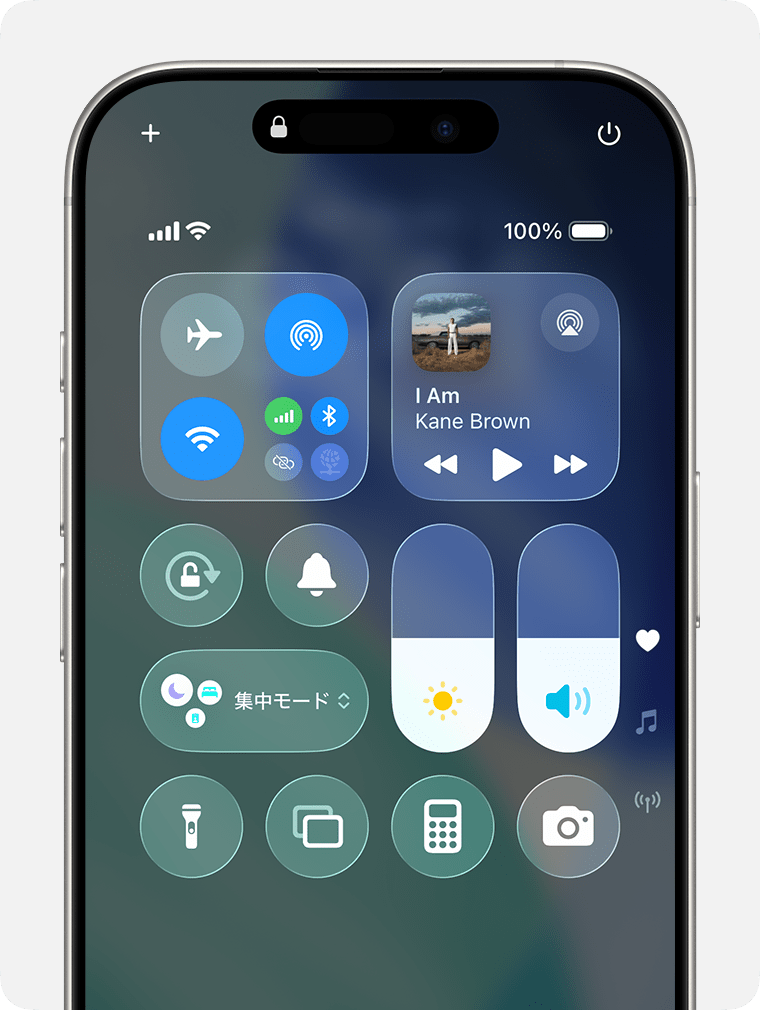
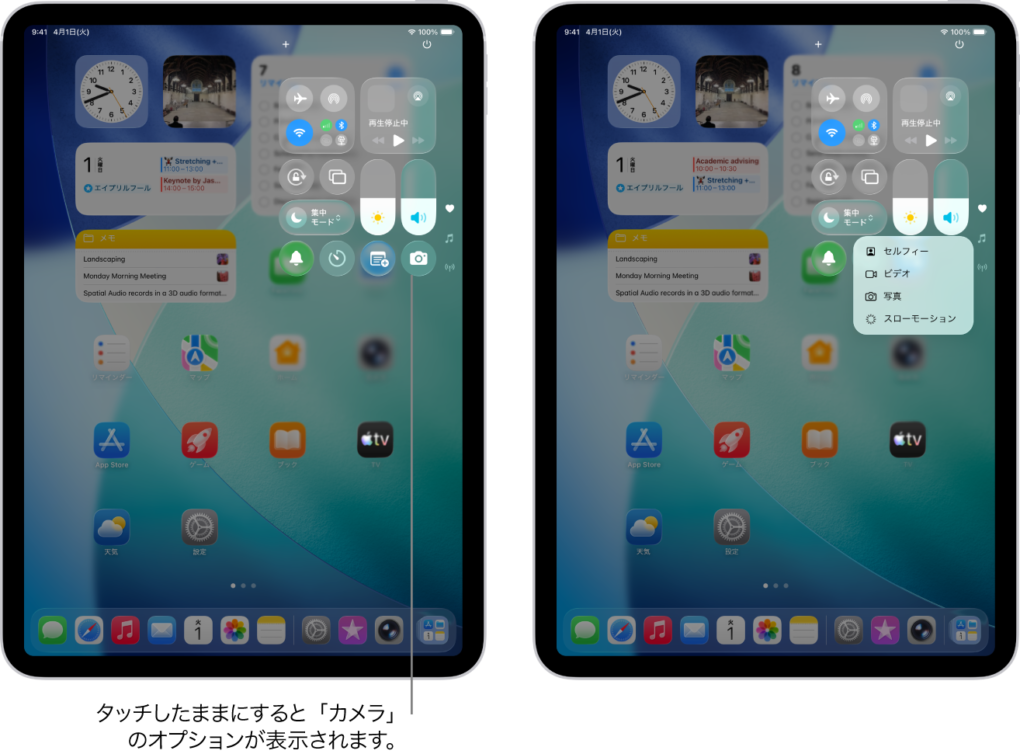
- Open Control Center and check that the volume is not at its minimum.
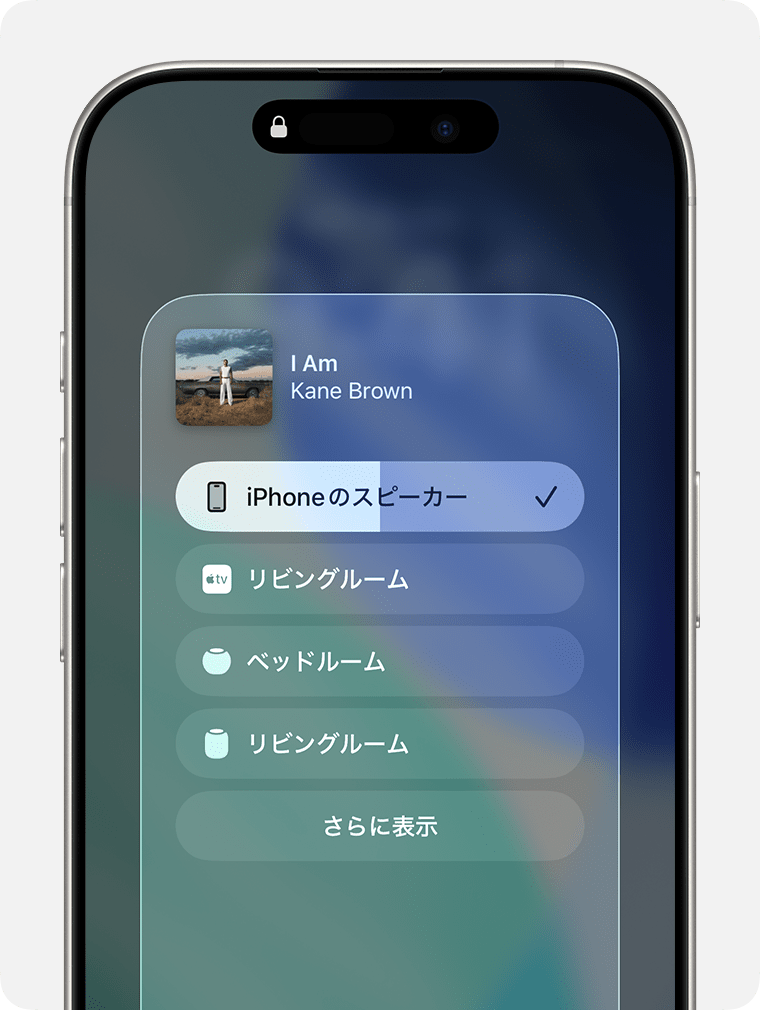
- Check whether sound is being sent to Bluetooth earphones or an AirPlay-compatible speaker. In Control Center’s playback destination selector, select the device you want to hear through. Disconnect any earphones you are not using, then try again.
- If your device has a silent mode setting, turn silent mode off and try playback. How you control silent mode varies by model, for example, with the Ring/Silent switch, Action button, or Control Center.
If you toggle silent mode in Control Center, the bell button in Figure 1 is an example of where to do so.
Compare with other audio
- If you cannot hear audio from other apps either: Check the device volume, output destination, and any speaker or earphone problems. Also see Apple’s support guidance.
- If you can hear other audio but not PRONTEST: Reload the learning page, or close and reopen the web app. You may need to redo a recording that was in progress.
- If you can hear the model audio but not your own recording: Your recording may not contain any sound. Check the input settings using “What to check if your voice is not recognized.”
If an audio data error appears
If you see 「音声データが読み込まれませんでした。画面を更新してください。」 (Could not load the audio data. Please refresh the screen) or 「音声データが再生できませんでした。画面を更新してください。」 (Could not play the audio data. Please refresh the screen), refresh the learning page and try playback again.
If you see 「この録音はまだありません」 (This recording does not exist yet) when trying to listen to your own recording, first make a recording for that question.
If a tab is muted in Safari on iPad
Check whether a muted audio button is displayed in Safari’s search field or on the tab. If it is, unmute that tab and try playback again.
If you cannot hear only one specific part
Tell support the names of the app, learning material, and question, and whether the issue affects model audio or your own recording. Also include your device model, OS, browser name, and whether you are using earphones.
Related articles
Can I compare the model audio with my own pronunciation?
If the screen stops progressing while recording on an iPhone