
First determine whether the microphone is receiving no sound, or receiving sound but recognition is not progressing. Check microphone permissions and the recording device before increasing the volume.
Who should follow these steps: the learner using the app. Open a learning screen where you can start recording, and check in a quiet place.
Check whether recording starts
- Close other apps using calls or recording. For an external microphone or headset, check the connection and mute switch.
- Bring the learning screen to the foreground. On screens showing 「赤いボタンで録音を開始します。」 (Press the red button to start recording), press the red recording button.
- If microphone access is requested, check the learning site’s name, then allow it. Keep the screen open while speaking; do not switch to another tab or app during recording.
- On screens showing 「発音したら、録音を止めてください。」 (Stop recording after speaking), stop the recording when you finish speaking.
If the microphone cannot be used
If 「このサイトのマイク利用がブロックされています。ブラウザのサイト設定でマイクを許可してください。」 (Microphone access is blocked for this site. Allow the microphone in your browser’s site settings) appears, review the learning site’s microphone permission. Adjusting the volume alone will not resolve this.
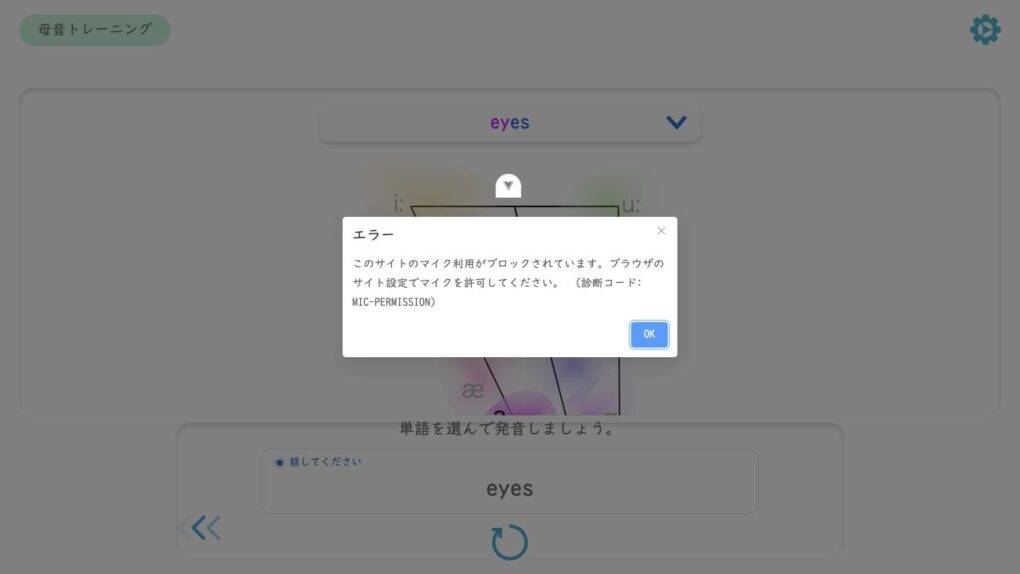
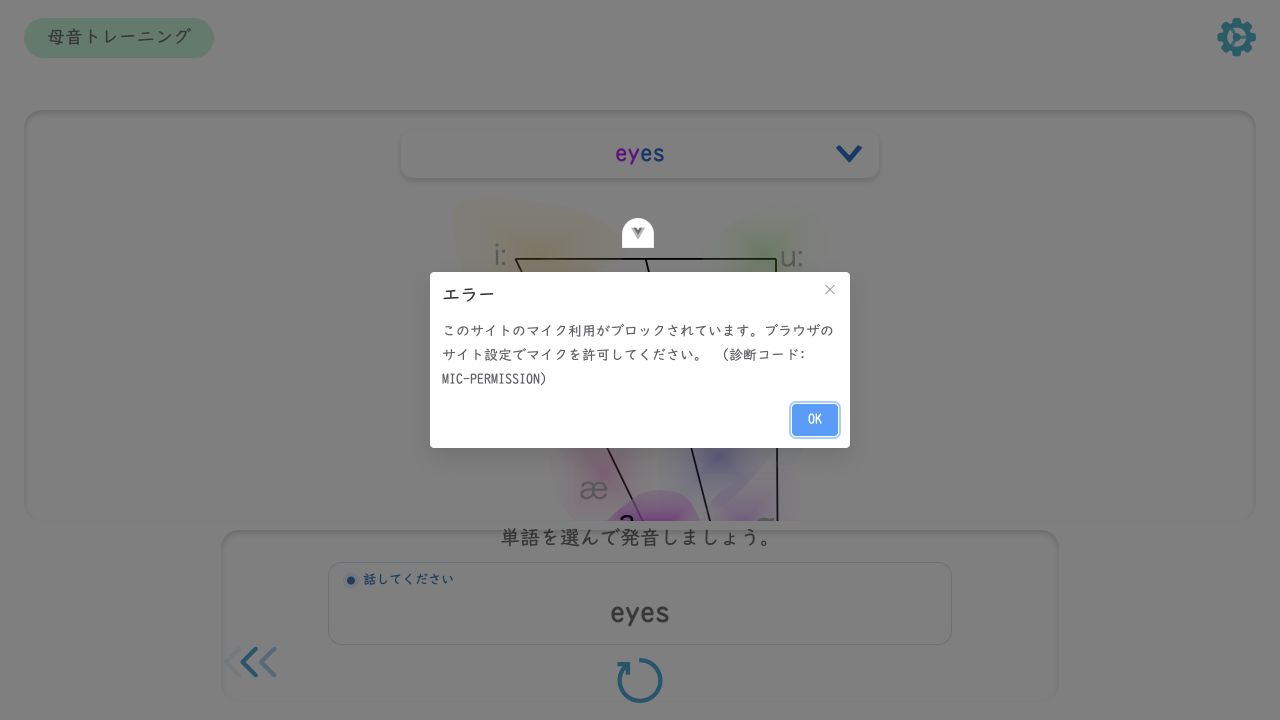
See the guide for your device: Enable your microphone in Windows, Enable your microphone on a Mac, Enable your microphone in Chrome on Android, Allow microphone access in Safari on an iPhone, or Allow microphone access in Safari on an iPad.
If sound is received but not recognized
- 「お手本のテキストを認識できませんでした。もう一度話してください。」 (The model text could not be recognized. Please speak again): check the displayed model text, reduce background noise, and record again.
- 「赤い文字の音を認識できませんでした。」 (The sounds of the red letters could not be recognized): follow the instructions that appear, paying attention to those sounds as you read again.
- 「もう一度録音してください。」 (Please record again): record the same question again. Do not assume the microphone is faulty based on this message alone.
On a computer, you can also check your voice using the OS microphone test or input settings. If the input is too quiet, raise the volume slightly; if your voice is distorted, lower it. Recording volume and playback volume are separate settings.
If processing does not continue
If 「音声認識を利用できません」 (Speech recognition is unavailable) appears or the results do not load, see The screen stops progressing when recording starts. When contacting support, provide your device, OS, browser, microphone, learning material and question, and the status and error text displayed.
Distinguish input activity from recognition results
If the screen displays an input waveform while recording, check whether the bars change height when you speak. Bars may appear even in silence, so moving bars alone do not establish that sound is being received.
Messages such as 「聞いています」 (Listening), 「認識中」 (Recognizing), and 「確認中」 (Checking) indicate processing status. 「認識できました」 (Recognized) indicates speech recognition status, which is separate from a score evaluating your pronunciation.
Some learning screens do not display an input waveform. Follow the instructions and error text on that screen rather than judging by whether a waveform is present.
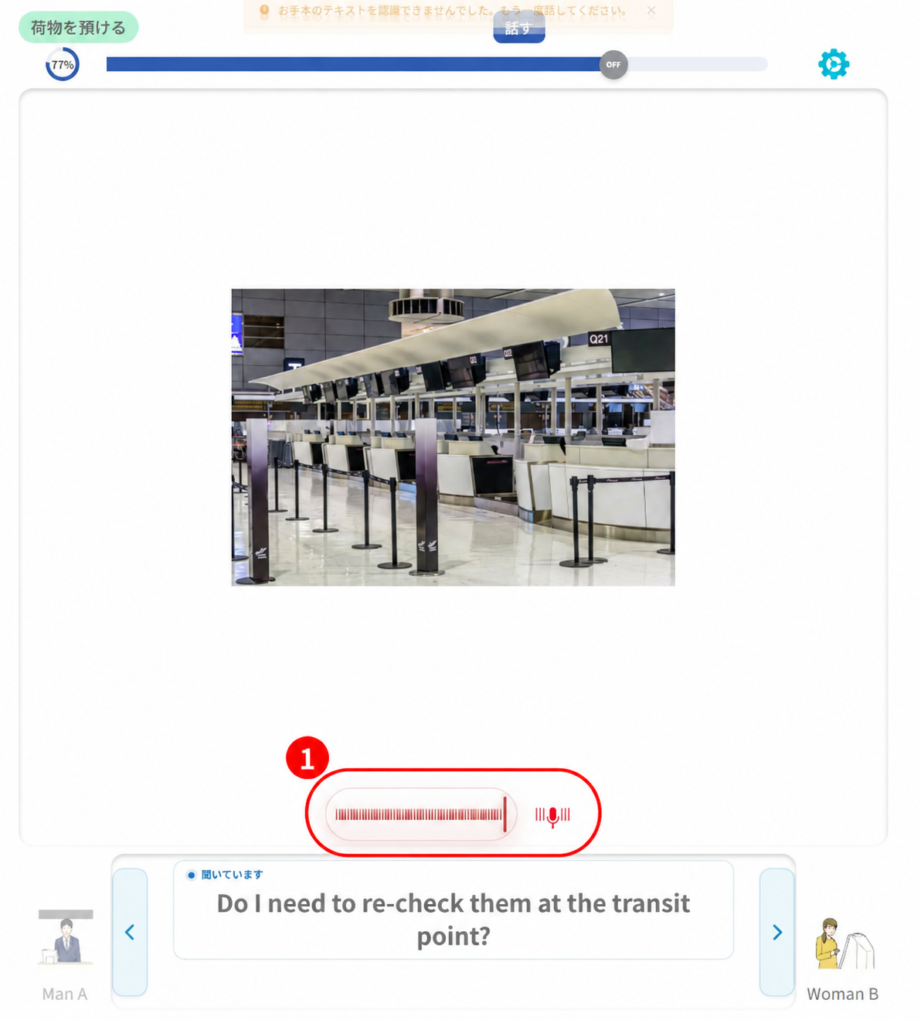
The red box marked 1 is the input display. A notification at the top also says recognition failed. This image shows where the input display is located; it does not show successful recognition or scoring.
Related articles
The screen stops progressing when recording starts
Enable your microphone in Windows
Enable your microphone on a Mac
Enable your microphone in Chrome on Android