
Adding the web app from your browser lets you open PRONTEST from an icon on your home screen or desktop. The steps differ by device.
Who should do this: the device owner or a user authorized to change its settings. First, open the PRONTEST learning site in your browser and check that you can reach the learning screen as usual.
Before adding the app
A PWA is a type of web app. This article explains how to add it from a browser. This is a separate process from installing an app through the App Store or another store. If adding apps is restricted on a school or company device, contact the person responsible for managing it.
Adding the icon does not grant additional learning access or add purchased materials. Check which account you normally use, and stay connected to the internet when opening the app after adding it.
If installation instructions appear on the screen
- Press 「アプリをインストール」 (Install app) and read the explanation displayed.
- Press 「インストール」 (Install) on the explanation screen. If a browser confirmation follows, check the app name and site, then proceed with installation.
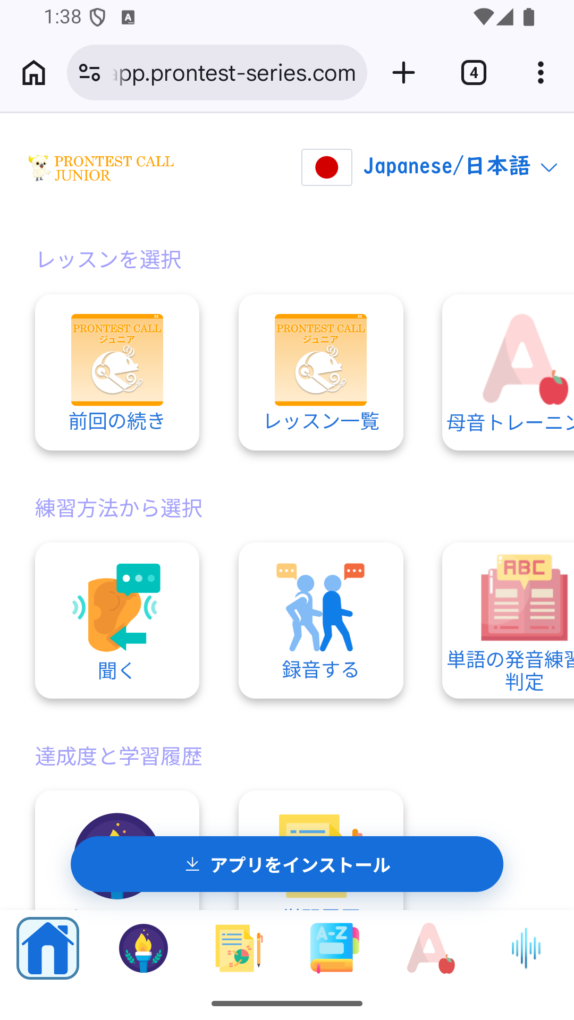
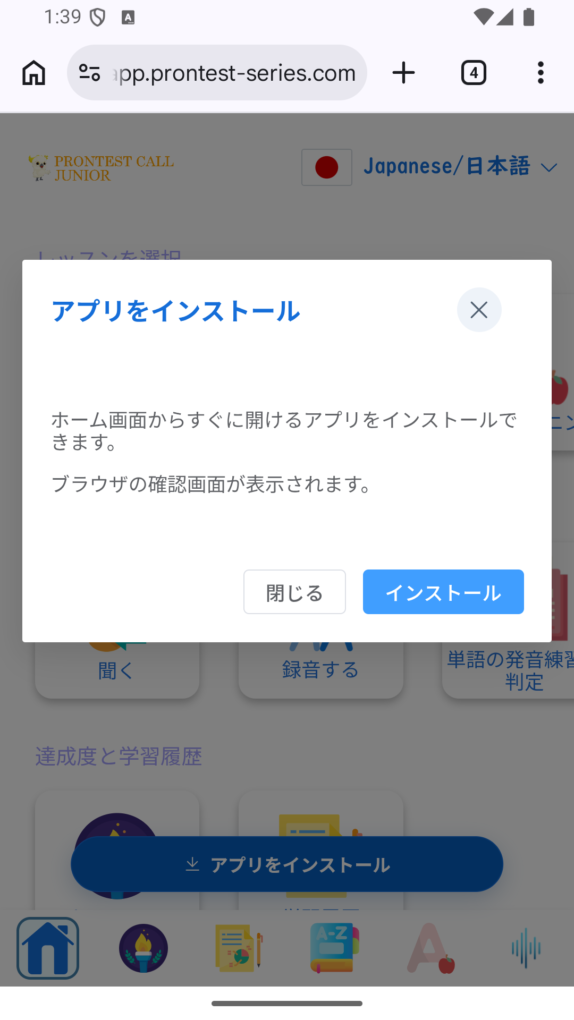
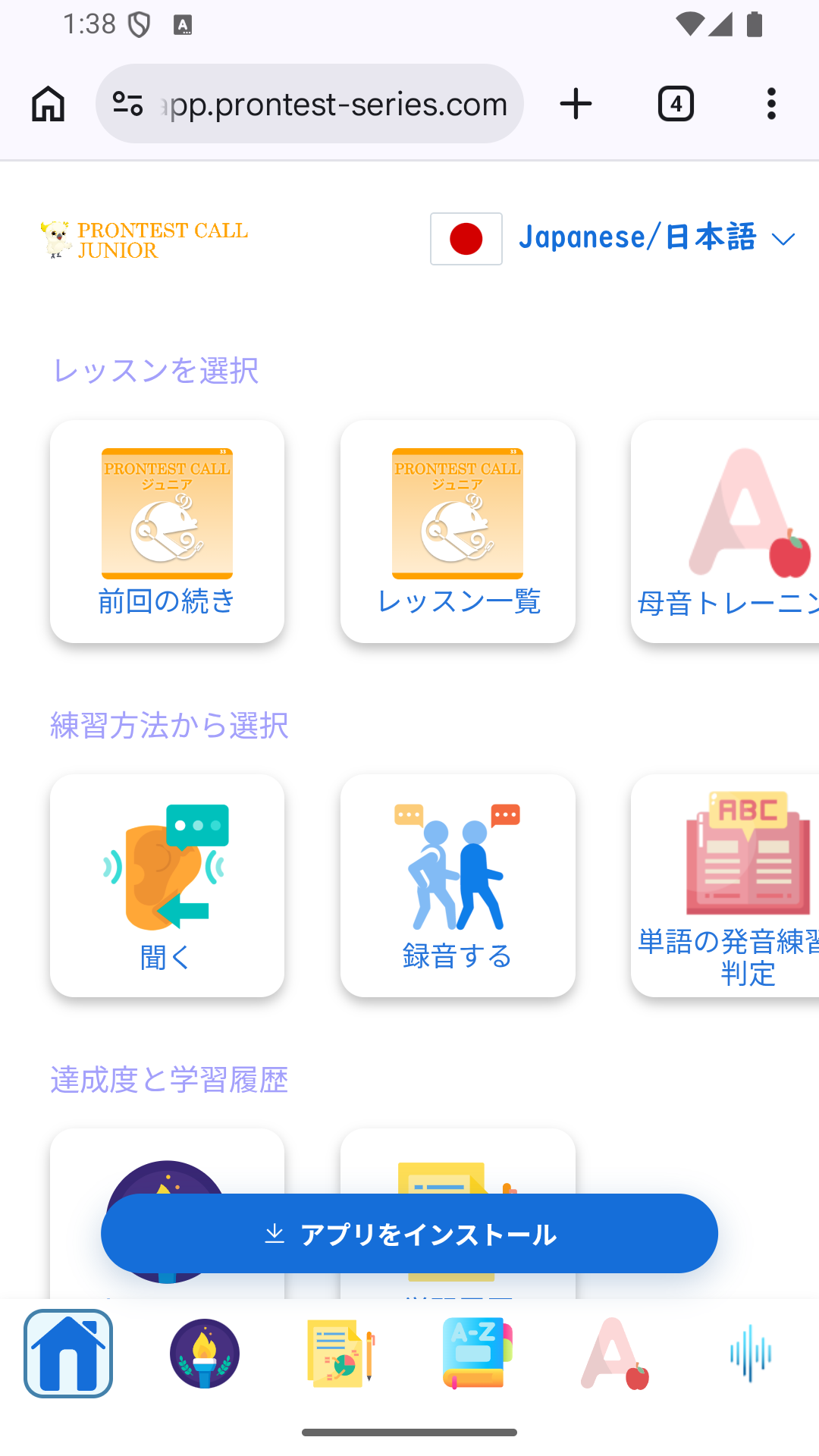
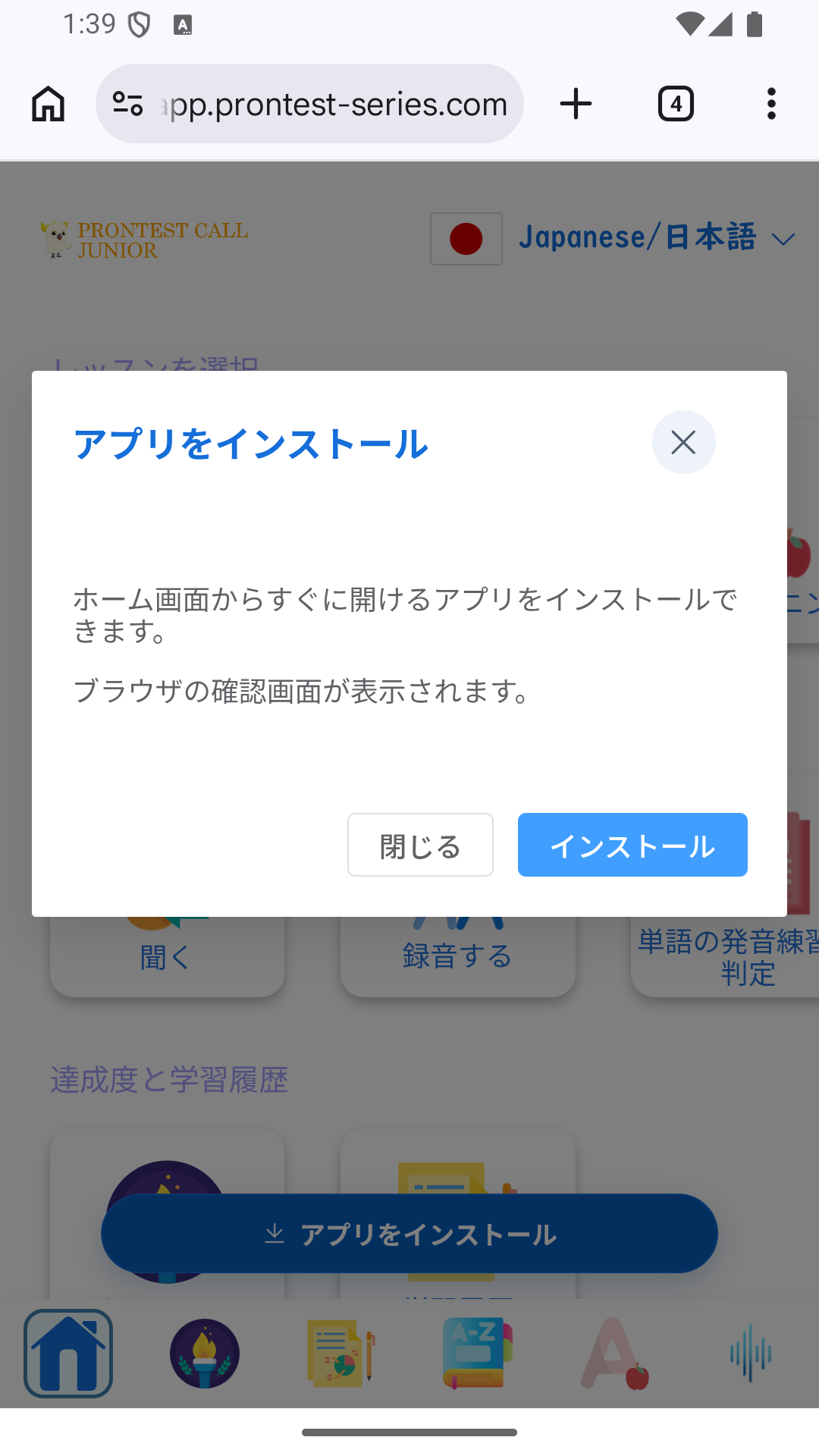
On iPhone and iPad, instructions for adding the app from Safari appear. See the device-specific steps below.
The instructions are not always displayed. They may not appear if you have already installed the app or previously dismissed the instructions, for example. If you cannot find them, check whether you can add the app from your browser menu.
Add it using Chrome on Windows or Mac
- Open the PRONTEST learning site in Chrome.
- From the menu at the top right, select 「キャスト、保存、共有」 (Cast, save, and share) → 「ページをアプリとしてインストール」 (Install page as app). If an installation icon appears in the address bar, you can also use it.
- Check the app name and site displayed, then install. The confirmation screen may display 「[PWA]プロンテストシリーズ」 ([PWA] PRONTEST Series).
- Open it from the added icon and check that the login screen or learning screen appears.
Add it using Edge on Windows
- Open the PRONTEST learning site in Edge.
- From 「設定など」 (Settings and more) at the top right, select 「その他のツール」 (More tools) → 「アプリ」 (Apps) → 「このサイトをアプリとしてインストール」 (Install this site as an app). If PWA installation instructions appear, you can use those.
- Check the details and install. After adding it, enter edge://apps in Edge’s address bar and use 「開く」 (Open) for the relevant app to check that it launches.
Add it using Chrome on Android
- Open the PRONTEST learning site in Chrome.
- From the menu to the right of the address bar, select 「インストールしてショートカットを作成」 (Install and create shortcut) → 「インストール」 (Install).
- Follow the on-screen instructions to add it, then open it from its icon on the home screen or in the app list.
Item names vary depending on factors such as the Chrome version. If you cannot find the item, see the guidance below.
Add it using Safari on iPhone: iOS 26
- Open the learning site in Safari. Select 「その他」 (More) on the screen, then 「共有」 (Share). If your tab layout shows the share button directly, press that button.
- Scroll down in the share menu and select 「ホーム画面に追加」 (Add to Home Screen). If you cannot find it, add the item through 「アクションを編集」 (Edit Actions).
- Turn on 「Webアプリとして開く」 (Open as Web App), then press 「追加」 (Add).
- Return to the home screen and press the icon you added to check that it opens.
Add it using Safari on iPad: iPadOS 26
- Open the learning site in Safari and press the share button.
- Open 「その他」 (More), then select 「ホーム画面に追加」 (Add to Home Screen).
- Turn on 「Webアプリとして開く」 (Open as Web App), then press 「追加」 (Add).
- Press the icon added to that iPad’s home screen to check that it launches.
If you cannot add the app
- If you are using a browser inside an email or social media app: Reopen the same learning site in a standalone browser such as Safari, Chrome, or Edge.
- If there is no installation option: Check whether the app has already been added, whether the device has any restrictions, and whether the browser is up to date. If you can study in your browser, you can continue using that method.
- If an error appears when you open it from the icon: See “If an error appears when opening from the home screen icon.”