
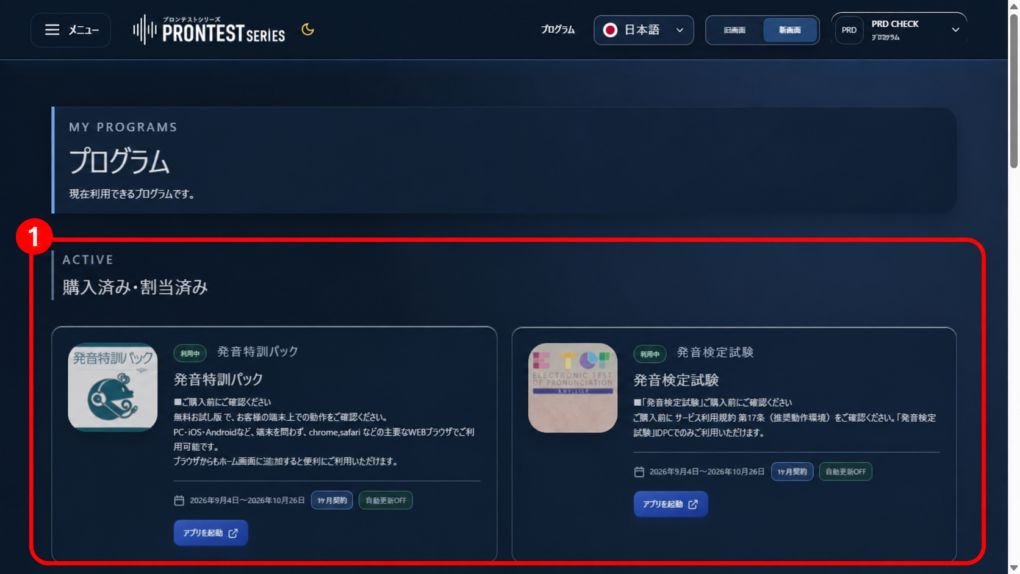
If only the free content appears even though you have made a purchase, first check that you are opening the program under 「購入済み・割当済み」 (Purchased or assigned) using the account that made the purchase. If you use a license code, you also need to register the code.
If you cannot see the sidebar in My Page, press the menu icon to display it.
Reopen the program you purchased
1. Log in to My Page with the account used for the purchase or license registration.
2. Open 「プログラム」 (Programs) in the sidebar.
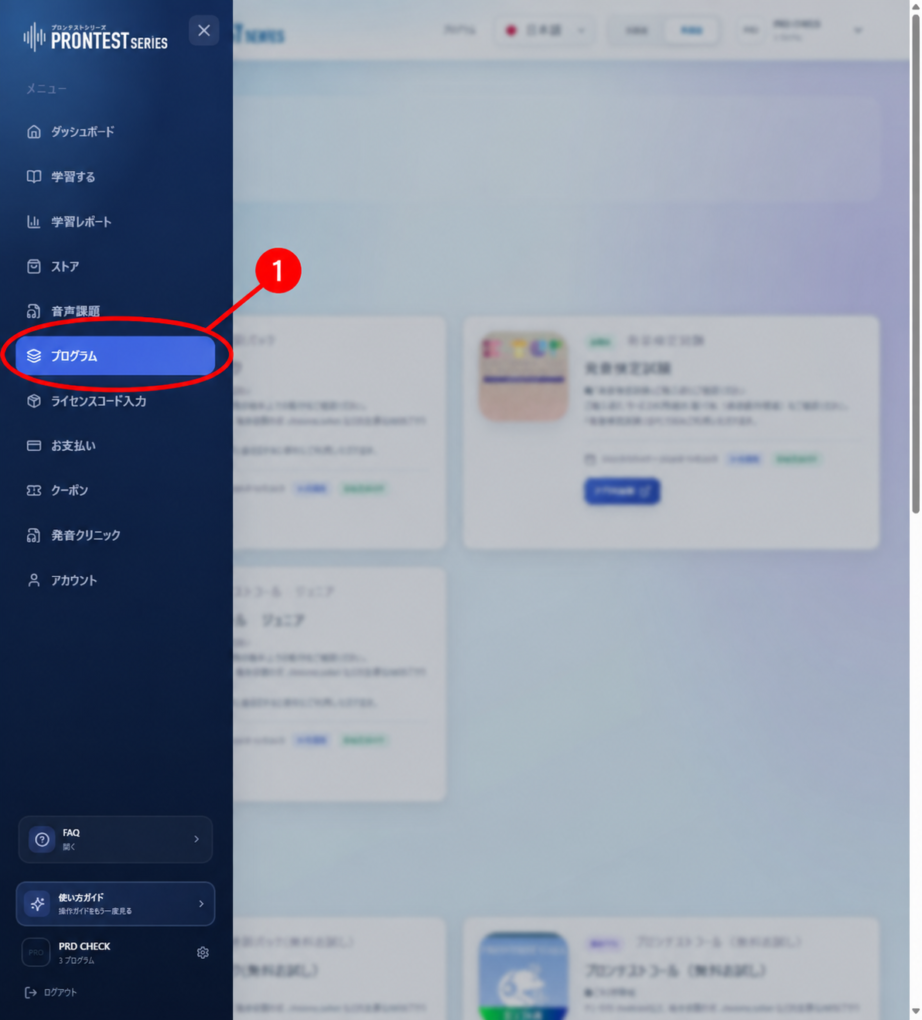
3. Under 「購入済み・割当済み」 (Purchased or assigned), check the name and access period of the relevant program.
4. Press 「アプリを起動」 (Launch app) for that program. Check the category to make sure you are not launching it from 「無料アプリ」 (Free apps).
5. On the learning screen that opens, check whether the program and lessons you want to use are displayed.
If the program is not in the purchased list
• Account: Check that you are logged in using the same method and account as when you made the purchase. If you used Google, Microsoft, or Apple, select the account used for the purchase.
• Access period: Check that the period displayed in My Page is valid. Make sure you have not confused an expired subscription with another active subscription.
• License code: If you have only received the certificate or email, register the code by following the related guide “Registering a license code and starting to use the app.”
• Assignment by your school or workplace: Ask the person in charge whether the relevant program has been assigned to you.
If content is missing even after opening the relevant program
Compare the program name displayed with the name of the learning material you purchased or were told to use. You need to check both that the program is in the list and that your subscription includes the material you need.
If your subscription and the displayed content do not match, contact support before making an additional purchase. Include the program name, the lessons or materials you cannot see, where you purchased it, your device and browser, and the on-screen message. For school or workplace materials, also ask the person in charge to check what has been assigned. Contact PRONTEST