
Open 「お支払い」 (Payments) in the account used for the purchase, then select the link for the payment you need. 「領収書を表示・印刷」 (View or print receipt) opens a different screen from 「HTML」 or 「PDF」. Follow the steps for the link displayed.
If you cannot see the sidebar in My Page, press the menu icon to display it.
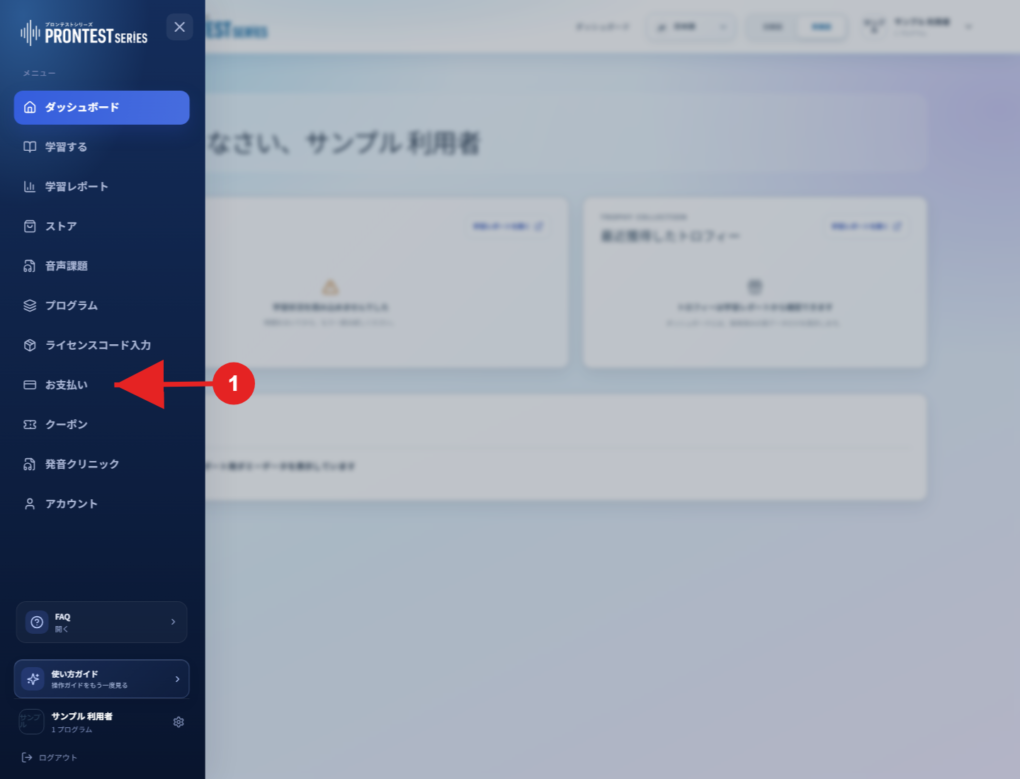
Select the payment
1. Log in to My Page with the account used for the purchase.
2. Open 「お支払い」 (Payments) in the sidebar.
3. In the billing history, check the billing date, program name, access period, and amount for the payment you need.
4. Check the links shown for that payment. If 「領収書を表示・印刷」 (View or print receipt) is available, continue to the next steps. If 「HTML」 and 「PDF」 are available, go to “If HTML or PDF links are available.”
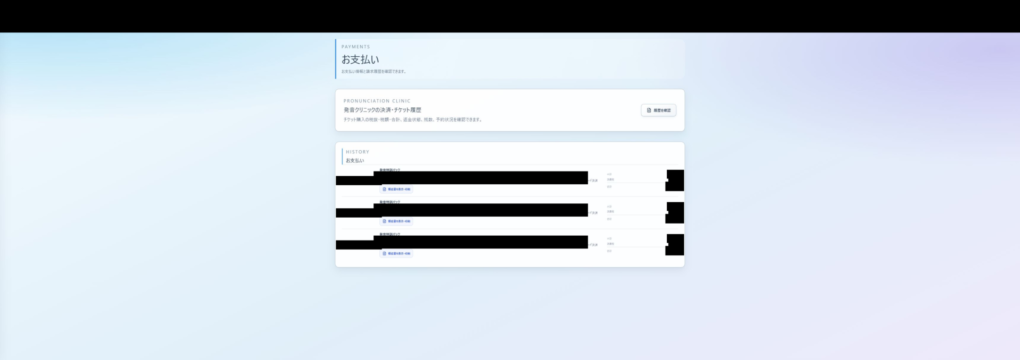
To view and print a receipt
1. Press 「領収書を表示・印刷」 (View or print receipt) and check the receipt number, product, access period, subtotal, consumption tax, and total displayed.
2. Press 「印刷する」 (Print).
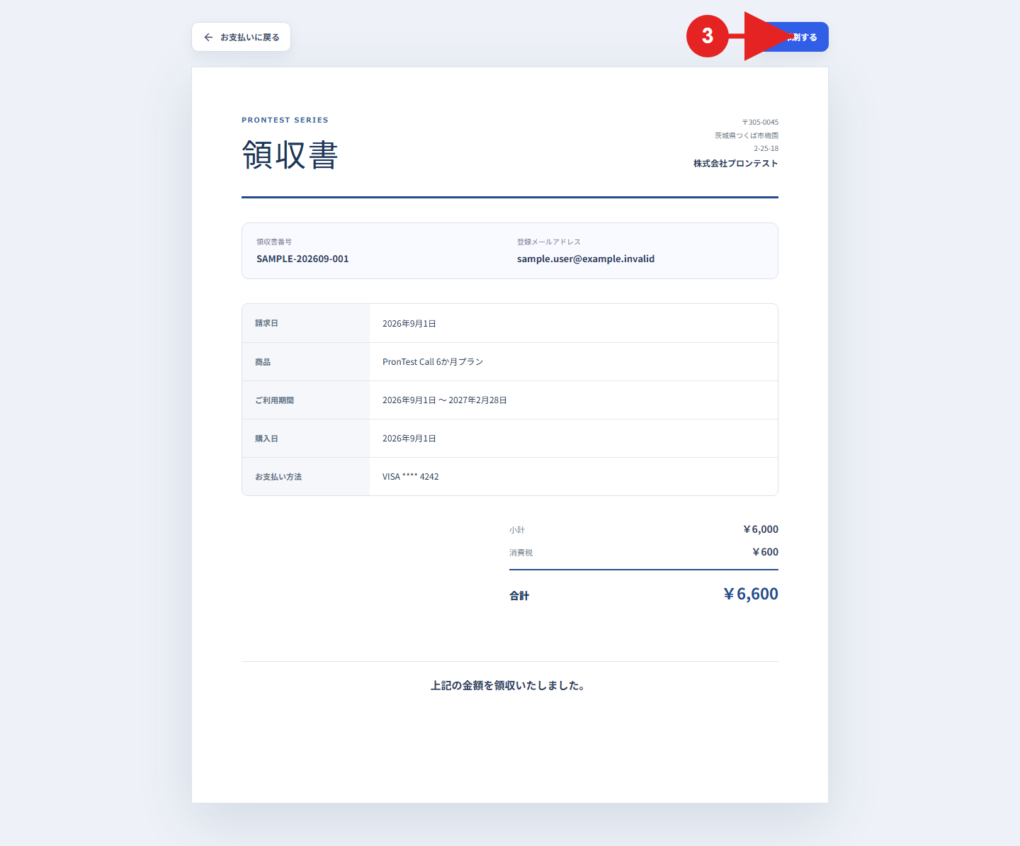
3. On your device’s or browser’s print screen, select an output destination, such as a printer, then print. If your environment lets you select PDF as the destination, you can also save it as a PDF.
4. Check the printout or open the saved file to confirm that the receipt you need has been produced.
If HTML or PDF links are available
1. Press 「HTML」 to view it on screen, or 「PDF」 to open a PDF. Only formats with a displayed link are available.
2. Check the product, covered period, and amount on the page or PDF that opens.
3. To print or save it, use the print or save functions in the opened page or PDF, on your device, or in your browser.
4. Check that the receipt or invoice you produced is for the payment you need.
If you cannot open a receipt
If you see 「領収書を読み込めませんでした。」 (Could not load the receipt), 「領収書のリンクが正しくありません。」 (The receipt link is invalid), 「領収書が見つかりませんでした。」 (The receipt could not be found), or a similar message, use 「お支払いに戻る」 (Return to Payments) to return to the history and reopen the relevant link. If you are asked to log in, use the account used for the purchase.
For App Store or Google Play purchases, check the purchase history or receipt emails from that store. If there is no link in your My Page history, or the error continues after reopening it, contact support with the billing date, program name, amount, and message displayed. Contact PRONTEST