
To unsubscribe from the email newsletter, follow the unsubscribe instructions in an email you received. You do not need to remove your service account if you only want to stop the newsletter.
What to check first
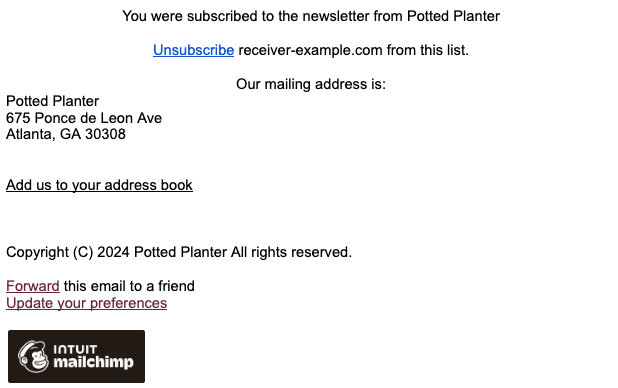
Open the email you want to stop receiving and look for the 「配信停止 / Unsubscribe」 (Unsubscribe) link at the end of the message. If you receive it at multiple email addresses, also check which address the email was sent to.
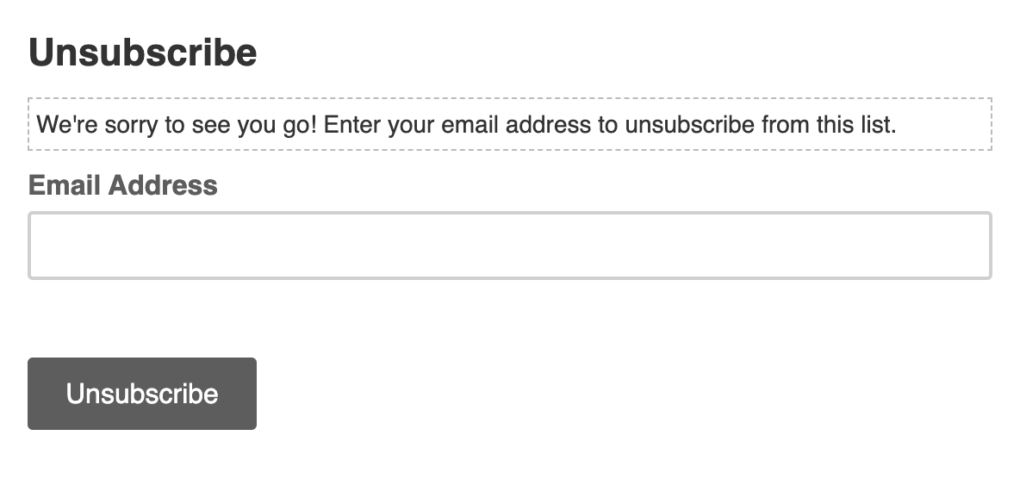
Confirm that you want to unsubscribe on the page opened by the link, and continue until a completion message appears. Simply opening the link does not necessarily complete the process.
If you cannot find or open the link
Contact PRONTEST support with the address that receives the emails and state that you would like to unsubscribe from the email newsletter. Include the subject line and date received so that support can identify the email.
Do not send the personal unsubscribe link in the email you received, your password, or any verification codes.
If emails still arrive after you unsubscribe
Check whether the emails are being sent to a different email address and whether they are from the same mailing you unsubscribed from. If emails keep arriving at the same address, tell support when you unsubscribed, along with the subject lines and dates received of the emails that arrived afterward.
If you want to stop automatic renewal of a paid plan, you need to cancel that subscription. Unsubscribing from the email newsletter does not change your subscription.
Related pages: Contact PRONTEST / About unsubscribing from Mailchimp emails