
ご利用ありがとうございます

なにかお困りですか?

Understand free registration and paid purchases

Free account registration alone does not incur any charges. If you purchase a paid program after registering, you will be billed according to that subscription’s access period and renewal terms. If you are concerned about charges, follow these steps to check prices before purchasing and review any existing subscriptions.

If the My Page sidebar is hidden, select the menu icon to display it.

Log in to My Page

Check prices before purchasing

1. Log in to My Page and open 「ストア」 (Store) in the sidebar.
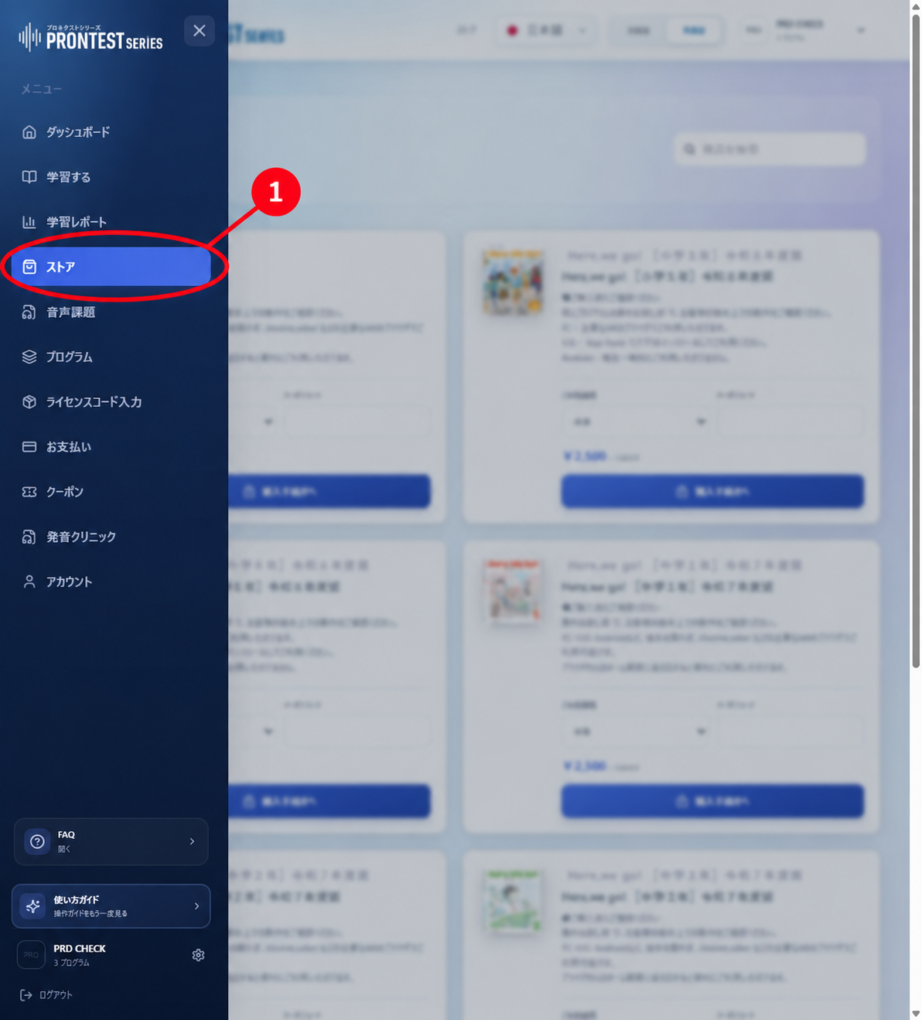
Where to open 「ストア」 (Store). Select the item indicated by the red 1 arrow. Screenshot from September 16, 2026.
Figure 1. Where to open 「ストア」 (Store). Select the item indicated by the red 1 arrow. Screenshot from September 16, 2026.

2. Select the 「ご利用期間」 (Access period) for the program you want to check, then review the price.
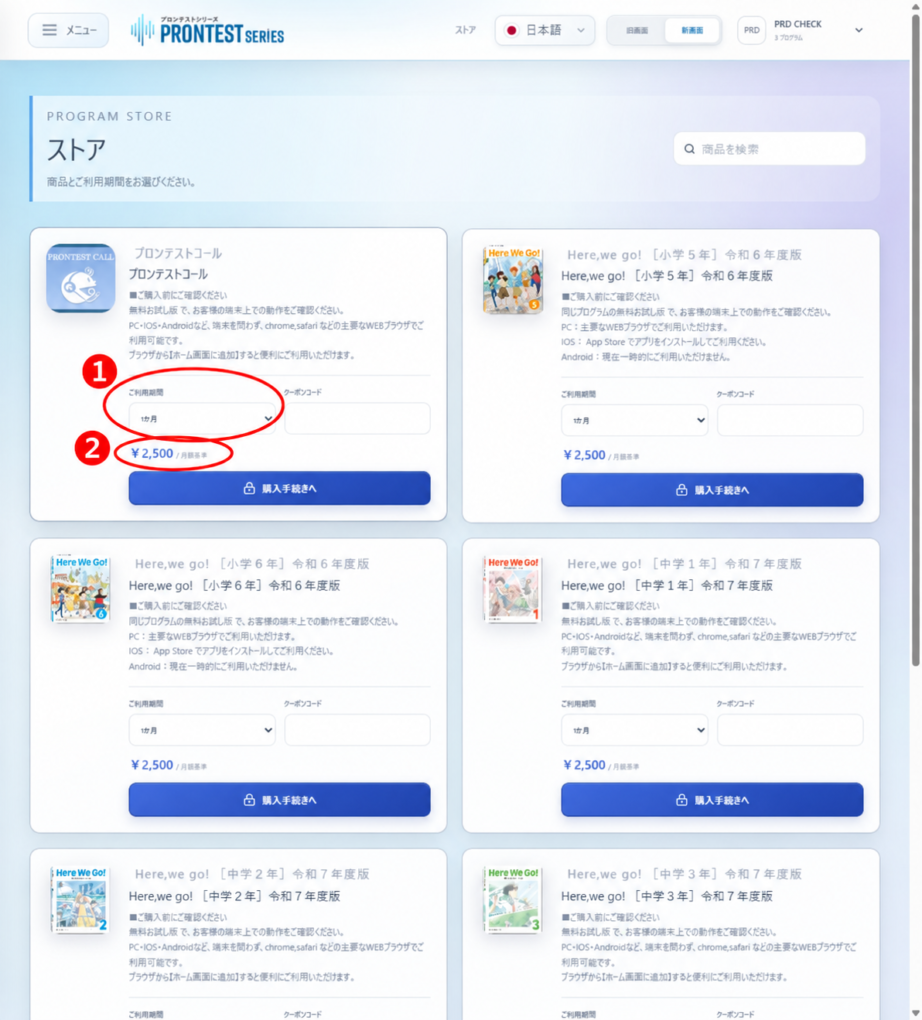
Example product and price display in the Store. The red 1 marks 「ご利用期間」 (Access period); the red 2 marks the 「月額基準」 (Monthly equivalent) price. Prices in the image do not represent current pricing. Screenshot from September 16, 2026.
Figure 2. Example product and price display in the Store. The red 1 marks 「ご利用期間」 (Access period); the red 2 marks the 「月額基準」 (Monthly equivalent) price. Prices in the image do not represent current pricing. Screenshot from September 16, 2026.

3. Check the product name, access period, total amount payable, and whether automatic renewal applies. Distinguish the 「月額基準」 (Monthly equivalent) amount from the total for the entire period. If you only want to check the price, do not select 「購入手続きへ」 (Proceed with purchase). Contact us before purchasing if anything is unclear.

Before selecting the purchase button

Selecting 「購入手続きへ」 (Proceed with purchase) starts the purchase process, and a purchase may be completed immediately using a registered card. If you proceed to card registration during a purchase, the purchase process may resume afterward. Free account registration and registering a card during a purchase are separate actions.

Check whether you have a purchased subscription

1. Open 「お支払い」 (Payments) in the sidebar.
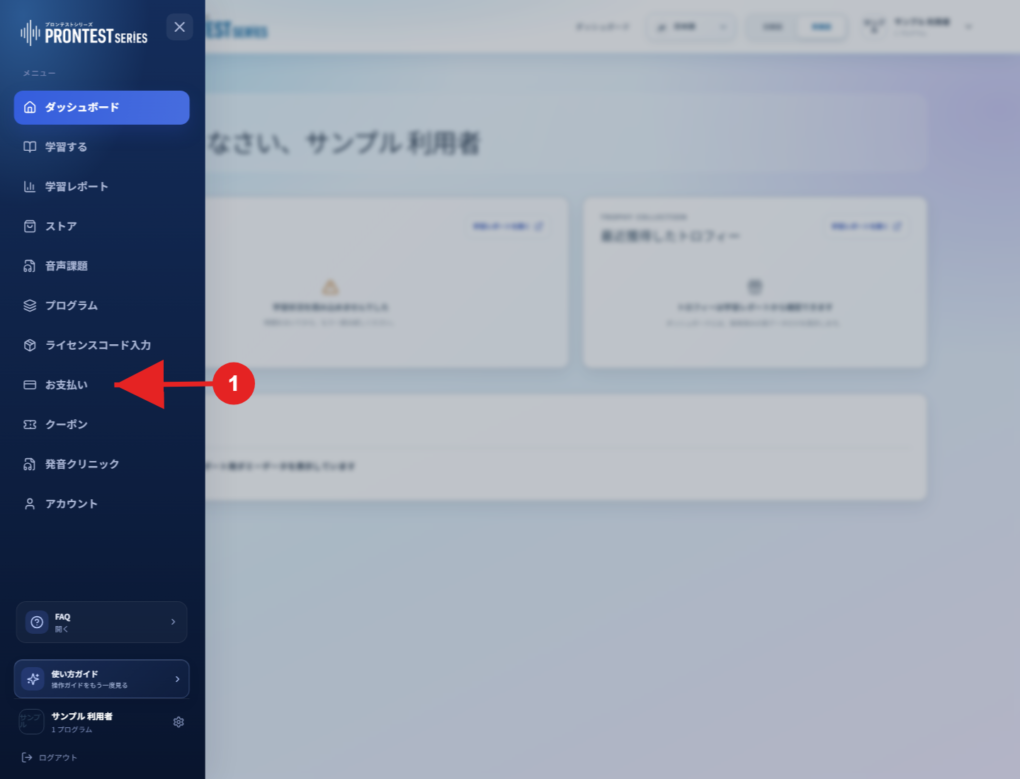
Where to open 「お支払い」 (Payments). Select the item indicated by the red 1 arrow. Screenshot from existing September 2026 material; capture date unknown.
Figure 3. Where to open 「お支払い」 (Payments). Select the item indicated by the red 1 arrow. Screenshot from existing September 2026 material; capture date unknown.

2. Check whether a purchased program appears under 「ご契約」 (Your subscriptions).
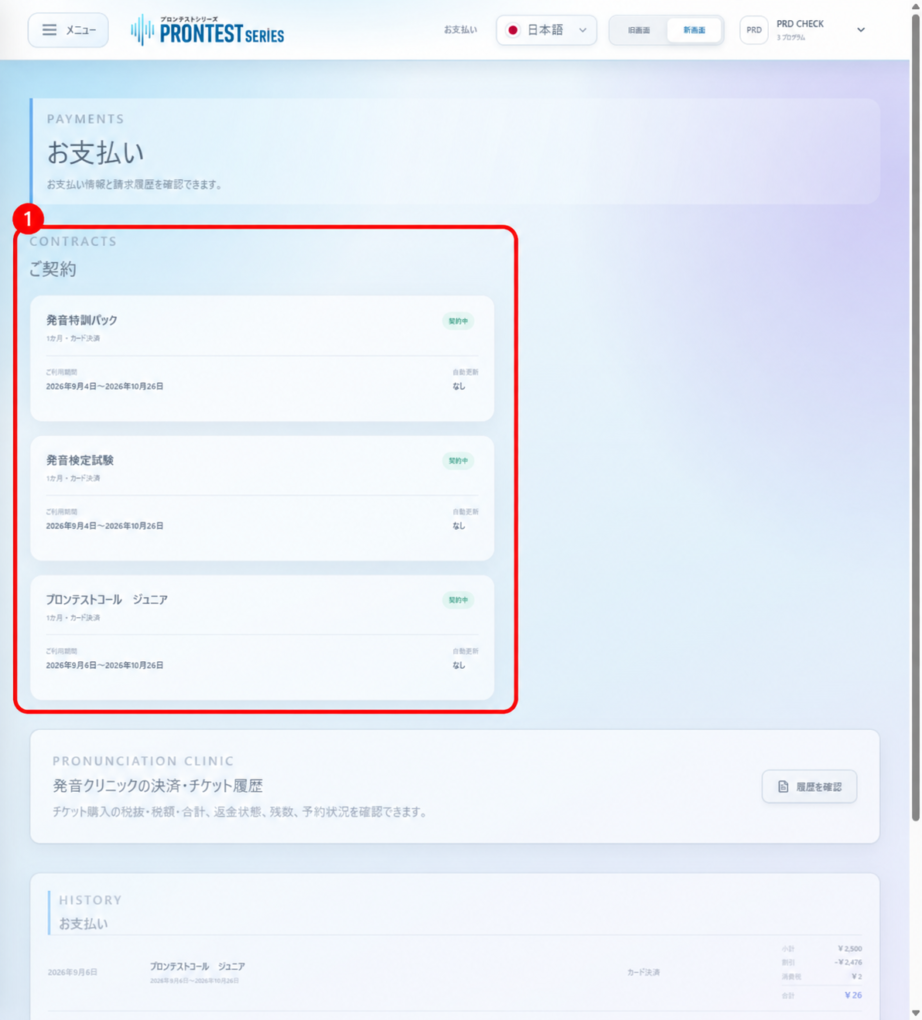
Example 「ご契約」 (Your subscriptions) display. In the red box marked 1, check the program name, payment method, access period, and automatic renewal status. In this example, automatic renewal is 「なし」 (None), so there is no stop button. Screenshot from September 16, 2026.
Figure 4. Example 「ご契約」 (Your subscriptions) display. In the red box marked 1, check the program name, payment method, access period, and automatic renewal status. In this example, automatic renewal is 「なし」 (None), so there is no stop button. Screenshot from September 16, 2026.

3. If you have a subscription, check its access period, automatic renewal status, and billing history.
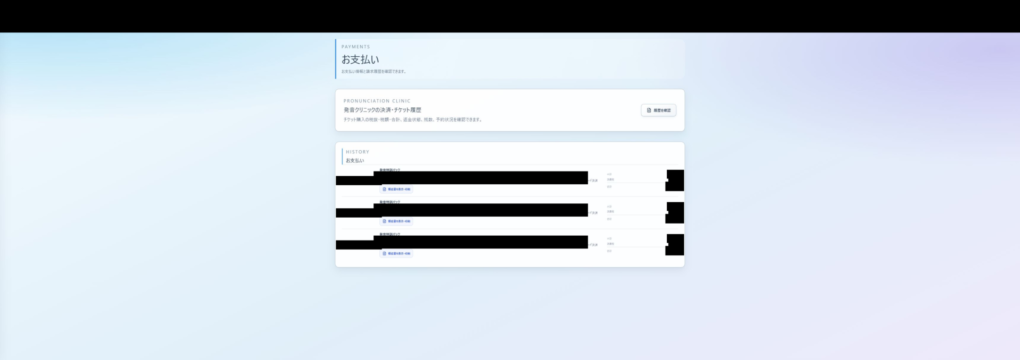
Where to find billing history. Each payment has a 「領収書を表示・印刷」 (View/print receipt) link. Purchase information has been hidden in this image. Screenshot from October 6, 2026.
Figure 5. Where to find billing history. Each payment has a 「領収書を表示・印刷」 (View/print receipt) link. Purchase information has been hidden in this image. Screenshot from October 6, 2026.

If you do not recognize a charge

For subscriptions purchased through Apple, also check Apple’s Subscriptions screen. If you cannot find the subscription in My Page, compare your receipts and check whether you used a different account or purchase channel.

If you still cannot identify the biller or subscription, contact the support address listed in your purchase information or billing notice. Do not send your full card number or security code.

Related articles

Does free registration alone incur charges?

Purchase an app through My Page

Launch a free app