
After logging in, open 「アカウント」 (Account) to change your details. Log in to the account you want to update, enter the new information, and select 「変更を保存」 (Save changes).
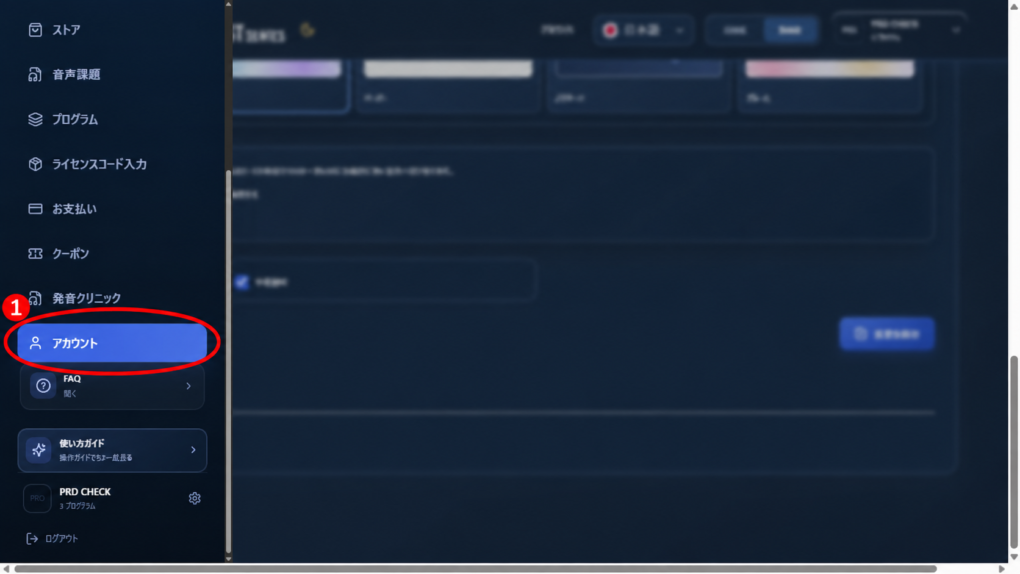
Open Account
- Log in to the PRONTEST Series.
- If the sidebar is hidden, select the menu icon.
- Select 「アカウント」 (Account) in the sidebar.
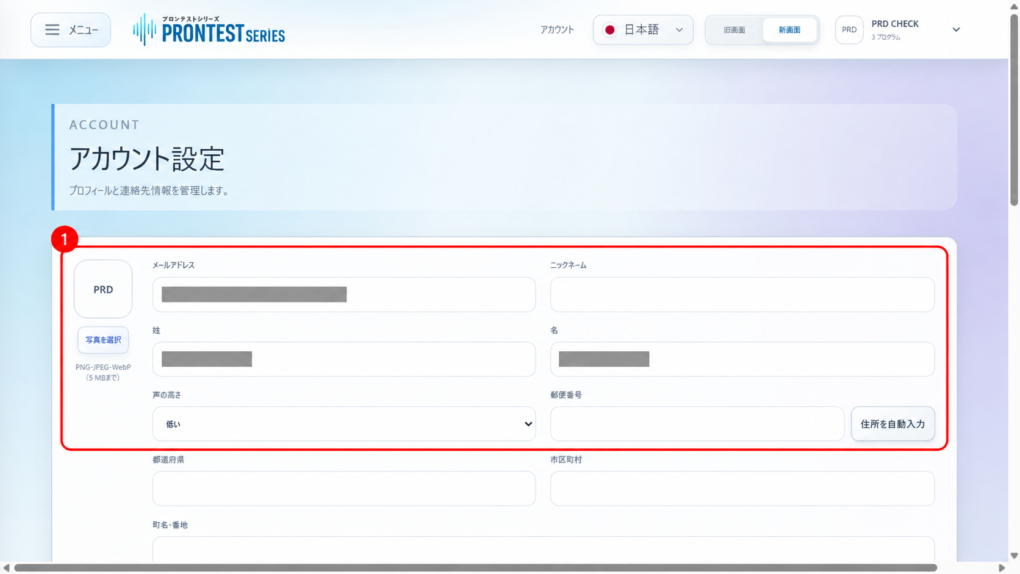
Enter the details you want to change
- Select the field you want to change.
- Enter the new information.
「メールアドレス」 (Email address), 「姓」 (Last name), and 「名」 (First name) are required. To change your address, phone number, or other details, enter them in the corresponding fields.
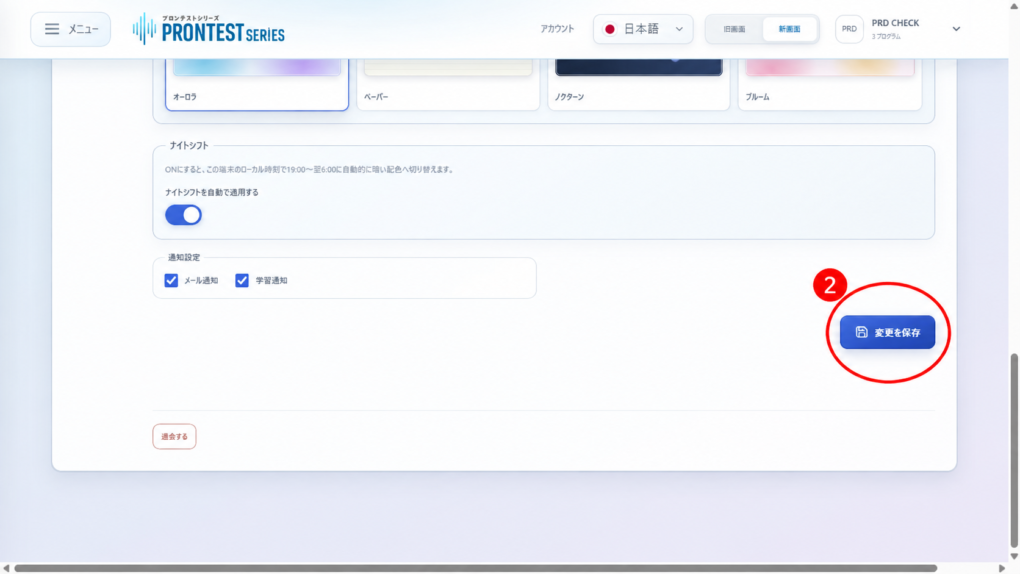
Save your changes
- Check the information you entered.
- Select 「変更を保存」 (Save changes). Check that 「保存しました。」 (Saved) appears.
- Reopen the Account screen.
- Check that the updated details are displayed.
Before changing your email address
Check your new email address for typing errors. If you log in with Google, Microsoft, or Apple and want to change the email address on that external service itself, use that service’s account settings.
If your changes cannot be saved
If an error such as 「保存できませんでした。」 (Could not save) appears, check the fields indicated in the message. If the old details still appear after saving, tell support which fields you want to change and the message displayed. Do not send your password.
Related pages: My Page login page / Contact PRONTEST