
ご利用ありがとうございます

なにかお困りですか?

Are receipts available?

local_offer一般的なご質問

Yes. You can view the relevant receipt or invoice using the links in your My Page payment history. Depending on the payment type, you will see 「領収書を表示・印刷」 (View/print receipt) or links labeled 「HTML」 and 「PDF」.

If the My Page sidebar is hidden, select the menu icon to display it.

Log in to My Page

Open a receipt

1. Log in with the account used for the purchase, then open 「お支払い」 (Payments) in the sidebar.
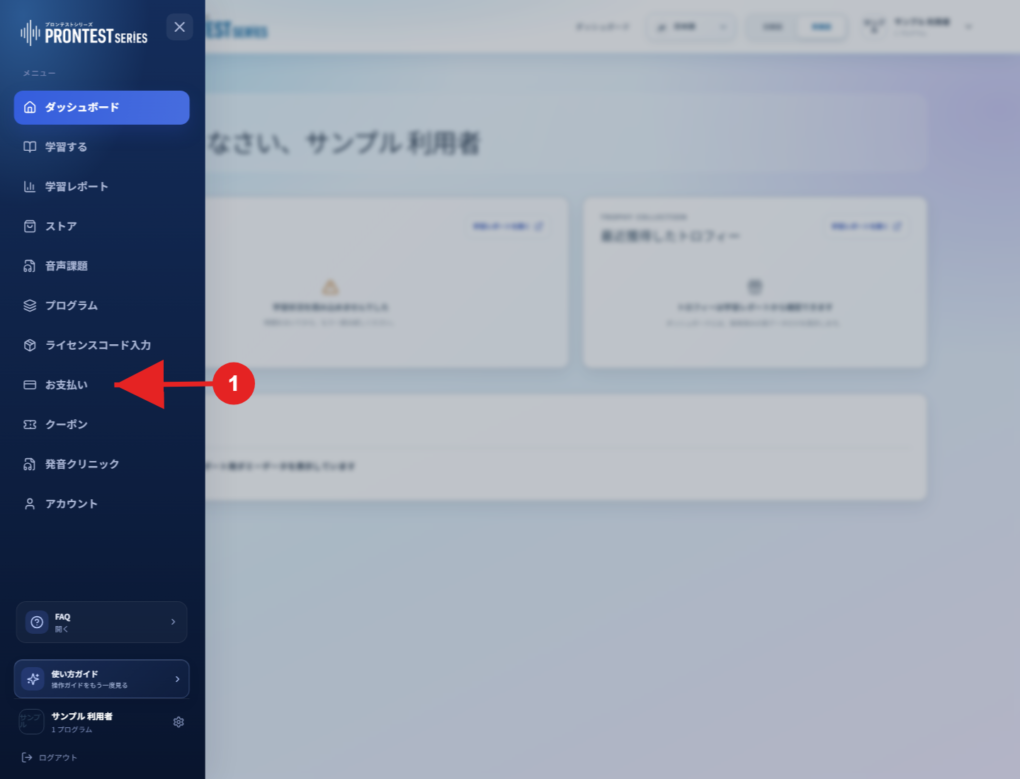
Where to open 「お支払い」 (Payments). Select the item indicated by the red 1 arrow. Screenshot from an existing article, from September 2026 material; capture date unknown. The current screen may look different.
Figure 1. Where to open 「お支払い」 (Payments). Select the item indicated by the red 1 arrow. Screenshot from an existing article, from September 2026 material; capture date unknown. The current screen may look different.

2. In the history, check the relevant billing date, program name, access period, and amount.

3. If 「領収書を表示・印刷」 (View/print receipt) appears, open that link. If 「HTML」 or 「PDF」 appears, open the link for the format you need.
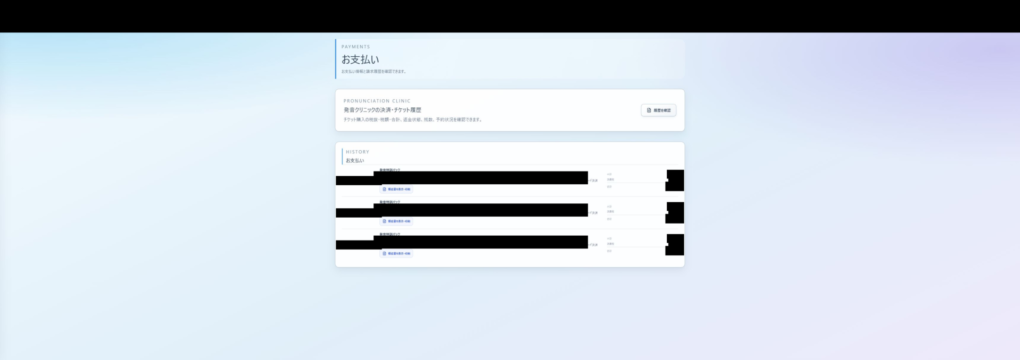
Where to find billing history. Each payment has a 「領収書を表示・印刷」 (View/print receipt) link. Purchase information has been hidden in this image. Screenshot from October 6, 2026.
Figure 2. Where to find billing history. Each payment has a 「領収書を表示・印刷」 (View/print receipt) link. Purchase information has been hidden in this image. Screenshot from October 6, 2026.

4. Check the details displayed. Print using 「印刷する」 (Print) on the receipt screen, or the print function of the opened page or PDF.
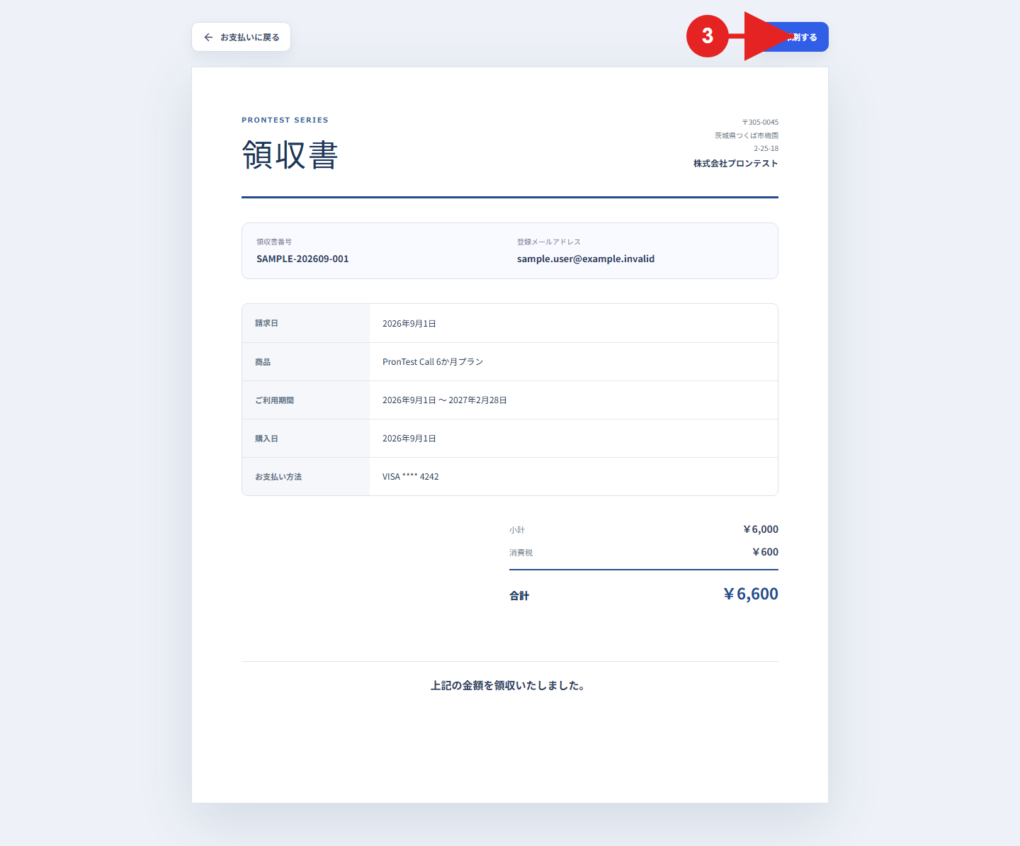
Example PRONTEST receipt screen. Check the product, access period, subtotal, consumption tax, and total, then proceed using 「印刷する」 (Print), marked with the red 3. The contents are sample data. Screenshot from an existing article, from September 2026 material; capture date unknown. The current screen may look different.
Figure 3. Example PRONTEST receipt screen. Check the product, access period, subtotal, consumption tax, and total, then proceed using 「印刷する」 (Print), marked with the red 3. The contents are sample data. Screenshot from an existing article, from September 2026 material; capture date unknown. The current screen may look different.

If you cannot find the payment

Check the account used for the purchase and the billing date. A history entry may be present without a link. For App Store or Google Play purchases, check the receipt email or purchase history from that store.

If you paid through My Page but cannot find the relevant history entry or receipt, contact support with the purchase date, program name, and amount. For detailed steps, see View and print a receipt.

Related articles

View and print a receipt