
If you want to remove your PRONTEST Series account, complete the withdrawal procedure under 「アカウント」 (Account) in My Page. The holder of the account being removed must perform the steps themselves.
Before you start
If you want to stop recurring charges, first stop automatic renewal with the purchase provider. Confirm on that provider’s subscription screen that renewal has stopped before proceeding with account withdrawal. Completing account withdrawal alone does not establish that your paid plan has been canceled.
Before removing your account, check any registered information or purchase records you need.
Open Account
- Log in with the account you want to remove.
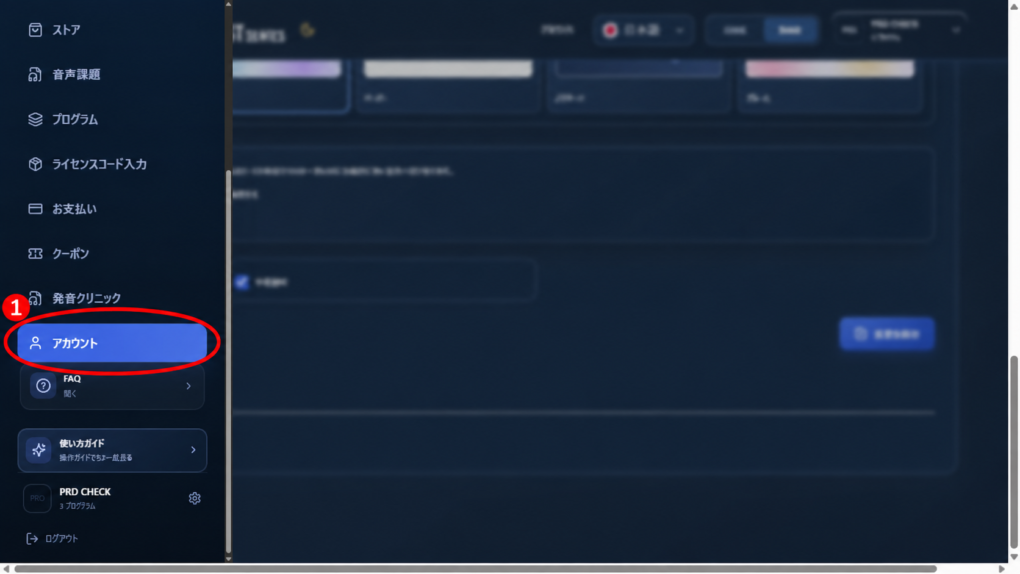
- If the sidebar is not displayed, press the menu icon.
- Select 「アカウント」 (Account) in the sidebar.
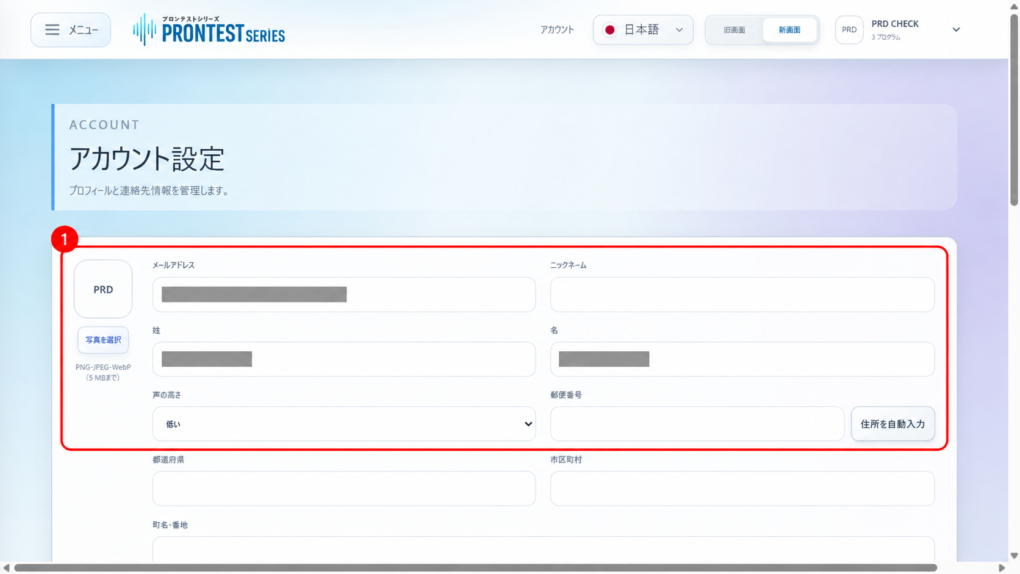
- Check the registered email address displayed.
Confirm account withdrawal
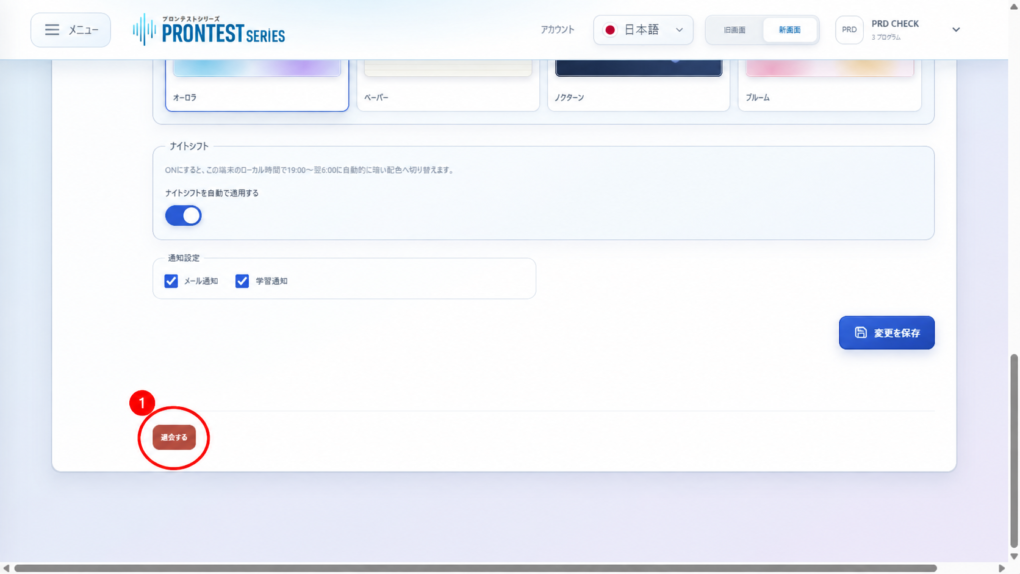
- Press 「退会する」 (Remove service account).
- Read the confirmation message.
- If you want to proceed, confirm account withdrawal in the browser’s confirmation dialog.
If the process succeeds, you will be logged out and will no longer be able to use the service with that account. If you cancel in the confirmation dialog, the account has not been removed.
If an error appears
If an error appears or you are unsure whether the process has finished, make a note of the message displayed and contact support. Do not judge the cancellation status of your paid plan solely from whether account withdrawal succeeded.
If you cannot log in
If you cannot log in, see “If you cannot log in” in Leaving PRONTEST Series. Restore your ability to log in using your original registration method, then complete the account withdrawal procedure yourself.
If you want to check how your information will be handled after leaving the service, contact support before starting the procedure. Your password, verification codes, and credit card number are not needed.
Related pages: My Page login page / Contact PRONTEST