
This article is for people who registered by entering an email address and setting a PRONTEST Series password. Reset it using 「パスワードを忘れた方」 (Forgot your password) on the login screen. Make sure you can open the inbox for your registered email address while following these steps.
Send a reset email if you registered with an email address
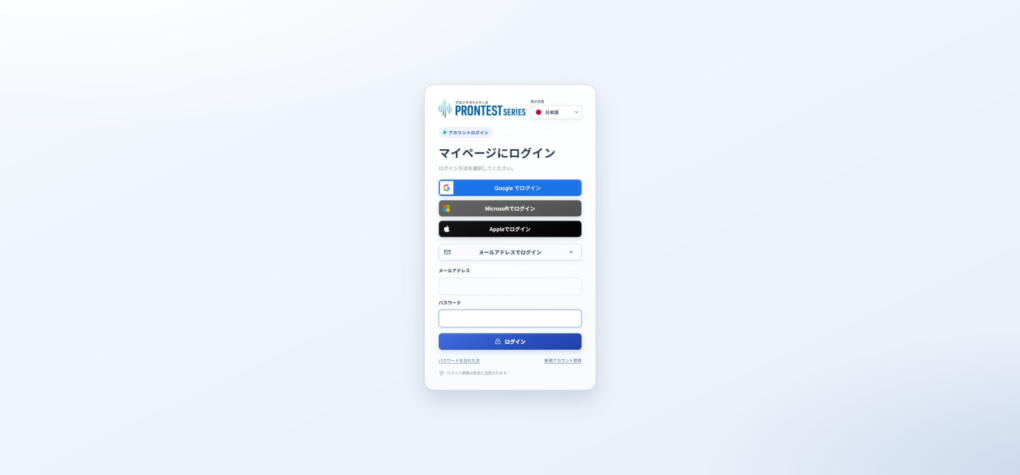
- Open the PRONTEST Series login page.
- Press 「パスワードを忘れた方」 (Forgot your password).
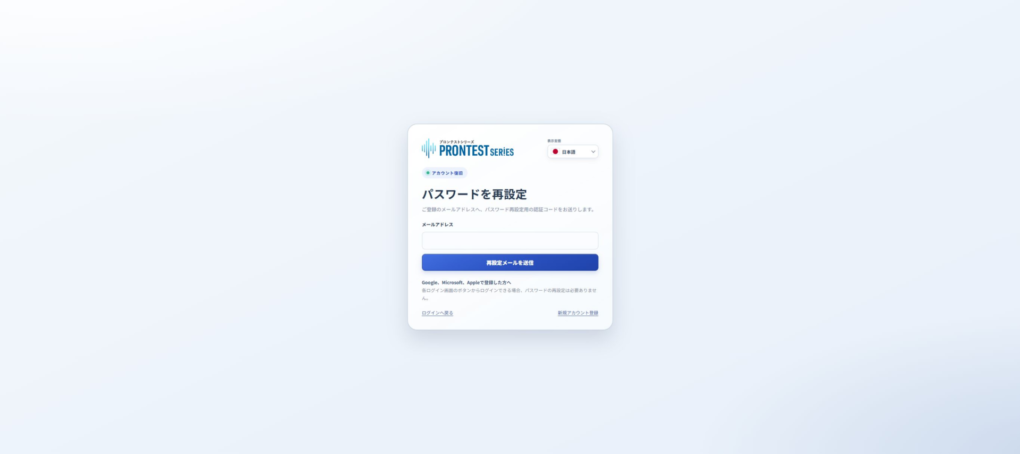
- Enter your registered email address.
- Press 「再設定メールを送信」 (Send reset email).
- Open the password reset email in your inbox.
Set a new password
- Open the reset link provided in the email.
- Check the email address on the reset screen. If the field is empty, enter your registered email address.
- Enter the verification code provided in the email.
- Enter the password you want to use in 「新しいパスワード」 (New password).
- Enter the same password in 「新しいパスワード(確認)」 (New password, confirmation).
- Press 「パスワードを再設定」 (Reset password).
The reset is complete when 「パスワードの再設定が完了しました」 (Your password has been reset) appears. Log in from the login page with your registered email address and new password.
Your password must be 8–256 characters long and contain at least one half-width uppercase English letter, one half-width lowercase English letter, and one half-width digit. Half-width symbols are also allowed. Spaces and full-width characters are not allowed.
If you cannot proceed with the email or verification code
If the email does not arrive, check the email address you entered, your spam folder, and your trash. If it still does not arrive, contact support.
If a message says that the link or verification code is invalid, restart the reset process using 「パスワードを忘れた方」 (Forgot your password) on the login screen. Check the code in your own email and on the screen; do not send it to support.
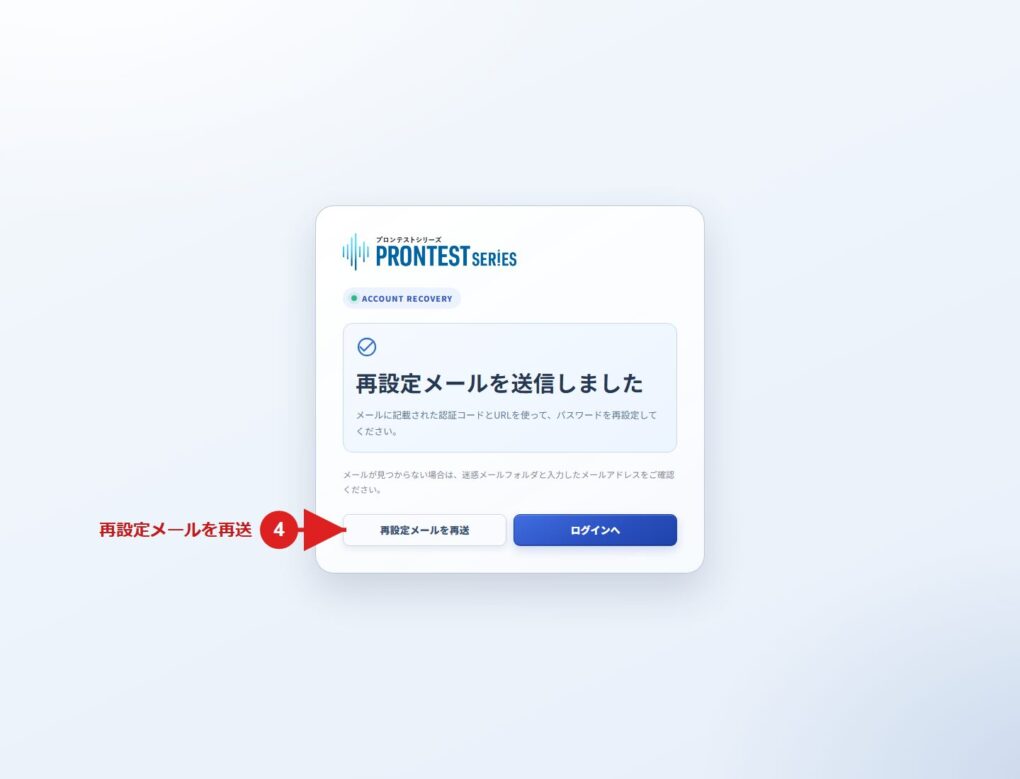
You can resend the email using 「再設定メールを再送」 (Resend reset email) on the screen shown after sending. Even if a message says it was sent, check that you actually received the email.
If you registered using an external account, see the Google recovery article, the Microsoft recovery article, or Apple’s official recovery instructions.
Related pages: My Page login page / Contact PRONTEST
Related articles
If you registered with Google and do not receive a password reset email
If you registered with Microsoft and do not receive a password reset email