
For a subscription purchased through My Page, stop automatic renewal for the relevant program under 「お支払い」 (Payments). You can continue learning until the end of your paid access period. Screens differ by subscription, so follow the controls displayed for yours.
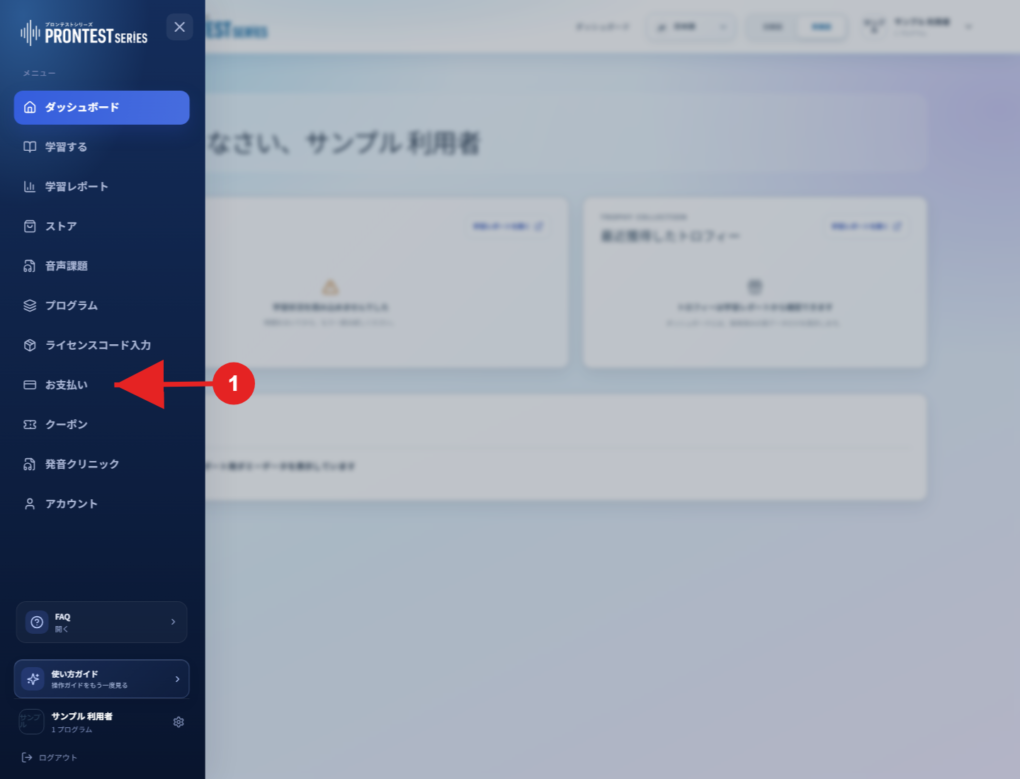
If the My Page sidebar is hidden, select the menu icon to display it.
Open the relevant subscription
1. Log in to My Page with the account that holds the subscription.
2. Open 「お支払い」 (Payments) in the sidebar.
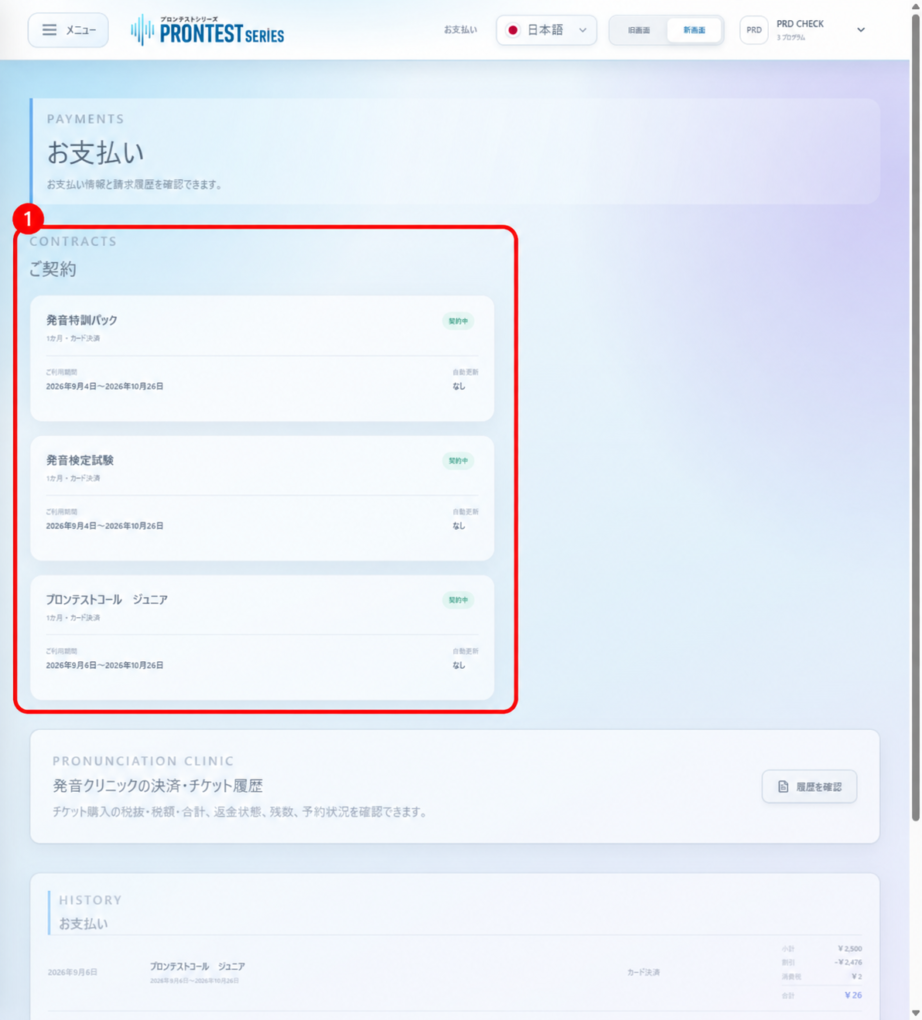
3. Under 「ご契約」 (Your subscriptions), check the name, access period, and automatic renewal status of the program you want to stop renewing. If you have multiple subscriptions, make sure you select the correct one.
If there is a stop button
1. Select 「自動更新を停止」 (Stop automatic renewal) for the relevant subscription.
2. If 「停止を検討している理由(任意)」 (Reason for considering stopping, optional) appears, select a reason and then 「次へ」 (Next). To skip the question, leave 「回答しない」 (No answer) selected. You may go directly to the confirmation screen without seeing a reason screen.
3. When the confirmation screen appears, check the subscription and instructions, then select 「停止する」 (Stop). If an offer to continue appears, you must still select 「停止する」 (Stop) to stop renewal. Selecting 「特典を使って継続」 (Continue with the offer) does not stop automatic renewal.
4. Check that 「自動更新を停止しました。現在の利用期間終了まで利用できます。」 (Automatic renewal has been stopped. You can continue using the service until the current access period ends) appears.
5. Check that automatic renewal for the subscription is now 「なし」 (None), and check the access end date.
If there is a No automatic renewal checkbox
1. Check 「自動更新なし」 (No automatic renewal) for the relevant subscription. Do not change the access period.
2. Select 「変更を保存」 (Save changes). Checking the box alone does not save the change.
3. Check that 「保存しました。」 (Saved) appears and that 「自動更新なし」 (No automatic renewal) remains checked.
If you cannot stop renewal
Errors such as 「継続特典を確認できませんでした。」 (Could not check the continuation offer) or 「自動更新を停止できませんでした。」 (Could not stop automatic renewal) mean the process is not complete. Wait a while and check again. If the error persists, contact support and mention if your renewal date is near.
Subscriptions with 「自動更新」 (Automatic renewal) set to 「なし」 (None) do not show a stop button. If the status is 「確認中」 (Checking), or it is 「あり」 (Enabled) but you cannot use the controls, contact us with the subscription and access period. Do not assume renewal has stopped just because there is no button.
Check the purchase channel and deadline
Cancel subscriptions purchased through Apple or Google Play in the store where you bought them. My Page controls cannot stop store subscriptions.
Check your subscription’s terms for the deadline to stop renewal. Older ongoing subscriptions may have different deadline rules from newly purchased ones. Do not wait until just before the deadline; check the status after completing the steps. Sales terms and the deadline to stop automatic renewal Cancel a Google Play subscription
Related articles
Check automatic renewal settings