
Cancel subscriptions purchased through Apple in 「設定」 (Settings) on your iPhone or iPad. For subscriptions purchased through PRONTEST My Page, use 「お支払い」 (Payments) in My Page. The purchase channel determines where you cancel, regardless of the device you use.
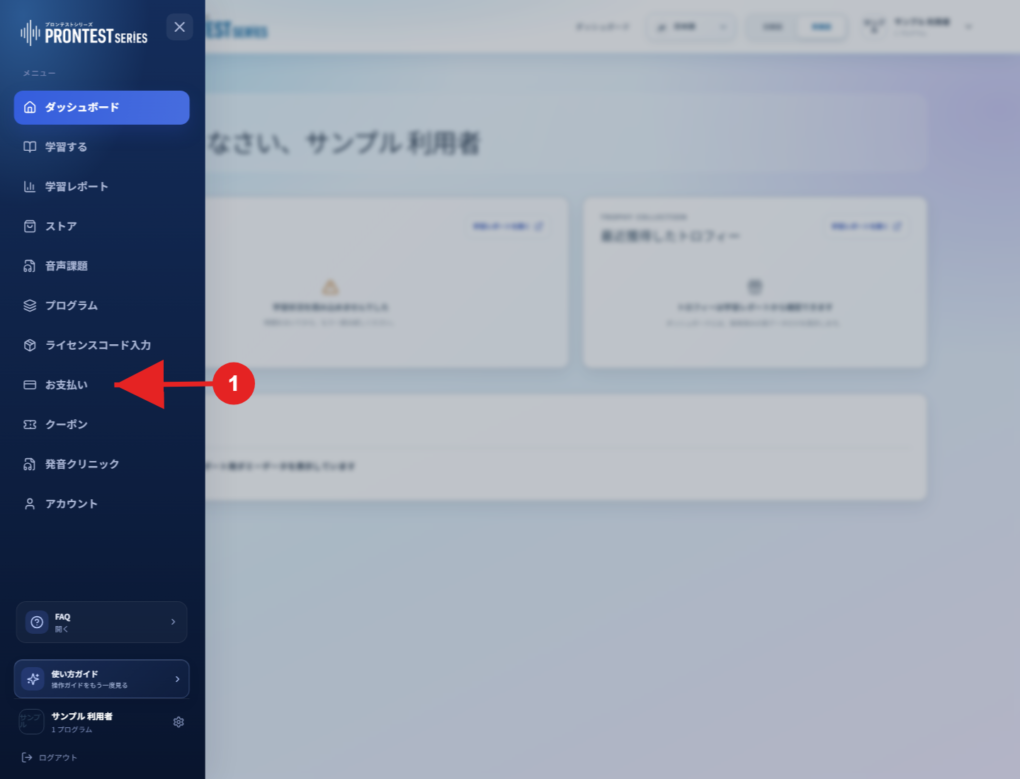
If the My Page sidebar is hidden, select the menu icon to display it.
Cancel a subscription purchased through Apple
1. Check that you are signed in to the iPhone or iPad with the Apple Account used for the purchase.
2. Open 「設定」 (Settings), then select your name at the top.
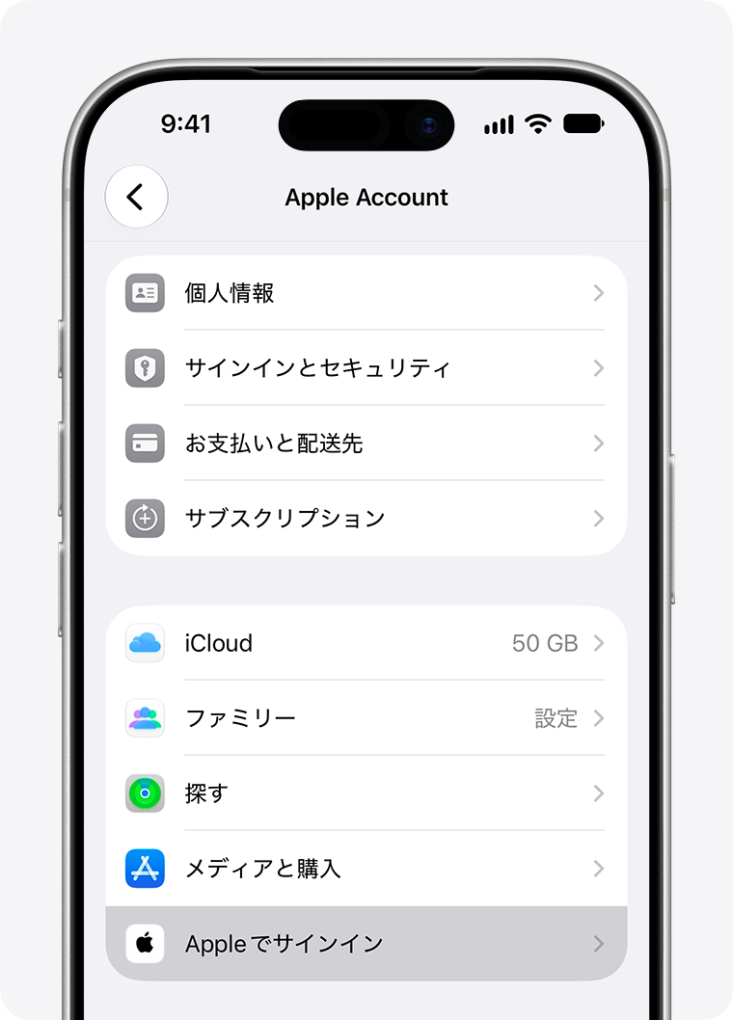
3. Open 「サブスクリプション」 (Subscriptions) and select the subscription you want to cancel.
4. Select 「サブスクリプションをキャンセル」 (Cancel Subscription). If you do not see it, check the bottom of the screen. If a confirmation screen appears, read it and complete the process.
5. Return to the subscription screen and check its status after cancellation and its access end date.
If you cannot find the subscription or cancel button
If the subscription is not listed, check the Apple Account shown on your Apple receipt. Check purchases made with another Apple Account using that account. If it was purchased with a family member’s account, ask them to complete the process.
According to Apple’s instructions, if there is no cancel button on the subscription’s screen, or a red expiration message appears, the subscription is already canceled. Do not assume it is canceled merely because you cannot find the subscription in the list.
If you purchased through My Page
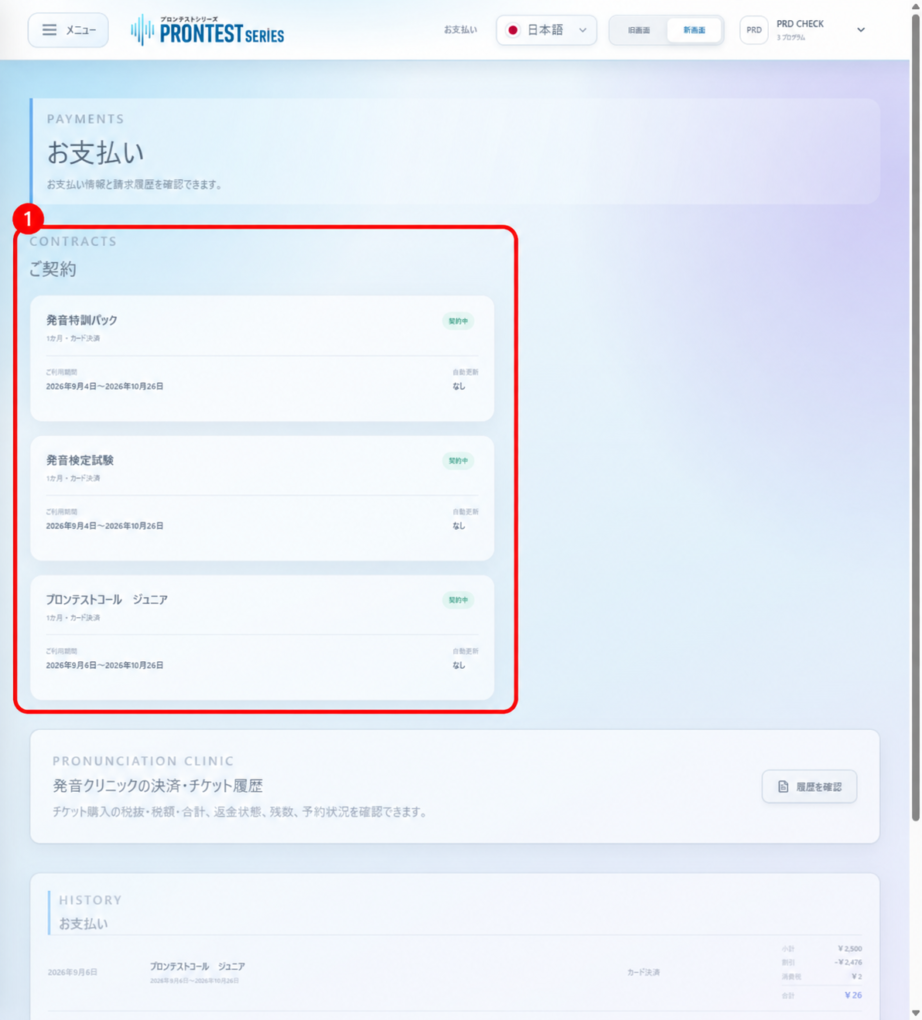
Log in to My Page and open 「お支払い」 (Payments) in the sidebar. Find the program under 「ご契約」 (Your subscriptions), then follow Stop automatic renewal in My Page. Changing Apple settings does not change automatic renewal for a subscription purchased through My Page.
After completing the process
Uninstalling an app and canceling a subscription are separate actions. Check the access end date and billing status on the subscription screen for the purchase channel. Cancel an Apple subscription