
If you cannot find your learning history, check the account and program you used for learning. What to check differs depending on whether a loading error is displayed or the screen opens but you cannot find the history.
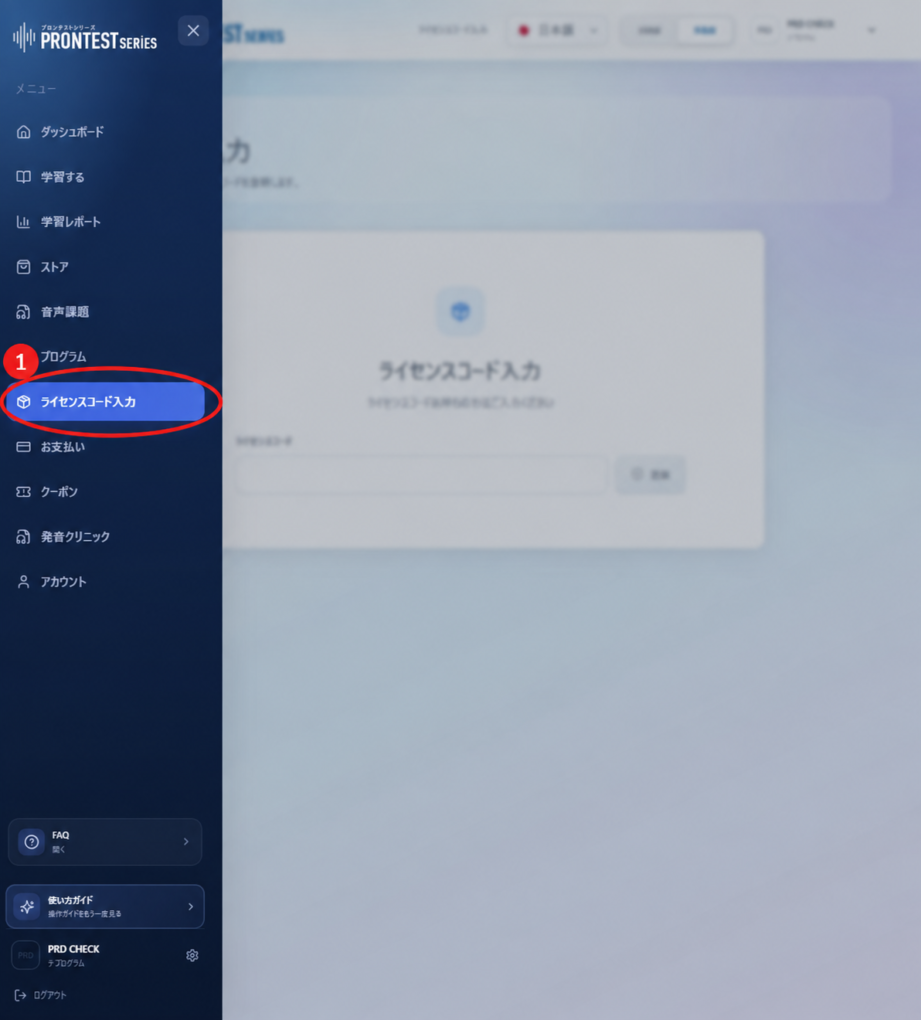
If you cannot see the sidebar in My Page, press the menu icon to display it.
Check the account you used for learning and the display filters
1. Log in to My Page with the account you used for learning, then open 「学習レポート」 (Learning report) in the sidebar.
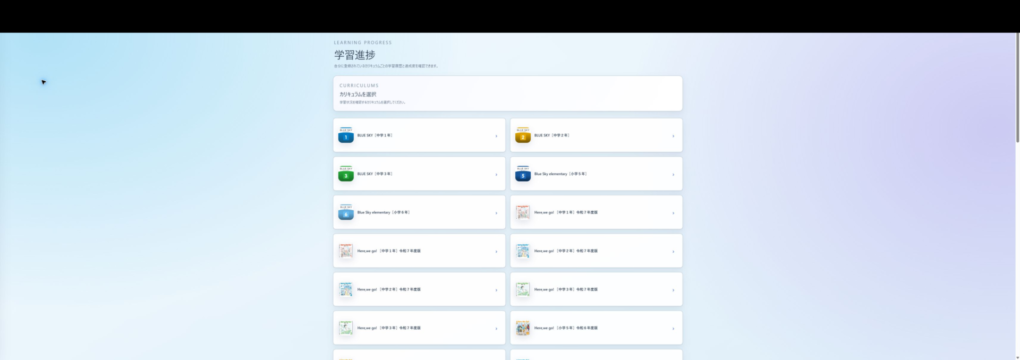
2. Under 「カリキュラムを選択」 (Select curriculum), select the curriculum you studied.
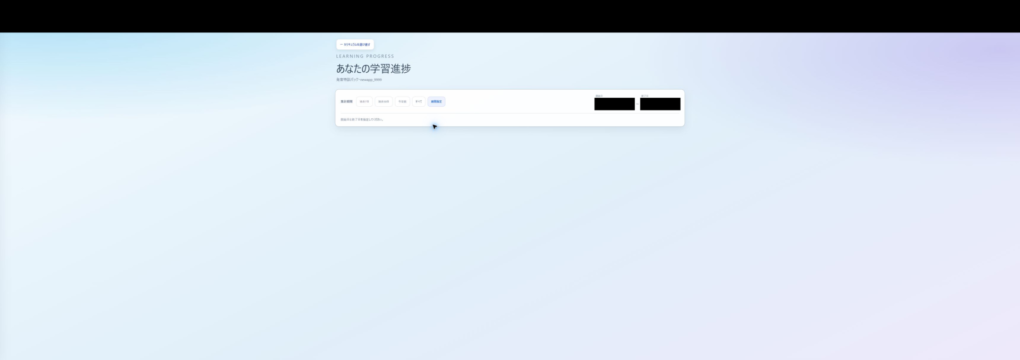
3. Set 「集計期間」 (Reporting period) to 「すべて」 (All). To narrow the period, select an option that includes the date you studied from 「過去7日」 (Past 7 days), 「過去30日」 (Past 30 days), 「今学期」 (This term), or 「期間指定」 (Specify period).
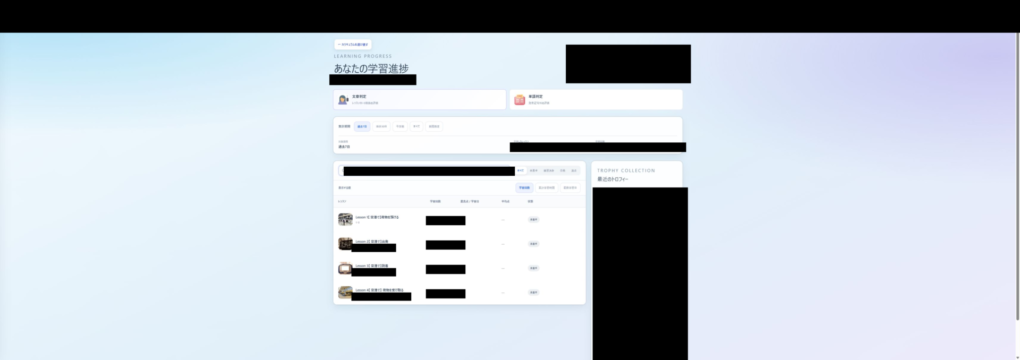
4. Clear any text in search fields such as 「レッスン名で検索」 (Search by lesson name), and set the status filter to 「すべて」 (All) as well.
5. If 「文章判定」 (Sentence evaluation) and 「単語判定」 (Word evaluation) are displayed, select the evaluation you want to check. The types available vary by curriculum.
If you cannot select a curriculum in the list
Curricula that do not support detailed learning reports cannot be selected in the list. If you can open other curricula but cannot select the one you want, check this separately from a screen loading failure.
If the learning material or your school provides another way to check your history, follow those instructions. If you do not know how to check it, contact the person in charge or support with the curriculum name.
If a loading error is displayed
1. Check that you can connect to the internet.
2. If 「学習進捗を読み込めませんでした」 (Could not load learning progress) is displayed, press 「再読み込み」 (Reload).
3. Once loading finishes, check whether learning progress for the relevant program is displayed.
If the screen opens but there is no history
Check whether you studied using a different account. If you used both email-and-password login and Google, Microsoft, or Apple login, make sure you are checking the same account you used for learning.
If you still cannot find your history after reselecting the period or program, contact support with the following information.
Information to include in your inquiry
• The names of the program and lesson you studied
• The date and time you studied, and the period selected in the learning report
• The message displayed and the steps you have tried
• Your device, and the names and versions of your OS and browser. Contact PRONTEST